
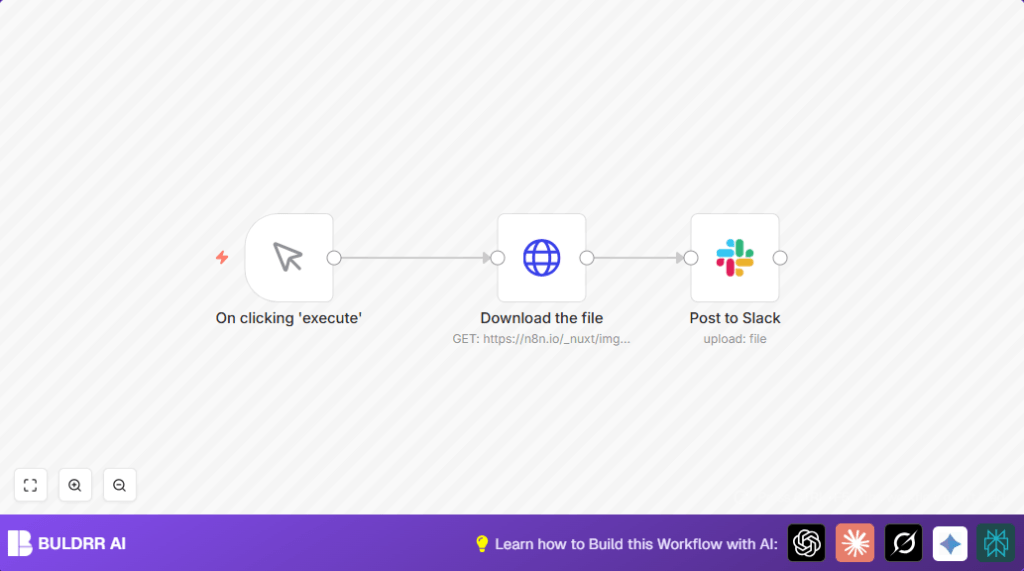

What this workflow does
This workflow downloads a file from a given web URL and then posts that file to a chosen Slack channel automatically.
It saves time by removing the need to download and upload files manually every day.
Who should use this workflow
This workflow is good for people who share frequent updates or files with a team on Slack.
If files are on a changing URL and must be shared quickly, this workflow helps avoid mistakes and delays.
Tools and services used
- n8n platform: Runs the automation workflow.
- HTTP Request node: Downloads the file from the internet.
- Slack node with OAuth2: Sends the file to a Slack channel.
- Internet connection: Needed to access the file and Slack.
Workflow inputs, processing steps, and outputs
Inputs
- Manual trigger from the user to start the workflow.
- URL of the file to retrieve.
- Slack channel ID to post the file.
Processing Steps
- The Manual Trigger node waits for execution from the user.
- The HTTP Request node downloads the file from the URL with response as a file.
- The Slack node uploads the downloaded file to the specified channel, adding a comment like “This is the file”.
Output
The specified Slack channel receives the uploaded file instantly with a comment for context.
Beginner step-by-step: How to use this workflow in n8n
Step 1: Import the workflow
- Download the workflow file by clicking the Download button on this page.
- Open the n8n editor you are using.
- Choose “Import from File” and select the downloaded workflow file.
Step 2: Configure credentials and details
- Add your Slack OAuth2 credentials to the Slack node for authentication.
- Update the HTTP Request node with the exact URL of the file to download.
- Change the Slack channel ID in the Slack node to where the file should be posted.
Step 3: Test the workflow
- Run the workflow manually by clicking “Execute Workflow”.
- Check your Slack channel to verify the file appears with the comment.
Step 4: Activate for production
- Turn on the workflow if you want to run it manually any time.
- If automated runs are needed, add a Cron node before the HTTP Request node for scheduling.
- Save all changes and monitor to ensure reliable file sharing.
For users who run self-host n8n, importing and activating this workflow works the same way.
Customization ideas
- Change the file URL in the HTTP Request node to share different documents.
- Change the Slack channel ID to send files to other teams or private channels.
- Edit the initial comment in the Slack node to add specific messages or context.
Edge cases and common failures
- Slack authentication error: Happens if OAuth2 token expired or is wrong. Fix by re-authenticating Slack credentials.
- Download error: Occurs when URL is wrong or inaccessible. Fix by checking the link in a browser first.
Summary of results
✓ Saves 20-30 minutes daily on file sharing work.
✓ Automates file delivery to Slack fast and error-free.
✓ Keeps team updated instantly with newest files on Slack.
→ Reduces manual steps and delays in sharing important documents.
