
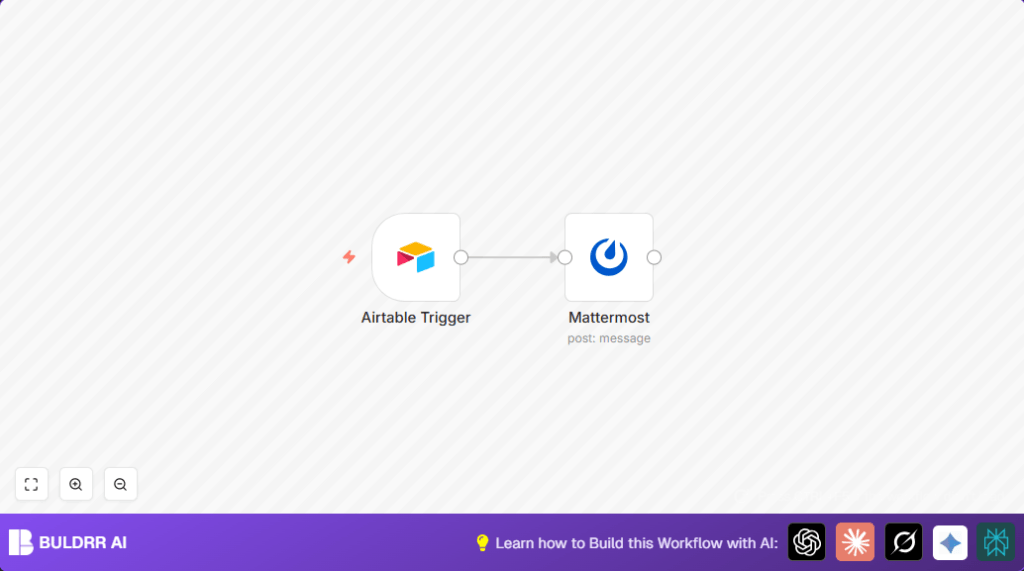

What this workflow does
This workflow checks Airtable every minute for new data added to a specific table.
When new data appears, it sends a message to a Mattermost channel with key details like ID and Name.
This helps teams get immediate alerts without checking Airtable manually.
The goal is to save time and avoid missing important updates.
The workflow runs automatically.
It picks up fresh entries and shares their info right away.
This stops delays and duplicate work caused by missed messages.
Who should use this workflow
Teams that use Airtable to hold data and Mattermost for communication.
Anyone who needs quick updates when new Airtable records come in.
This is good if team members waste time checking Airtable manually.
Also if missed alerts cause project delays or errors.
Tools and services used
- n8n: Runs the workflow automation.
- Airtable API: Provides access to the data base and table.
- Mattermost API: Sends chat messages to the chosen channel.
Inputs, Processing, and Outputs
Inputs
- New records in Airtable “Data” table.
- Fields like “id”, “name”, and “Created” timestamp.
Processing Steps
- Airtable Trigger node polls table each minute.
- Detects new records based on “Created” field.
- Extracts relevant fields from record.
- Formats notification message with fields.
- Posts message to Mattermost channel.
Outputs
- Real-time Mattermost messages reporting new Airtable entries.
- Saved time and reduced manual notifications.
- Improved team communication and project flow.
Beginner step-by-step: How to use this workflow in n8n
Step 1: Import workflow
- Download the workflow file using the Download button on this page.
- Inside the n8n editor, click on “Import” then “Import from File”.
- Select the downloaded workflow file to load it.
Step 2: Configure credentials
- Set up Airtable API credentials with your API key and base ID.
- Create Mattermost credentials using the personal access token.
- Assign these credentials to the respective nodes (Airtable Trigger and Mattermost nodes).
Step 3: Update IDs and fields
- Change the Airtable base and table IDs if needed.
- Make sure the Trigger Field is set to your created timestamp field.
- Set the Mattermost Channel ID where messages will go.
- Update the message template as needed. For example:
New Data was added to Airtable.
ID:{{$node["Airtable Trigger"].json["fields"]["id"]}}
Name: {{$node["Airtable Trigger"].json["fields"]["name"]}}
Step 4: Test the workflow
- Add a new record to the Airtable “Data” table.
- Watch the Mattermost channel for the notification message.
- Check if ID and Name appear correctly.
Step 5: Activate for production
- Toggle the workflow active inside n8n.
- The workflow will run every minute automatically.
- Monitor executions for any errors or issues.
If using self-host n8n, consider this helpful resource for hosting.
Customization ideas
- Change polling frequency to less often, like every 5 or 10 minutes.
- Add more fields in the Mattermost message by editing the template.
- Send the notification to multiple channels by duplicating the Mattermost node.
- Include attachments or rich formatting in messages if needed.
Troubleshooting common issues
No new data triggering the workflow
The workflow may not trigger if the “Created” field in Airtable is missing or named differently.
Always check field names exactly match the Airtable Trigger node settings.
Mattermost message failed to send
This error often comes from a wrong Channel ID or invalid API Key.
Verify Channel ID and ensure the Mattermost API token has posting permissions.
Pre-production checklist
- Confirm Airtable API key is valid and has access to the right base and table.
- Verify Mattermost API token works and can post messages.
- Run manual tests adding records and checking notifications.
- Adjust polling interval to balance quick alerts and API limits.
- Always back up Airtable data before full deployment.
Summary and results
✓ Saves about 30 minutes a day by eliminating manual checks.
✓ Automatically sends notifications for new Airtable records.
✓ Keeps teams informed with up-to-date information.
✓ Prevents delays and duplicated work in projects.
✓ Easy to set up with minimal changes after import.
