
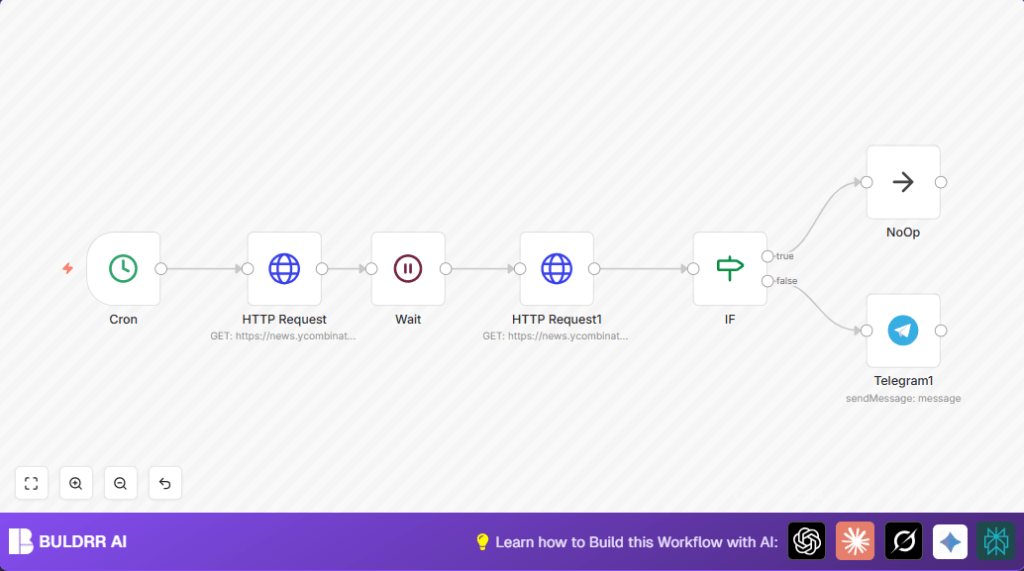

What This Automation Does
This n8n workflow watches a website for changes every 5 minutes. It compares two snapshots of the web page taken 5 minutes apart. If the content is different, it sends a Telegram message alerting about the change. If no change is found, it does nothing.
The main problem is manual checking wastes time and misses updates. This automation saves time and gives quick alerts for updates. The result is automatic, timely notifications about website changes without needing to check manually.
Inputs
- The workflow starts with a timer triggering every 5 minutes through the Cron node.
- It fetches the target website content twice using the HTTP Request nodes.
Processing Steps
- The first HTTP Request captures the current webpage HTML.
- A Wait node pauses the workflow for 5 minutes before next fetch.
- The second HTTP Request fetches the webpage again for comparison.
- An IF node compares the two HTML snapshots to check if they differ.
- If the HTML is different, workflow proceeds to send alert.
- If no difference, it goes to a NoOp node, doing nothing to avoid spam.
Output
- A Telegram message is sent instantly if a change is detected, notifying the user in real-time.
- No message is sent if the page has not changed.
This workflow removes the need to watch websites manually. It helps get faster updates and avoid missing important news.
Step-by-Step Guide
Using This Workflow in Production
1. Import Workflow
- Download the ready-made workflow file from the Download button on this page.
- In the n8n editor, click to Import from File.
- Upload the downloaded workflow file to import all nodes and settings.
2. Add Credentials and Update Settings
- In n8n, add your Telegram bot API Key in the Telegram node credentials.
- Enter the chat ID where messages should be sent.
- If changing the monitored website, update the URL in both HTTP Request nodes.
3. Test the Workflow
- Run the workflow once manually to check if it fetches content and sends test messages correctly.
- Verify that no errors occur on any node.
4. Activate Workflow for Production
- Toggle the workflow’s active switch in n8n to enable automatic running every 5 minutes.
- Make sure your n8n instance stays online for continuous monitoring.
- For self-host n8n, confirm server uptime for consistent execution.
Following these steps helps you quickly get this website change alert system running in any n8n setup without building from zero.
Prerequisites ⚙️
- n8n Account (cloud or self-hosted): Access to an n8n editor where workflows run.
- Telegram bot with API credentials: Needed to send messages via Telegram node.
- Basic understanding: Know how to configure HTTP requests and nodes in n8n editor.
Optional: For users running n8n on server, see self-host n8n resource.
Customizations ✏️
- Change the monitored website: Edit the URLs in both HTTP Request nodes to track any webpage.
- Adjust notification frequency: Modify the Cron node or the Wait node timing for faster or slower checks.
- Customize Telegram message: Use expressions or add timestamps in message text inside the Telegram node.
- Filter content: Add a Code node to clean HTML sections before comparing, ignoring dynamic parts like timestamps.
Troubleshooting ????
Problem: “Telegram message not sent”
Cause: Telegram bot API Key or chat ID is incorrect or missing.
Solution: Check and update the credentials in the Telegram node settings. Test bot connection using standard Telegram API tools.
Problem: “IF node always returns no change”
Cause: The webpage content includes dynamic elements like timestamps or session IDs.
Solution: Use a Code node to remove or normalize dynamic parts of HTML before the comparison step in the IF node.
Pre-Production Checklist ✅
- Confirm the Cron node triggers every 5 minutes as planned.
- Verify both HTTP Request nodes fetch webpage content correctly.
- Test the IF node logic by manually changing one HTTP Request output to simulate a page change.
- Ensure the Telegram node sends test alerts to the correct chat ID.
- Backup all workflow files and API credentials safely.
Deployment Guide
Switch the workflow active in n8n to let it run automatically every 5 minutes.
Make sure logs show no failures and execution times are stable.
Adjust the timing if needed to avoid overlaps or missed checks.
For stable production use, consider a self-host n8n setup with good uptime.
Conclusion
✓ This workflow saves you time by automating website change checks every 5 minutes.
✓ It sends alerts only when changes happen, so you don’t miss important updates.
✓ The workflow is easy to set up, especially by importing the ready workflow and adding credentials.
→ You get timely notifications for faster responses and better tracking of competitor news.
→ Next steps could be adding better content filters, summary alerts, or monitoring more sites.
