
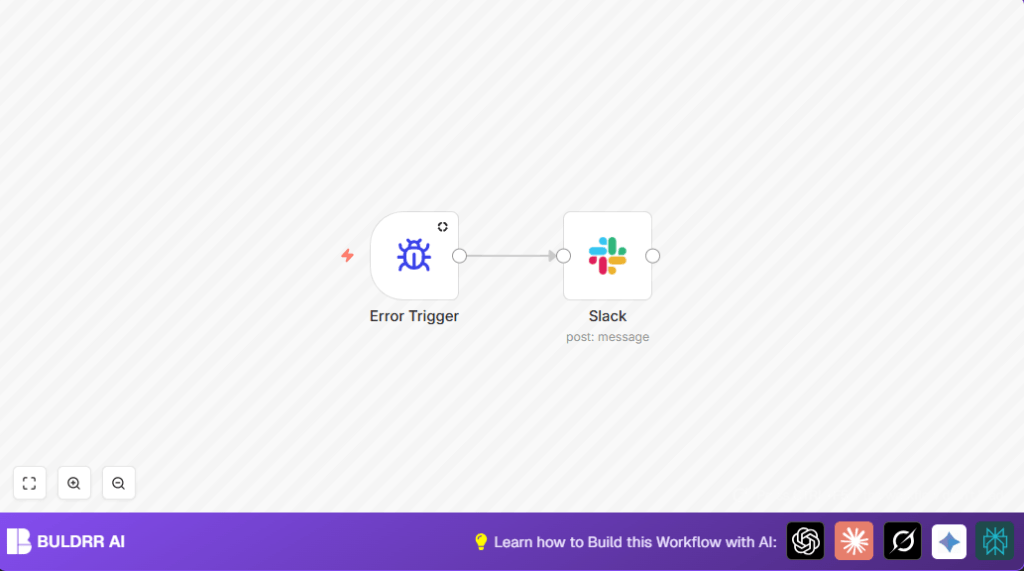

What This Automation Does
This workflow sends instant Slack messages when any n8n workflow fails. It stops silent errors from delaying fixes. You get alerts with workflow name and a link to the error. This helps fix problems faster and saves time.
The workflow listens for errors, grabs important info, and posts a clear message in Slack. Notifications have a bug emoji and clickable links. No more watching dashboards all day.
Tools and Services Used
- n8n: Automation platform with Error Trigger node for catching errors.
- Slack: Messaging app where alerts are posted using Slack node.
Inputs, Processing, and Outputs
Inputs
- Error events from any failed workflow in n8n.
Processing Steps
- Error Trigger node catches any workflow failure.
- Extracts workflow name and error execution link from error data.
- Formats a Slack message with these details plus an emoji.
- Sends the message to a slack channel using Slack node.
Outputs
- Instant Slack notification with clickable execution URL and error info.
Beginner Step-by-Step: How to Use This Workflow in n8n Production
Step 1: Import the Workflow
- Click the Download button on this page to get the workflow file.
- Open your n8n editor and choose Import from File.
- Select the downloaded file to import the workflow.
Step 2: Configure Credentials and Settings
- Open the Slack node.
- Add your Slack API Key in the credentials section.
- Enter the Slack channel name or ID where alerts should post, if not set already.
- Check that the channel permissions allow the Slack app to send messages.
Step 3: Review and Adjust Message Content
- Look at the Text field in the Slack node.
- The example message is:
=🐞 What?! *This execution{{$node["Error Trigger"].json["workflow"]["name"]}} went wrong*\nWhy don't you go take a look {{$node["Error Trigger"].json["execution"]["url"]}} - Change it if you want to add info or mention others.
Step 4: Test the Workflow
- Save the workflow.
- Toggle the Active switch to enable it.
- Create or run another workflow to cause a test error.
- Check Slack channel for alert message.
Step 5: Activate for Full Production
- Make sure the workflow stays active in n8n.
- Monitor Slack alerts when workflows fail in the future.
- If using self-host n8n, confirm alerts work after server restarts.
Common Issues and Fixes
Slack node not sending messages?
Check Slack API Key is correct and active.
Make sure Slack app can post in target channel.
Error Trigger node not firing?
Is the workflow active? Reactivate if needed.
Cause an error in your test workflows to confirm trigger works.
Customization Ideas
- Change Slack channel to alert different teams.
- Add error details like error message or timestamps in Slack message text by using {{$node[“Error Trigger”].json[“error”]}}.
- Include
@hereor@channelmentions to notify more people when needed.
Deploying in Production
After testing, keep this workflow active. It runs silently and alerts you on errors.
Check Slack messages to make sure no alerts are missed.
If you do self-host n8n, validate alerts still arrive after updates or restarts.
Summary and Benefits
✓ You automatically get Slack messages when workflows break.
✓ Alerts show workflow name and a direct link for fast fixing.
✓ No need to watch logs all day. Save hours.
✓ Improve team response and reduce downtime.
