
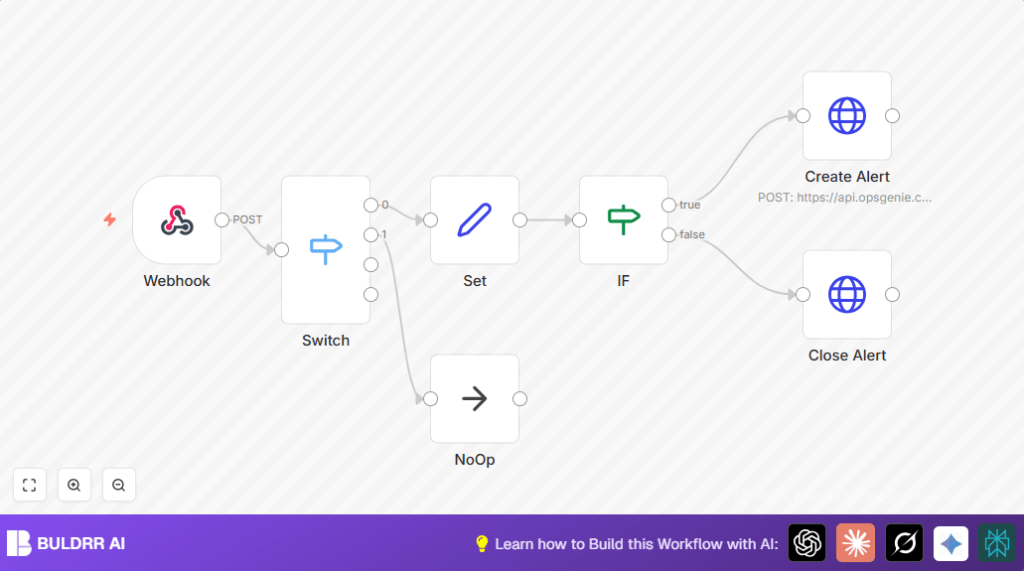

What This Automation Does ⚙️
This workflow gets alerts from Syncro RMM and sends them to OpsGenie. It solves the problem of manually creating and closing alerts. The user saves time and avoids mistakes by automating alert syncing. Alerts get created in OpsGenie when triggered and closed when resolved.
The workflow listens for Syncro alert webhooks, picks only important alerts, and then creates detailed incidents in OpsGenie. It also closes alerts there automatically if Syncro says they are resolved. Unneeded alerts get ignored to keep things tidy.
This means faster alert handling, fewer missed notices, and better communication for IT teams.
Inputs, Processing, and Outputs
- Input: Incoming webhook POST requests from Syncro with alert data.
- Processing Steps:
- Filter alerts by trigger type using Switch node.
- Format alert data with alert ID, description using Set node.
- Check if alert is resolved with IF node.
- Create a new alert in OpsGenie if unresolved, or close the alert if resolved, via HTTP Request nodes.
- Ignore irrelevant alerts using NoOp node.
- Output: Alerts created or closed in OpsGenie, or no action if alert irrelevant.
Who Should Use This Workflow?
This workflow is for IT operations managers and staff receiving many Syncro RMM alerts daily. It helps when manual alert processing is slow and has errors. Anyone wanting to automate creating and updating incidents in OpsGenie from Syncro alerts can use this.
It works especially well if alert volumes are high and fast incident response is needed.
Tools and Services Used
- n8n: Workflow automation platform receiving, processing, and sending alerts.
- Syncro RMM: Source of endpoint alerts via webhook notifications.
- OpsGenie API: Receives incoming alerts and manages alert lifecycle.
Beginner Step-by-Step: How to Use This Workflow in n8n
Download and Import
- Download the workflow file using the Download button on this page.
- Open the n8n editor where your workflows are managed.
- Import the workflow by selecting “Import from File” and picking the downloaded file.
Configure Credentials and Settings
- Add required API Key credentials for OpsGenie in the HTTP Request nodes.
- Confirm the webhook path matches the one configured in Syncro’s alert webhook settings.
- Update any IDs, customer names, or alert specifics if needed inside the Set node using expressions.
Test and Activate
- Send a test alert from Syncro to check the webhook reception.
- Verify alert creation or closure in OpsGenie UI.
- Once confirmed working, activate the workflow for production use in n8n.
- Ensure the webhook URL is public and reachable, especially if using self-host n8n.
Detailed Node Breakdown
- Webhook node: Receives POST alerts from Syncro, starting the workflow.
- Switch node: Checks the alert type by reading
body.attributes.properties.triggerto route based on value. - Set node: Extracts alert ID and forms a description combining computer name and customer information.
- IF node: Tests if alert is resolved (
body.attributes.resolvedboolean) to decide alert creation or closure. - HTTP Request nodes: One sends POST to OpsGenie to create alerts. The other closes alerts with a POST request identified by alert alias.
- NoOp node: Absorbs alerts that don’t meet filter rules to end workflow quietly without errors.
Customizations ✏️
- Add more alert triggers in the Switch node to cover different Syncro alerts.
- Change the description field in the Set node to add timestamps or severity info.
- Include OpsGenie tags or teams by adding parameters to alert creation requests.
- Add error nodes for retry logic on failures for better reliability.
Troubleshooting ????
- Problem: Webhook does not get data.
Cause: Wrong URL or POST method in Syncro webhook.
Solution: Verify webhook URL and method in Syncro match the Webhook node in n8n. - Problem: OpsGenie API authorization fails.
Cause: Missing or wrong API Key.
Solution: Check API Key in HTTP Request nodes is correct and has needed permissions. - Problem: Alerts not closing automatically.
Cause: Wrong IF node condition or wrong ID used.
Solution: Confirm IF node checks theresolvedboolean correctly and uses the alert alias to close alerts in OpsGenie.
Pre-Production Checklist ✅
- Confirm Syncro sends POST requests to the n8n webhook URL.
- Test webhook reception with real or sample Syncro alert JSON.
- Verify JSON paths in Switch, Set, and IF nodes target alert data properly.
- Test OpsGenie API Key by manually creating and closing alerts using HTTP Request nodes.
- Make sure alerts appear and close correctly in OpsGenie UI during tests.
Deployment Guide
Activate the workflow after testing is done. Ensure the Webhook node URL is accessible from Syncro’s network. Monitor executions at first to catch issues like wrong JSON or API errors. Adjust nodes if alert formats change. Consider using self-host n8n for full server control if needed.
Summary of Results
✓ Automatically convert Syncro RMM alerts into OpsGenie incidents.
✓ Save hours weekly by avoiding manual alert handling.
✓ Reduce errors from missed or duplicate alerts.
✓ Speed up incident response by timely alert creation and closure.
✓ Keep OpsGenie clean by ignoring irrelevant Syncro alerts.
