

What This Workflow Does
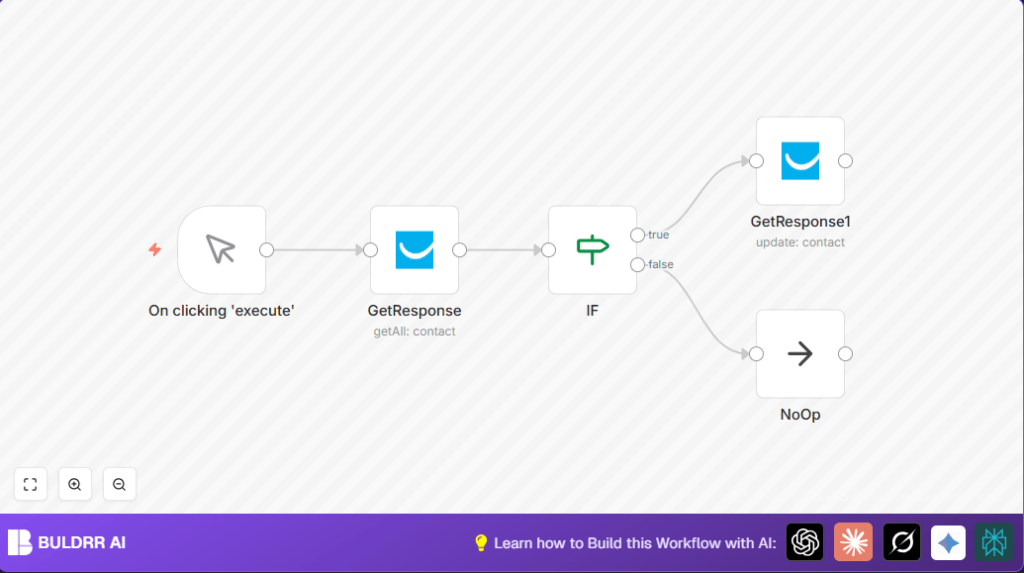
This workflow gets all contacts from a GetResponse account and checks their campaign assignments.
It finds contacts not assigned to a campaign named “n8n” and changes their campaign ID to WRVXO.
Contacts already in that campaign stay unchanged.
This saves time and stops mistakes in email campaigns.
Inputs:
- GetResponse API credentials
- Full contact list from GetResponse
- Target campaign ID (WRVXO)
Processing Steps:
- Use a manual trigger to start the workflow
- Fetch all contacts with the GetResponse node set to return all
- Filter contacts whose campaign name is not “n8n” using an IF node
- Update the campaign ID of filtered contacts to “WRVXO” with another GetResponse node
- Skip updating contacts that already have the correct campaign by linking false branch to a NoOp node
Outputs:
- Contacts updated with the correct campaign ID
- Contacts already matching target campaign left unchanged
Who Should Use This Workflow
This workflow is for people who manage email contacts in GetResponse and want to keep campaigns sorted right.
It helps users who have many contacts and want to avoid spending hours checking and changing campaigns by hand.
Users without coding skills but who use n8n automation can benefit by easily running this update.
It is useful when campaigns change often or when contact data can get mixed up.
Tools and Services Used
- n8n Automation Platform: Runs workflow and connects services.
- GetResponse API: Fetches and updates contacts via API calls.
- Manual Trigger node: Starts workflow on demand.
- IF node: Filters contacts by campaign name.
- NoOp node: Handles contacts in target campaign without action.
Beginner Step-by-Step: How to Use This Workflow in n8n
Step 1: Download and Import the Workflow
- Click the Download button on this page to get the workflow file.
- Open the n8n editor where you work.
- Use the menu option “Import from File” to upload the downloaded workflow.
Step 2: Configure the Workflow
- Add your GetResponse API credentials in the credential settings if not added yet.
- Check and update the campaign ID “WRVXO” in the update node if a different target campaign is needed.
- Make sure the expression
{{$node["IF"].json["contactId"]}is present in the update node to apply changes to filtered contacts.
Step 3: Test the Workflow
- Run the workflow by clicking execute on the Manual Trigger node.
- Watch for any error messages or check that contacts are fetched and updated.
Step 4: Activate for Production
- Toggle the workflow to active in the top right corner of the editor.
- Replace the Manual Trigger node with a Cron node if automatic scheduled runs are preferred.
Following these steps will let any user run and maintain this workflow easily without deep coding knowledge.
Inputs, Processing, and Outputs
Inputs: The workflow takes the full list of contacts from GetResponse.
Processing: It filters contacts by campaign name, chooses which ones need updates, and then updates their campaign ID accordingly.
Outputs: The workflow produces an updated list of contacts with the right campaign assigned, ready for more accurate email marketing.
Common Issues and Fixes
API Authentication Error
This happens when the API Key for GetResponse is missing or wrong.
Fix this by going to n8n credentials and entering a correct API Key then test connection.
No Contacts or Partial Data
This happens when “Return All” option is off in the GetResponse node.
Turn “Return All” on to get all contacts.
Contacts Not Updating
This occurs if the campaign ID is wrong or the expression for contact ID is not correct.
Check expression {{$node["IF"].json["contactId"]}} and ensure campaign ID matches the one in the account.
Customization Ideas
- Change the campaign name filter in the IF node to target different campaigns.
- Update the campaign ID in the update node to assign contacts to other campaigns.
- Use a Cron node to schedule automatic runs to keep contacts updated regularly.
- Add an Email node after updates to notify about updated contacts.
Considerations for Hosting
For better control over data privacy, consider self hosting n8n.
This workflow runs well on cloud or self-hosted versions.
More on self hosting n8n can be found here: self-host n8n.
Summary
✓ Saves time by automating contact campaign updates.
✓ Prevents errors from manual updates.
✓ Works for large contact lists without manual export/import.
✓ Easy for beginners to use with simple step instructions.
→ Keeps contact lists accurate and marketing campaigns effective.
