
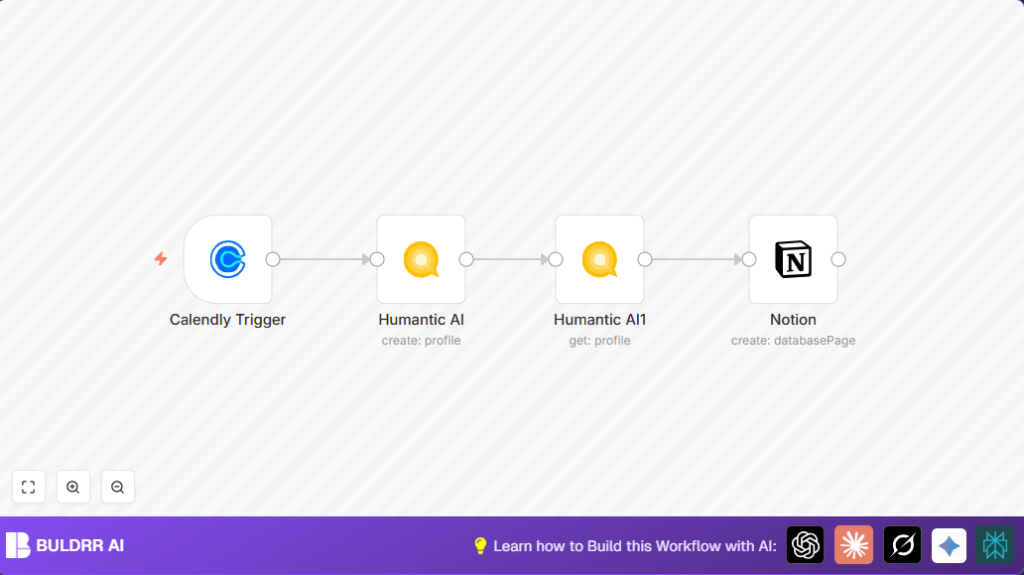

What This Workflow Does
This workflow takes new interview invitee data from Calendly and turns it into detailed personality profiles inside Notion automatically.
It saves the user time by skipping manual data copy and personality data search.
The workflow gets personality details from Humantic AI and saves them with formatting in Notion.
The result is fast, accurate profiles that help team fit decisions.
Who Should Use This Workflow
This workflow suits HR managers, recruiters, or anyone needing fast personality data integration from Calendly interview bookings.
If you waste hours typing or checking personality tools after scheduling interviews, this will save time.
Tools and Services Used
- Calendly API: Sends interview invite data.
- Humantic AI API: Provides personality assessments.
- Notion API: Stores personality profiles.
- n8n platform: Automates the workflow.
Inputs, Processing, and Outputs
Inputs
- Calendly sends invitee.created events with booking data.
- Interviewee responses including a user ID for personality lookup.
Processing
- Calendly Trigger node listens for new invitees.
- First Humantic AI node receives user ID and requests personality data.
- Second Humantic AI node fetches detailed insights using user ID from first node.
- Notion node creates or updates a page with formatted personality data.
Outputs
- A well-formatted Notion database page with OCEAN and DISC personality scores.
- Saves hours of manual work and reduces errors in profiling.
Beginner Step-by-Step: How to Use This Workflow in n8n
Step 1: Import Workflow
- Download the workflow file using the Download button on this page.
- Open the n8n editor where the user is already logged in and inside the editor.
- Click on the menu and choose Import from File, then select the downloaded file.
Step 2: Configure Credentials and IDs
- Open each node needing credentials: Calendly, Humantic AI, and Notion.
- Add API Keys for Calendly and Humantic AI as asked.
- Enter the Notion database ID in the Notion node’s databaseId field.
- Change any emails, channels, or other IDs if the user wants to customize.
Step 3: Test the Workflow
- Trigger a test booking in Calendly to fire the workflow.
- Check n8n execution logs to confirm each node works without errors.
- Look for the new detailed personality profile in the Notion database.
Step 4: Activate for Production
- Switch on the workflow live in n8n by toggling the active button.
- Monitor the workflow regularly to catch and fix any errors.
- Optionally, use self-host n8n for more control and cost savings.
Customization Ideas
- Add more Calendly response fields to the Notion page like email or meeting time for richer profiles.
- Use Humantic AI nodes to request different personality models for deeper analysis.
- Include email or Slack notifications to alert teams when new profiles are added.
- Save raw Humantic AI JSON outputs inside Notion or cloud storage for audits.
- Filter invitees by event types with a switch node to only process relevant bookings.
Troubleshooting Common Issues
No Data Received from Calendly Trigger
Check if the webhook URL is correctly added in Calendly developer settings.
Make sure invitee.created event subscription is enabled.
Invalid userId Error in Humantic AI Node
Confirm the userId expression matches the Calendly payload exactly.
Incomplete or wrongly mapped data causes failures.
Notion API Call Fails Due to Missing databaseId
Verify that the Notion node’s databaseId is filled with the correct database ID.
Get the ID from the Notion app UI and paste it in.
Pre-Production Checklist
- Confirm webhook URL is added in Calendly and relevant events enabled.
- Test API keys for Humantic AI are valid.
- Verify Notion database ID and integration token permissions.
- Run test invites and verify output in Notion.
- Backup existing Notion data before first use.
Summary
✓ This workflow automatically gets personality scores after interview invites.
✓ Saves time and avoids manual entry mistakes.
✓ Adds formatted results directly to Notion for team use.
→ Users can quickly see rich personality profiles without extra work.
→ Integration between Calendly, Humantic AI, and Notion works hands-free after setup.
{{$json["payload"]["questions_and_responses"]["1_response"]}}This expression extracts the invitee’s ID from the Calendly data for Humantic AI input.
{{$json["results"]["userid"]}}This expression gets the userId from the first Humantic AI node to fetch detailed data in the second call.
