

1. Opening Problem Statement
Meet Jane, a SaaS product manager who relies on Chargebee to handle subscription billing and customer lifecycle management. Every day, Jane needs to track numerous events like subscription changes, payment failures, and new sign-ups to keep her service running smoothly. Manually checking Chargebee for these updates consumes hours each week and risks missing critical customer actions, leading to delayed responses, poor user experience, and revenue loss.
This tedious manual follow-up can cause Jane not only lost time but also increased errors, such as delayed identification of failed payments or missed trial expirations. She needs a way to get real-time notifications for every Chargebee event without lifting a finger.
2. What This Automation Does
This n8n workflow is designed to solve exactly Jane’s problem. When activated, it listens to every event occurring in Chargebee and immediately triggers a workflow action. Here’s what happens specifically:
- Real-time event capture: Instantly triggers when any Chargebee event occurs, from subscription changes to payment attempts.
- Streamlined notifications: Enables you to connect downstream systems or notifications seamlessly after detecting Chargebee changes.
- Error reduction: Eliminates manual checking errors and missed events by automating event reception.
- Flexible integration base: Acts as a starting point in n8n for building comprehensive event-based automations tailored to your needs.
- Time savings: Frees you from continuous Chargebee monitoring, saving potentially hours each week.
- Data accuracy: Gets event payloads directly from Chargebee with zero delay and no manual data entry.
3. Prerequisites ⚙️
- Chargebee account with API access enabled ????
- n8n automation platform account (cloud or self-hosted) ????
- Configured Chargebee API credentials in n8n for authentication ????
Optional: You may self-host n8n using popular providers if you want full control. Learn more at Hostinger for n8n Self-Hosting.
4. Step-by-Step Guide to Set Up Your Chargebee Event Receiver
Step 1: Log in to your n8n Dashboard
Navigate to your n8n instance and sign in. You should see your automation workflows dashboard.
Common mistake: Ensure you are logged into the correct workspace where you want to build your automation.
Step 2: Create a New Workflow
Click “Create Workflow” from the dashboard. Name it something meaningful like “Chargebee Event Listener”.
This helps keep your workflows organized.
Step 3: Add a Chargebee Trigger Node
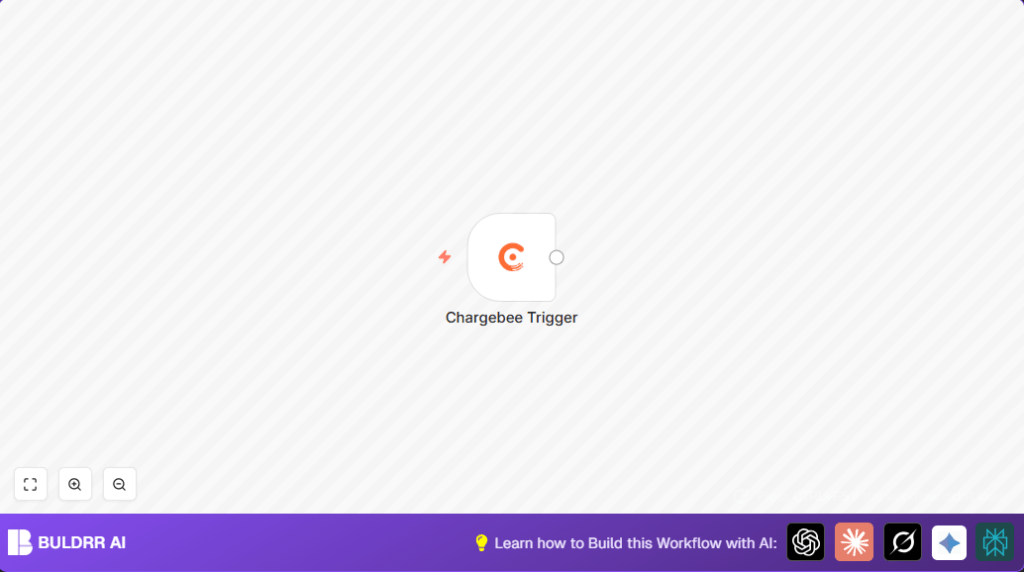
Click the “+” button and search for “Chargebee Trigger” node (type: n8n-nodes-base.chargebeeTrigger).
Drag and drop it onto the canvas.
The Chargebee Trigger node is designed to listen for incoming events from your Chargebee account.
Step 4: Configure the Chargebee Trigger Node
Click to open the node’s settings panel.
Under “Events,” choose “* to listen to all events. This means no event from Chargebee will be missed.
Select or create your Chargebee API credentials by clicking the credentials dropdown ????.
Visual: You should see checked event selection and your authentication credentials displayed.
Step 5: Activate Webhook on Chargebee (Optional)
The Chargebee Trigger node typically handles webhook registration automatically; verify your webhook URL in Chargebee’s dashboard under Webhooks settings to confirm it matches your n8n webhook endpoint.
This ensures Chargebee sends events to n8n correctly.
Step 6: Save and Activate the Workflow
Click Save and then toggle Activate Workflow to ON.
This enables the workflow to listen for events in real-time.
Step 7: Test the Workflow
Perform actions in Chargebee such as creating a subscription or processing payment.
Check your workflow execution in n8n’s real-time monitoring tab to see the event payload details received by the Trigger node.
Watch out: If no data appears, verify webhook registration and API credentials.
5. Customizations ✏️
- Filter specific events: Change the “Events” parameter in the Chargebee Trigger node from “*” to specific events like “subscription_created” or “payment_failed” to reduce noise.
- Connect sending Email or Slack notifications: Add Gmail or Slack nodes downstream to notify teams instantly on critical Chargebee events.
- Log events to Google Sheets: Add a Google Sheets node to append an event log line each time the trigger fires for audit purposes.
- Trigger additional automations: Chain to other workflows based on event type to perform targeted business actions, such as updating CRM or sending coupons.
6. Troubleshooting ????
Problem: “No events triggering in n8n when Chargebee event occurs”
Cause: Webhook URL not registered correctly in Chargebee or API credentials expired.
Solution: Go to Chargebee’s Webhooks dashboard, verify the webhook URL is correct and active. Re-create or update API credentials in n8n and re-test.
Problem: “Invalid credentials error in Chargebee Trigger node”
Cause: Wrong API key or missing permissions.
Solution: Double-check your Chargebee API key, regenerate if needed, and ensure it has access to read events.
7. Pre-Production Checklist ✅
- Verify your Chargebee API credentials work by doing a test API call in n8n’s credential test section.
- Ensure webhook URL is correctly registered in Chargebee and is reachable from the internet.
- Perform test events in Chargebee and confirm that your n8n workflow receives and logs these events.
- Backup your workflow.json file before making major edits.
8. Deployment Guide
Once tested, keep your workflow active in n8n.
Monitor event triggers and workflow executions via n8n’s execution UI.
For production, consider setting uptime monitoring of your webhook endpoint to avoid missed events.
If using self-hosted n8n, ensure your server is configured to handle webhook traffic securely.
9. FAQs
Can I listen to only select Chargebee events?
Yes, simply change the “Events” array in the Chargebee Trigger node configuration to include only desired events.
Does this workflow consume Chargebee API credits?
This workflow uses webhooks, so it does not consume API call credits unless you add additional API request nodes.
Is my data safe with this integration?
Yes, your data passes securely via HTTPS webhooks. Make sure your API keys are rotated regularly and keep n8n secure.
10. Conclusion
By setting up this n8n workflow with the Chargebee Trigger node, you have automated real-time reception of ALL Chargebee events without manual checks. Jane, our example manager, now saves hours every week and reduces errors by immediately acting upon billing and subscription changes.
Next, consider expanding this workflow by integrating notifications, CRM updates, or analytics dashboards to further streamline your subscription management.
Start with this foundation and watch your workload lighten as automation logs and reacts to your Chargebee events seamlessly.
