
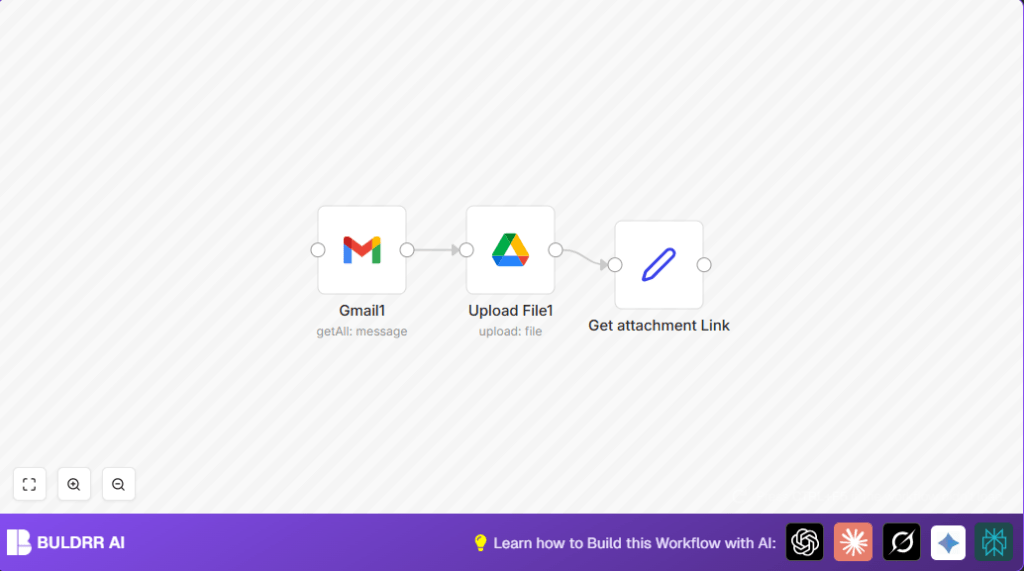

What This Workflow Does
This workflow finds emails in Gmail with a special label and gets their video attachments.
It uploads these videos to a specific Google Drive folder automatically.
Then it makes links that you can share easily to anyone on your team.
The goal is to save time and avoid mistakes from downloading and sharing files manually.
Who Should Use This Workflow
People who get many video files by Gmail and need to share them fast.
Anyone who wants to stop copying files by hand and keep all videos organized in Google Drive.
Users already familiar with basic n8n and Gmail labels can use this easily.
Tools and Services Used
- Gmail: To find emails by label and get attachment data.
- Google Drive: To store video files in a chosen folder.
- n8n: To connect Gmail and Google Drive with OAuth2 for automation.
Workflow Inputs, Processing, and Outputs
Inputs
Emails marked with a Gmail label such as “Videos-to-Upload”.
These emails contain attached video files.
Processing Steps
1. Find all emails with the specific Gmail label.
2. Get all attachments from these emails.
3. Upload each video attachment to the selected Google Drive folder.
4. Create a link to each uploaded video for sharing.
Output
A list of shareable Google Drive links for each uploaded video file.
Beginner Step-by-Step: How to Use This Workflow in n8n
Step 1: Import the Workflow
- Inside the n8n editor, click the Import button.
- Choose “Import from File” and upload the workflow file downloaded from this page.
Step 2: Add Credentials
- Attach your Gmail OAuth2 credentials to the Gmail node.
- Attach your Google Drive OAuth2 credentials to the Google Drive node.
Step 3: Update Settings
- Put your Gmail label ID in the Gmail node settings (example: “Label_123456789”).
- Set the Google Drive folder ID where files will save in the Google Drive node.
Step 4: Test the Workflow
- Run the workflow once to check if videos upload and links generate correctly.
Step 5: Activate for Production
- Turn on the workflow to run automatically or on schedule as needed.
If self-hosting n8n, scheduling is possible with cron triggers. More info on self-host n8n.
Common Problems and Solutions
- No emails found: Check Gmail label ID is correct and some emails have that label.
- Upload fails: Confirm Google Drive credentials have access to target folder.
- Missing share links: Ensure Google Drive node returns data and Set node uses correct path
{{$json["webViewLink"]}}.
Customization Ideas
- Change the Gmail label to pick different emails.
- Add a loop to handle more than one attachment per email.
- Connect Slack or email nodes to send notifications with share links.
- Add file type checks to upload only specific video formats.
- Modify file names in Google Drive node to include dates or project names.
Summary of Results
✓ Saves daily time by automating Gmail video attachment handling.
✓ Uploads videos directly to Google Drive folder without manual steps.
✓ Creates shareable links for quick access and better team sharing.
✓ Reduces risk of lost attachments or forgotten sharing.
