
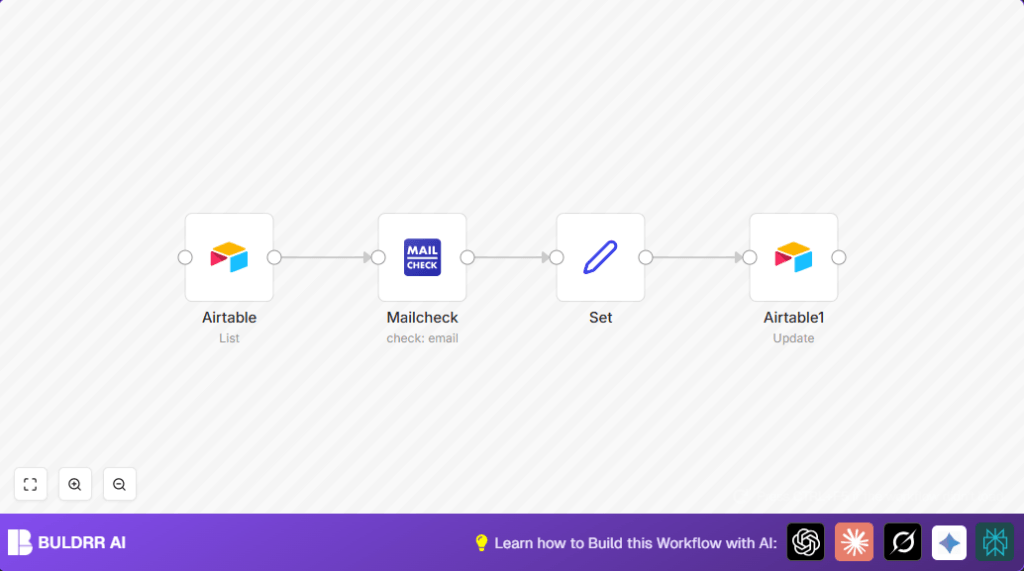

What This Workflow Does
This workflow takes email addresses from Airtable and checks if they are valid using the Mailcheck API.
It marks each email in Airtable as true or false depending on whether it can receive mail.
This helps avoid sending emails to wrong addresses and saves time by automating the checks.
Tools and Services Used
- Airtable API: Stores and retrieves contact records with emails.
- Mailcheck API: Validates email addresses by checking MX records and other factors.
- n8n Automation Platform: Connects services and moves data between them.
Inputs, Processing, and Outputs
Input
- All contact records from a specified Airtable table.
- Email addresses extracted from those records.
Processing
- The Mailcheck node tests each email for DNS MX records (meaning the domain can receive mail).
- The workflow uses expressions to capture record IDs and validation results.
- It prepares update data by setting the record ID and validation result in a Set node.
- Then updates Airtable records with validation flags.
Output
- Airtable records updated with a “Valid” true or false field indicating email reliability.
- A clear identification of which contacts have reliable emails ready for campaigns.
Beginner Step-by-Step: How to Use This Workflow in n8n
Importing the Workflow
- Download the workflow file using the Download button on this page.
- Open the n8n editor where you want to run the workflow.
- Go to the menu and choose “Import from File” to add the workflow to n8n.
Configuring Credentials and Nodes
- Add your Airtable API credentials in the Airtable node. Use your correct API Key, Base ID, and Table name.
- Add your Mailcheck API Key in the Mailcheck node credentials section.
- Check that all field names (like the email field and “Valid” field) in Airtable match what the nodes use.
- Make sure the table has a “Valid” boolean field added where results will be saved.
Testing and Activating
- Run the workflow once in n8n to test with a few records and confirm validation works.
- Fix any errors like missing API keys or wrong field names as needed.
- When ready, activate the workflow using the toggle at the top right of the editor.
- Optionally, add a Cron trigger node to schedule this validation regularly.
Use logs to watch how validation runs and catches invalid emails over time.
If self hosting n8n, refer to self-host n8n resources to manage credentials securely and deploy the workflow.
Customization Ideas
- Use other Mailcheck fields like isDisposable to add extra checks before marking validity.
- Add messaging nodes (Slack, Gmail) to notify teams when emails are invalid.
- Filter Airtable list calls to only process new or changed emails for efficiency.
Troubleshooting Common Problems
Issue: Airtable node shows empty data or permission errors.
Cause: API key missing, wrong key, or wrong table name.
Fix: Confirm API key is correct and has read/write access. Check table name spelling and permissions.
Issue: Mailcheck node returns 401 unauthorized error.
Cause: Invalid or missing Mailcheck API Key.
Fix: Check API key validity, add correctly to node credentials, and ensure subscription is active.
Issue: Records not updating after validation.
Cause: Incorrect mapping of record ID or field names like “Valid”.
Fix: Use expressions to map the Airtable record ID exactly. Verify field names in Airtable match those in the update node.
Summary
✓ This workflow automatically checks emails in Airtable using Mailcheck.
✓ It updates Airtable records with valid/invalid flags to help marketing teams.
→ Saves time by removing manual checks and reduces email bounce rates.
→ Lets users confidently send campaigns to valid email addresses.
