

What this workflow does
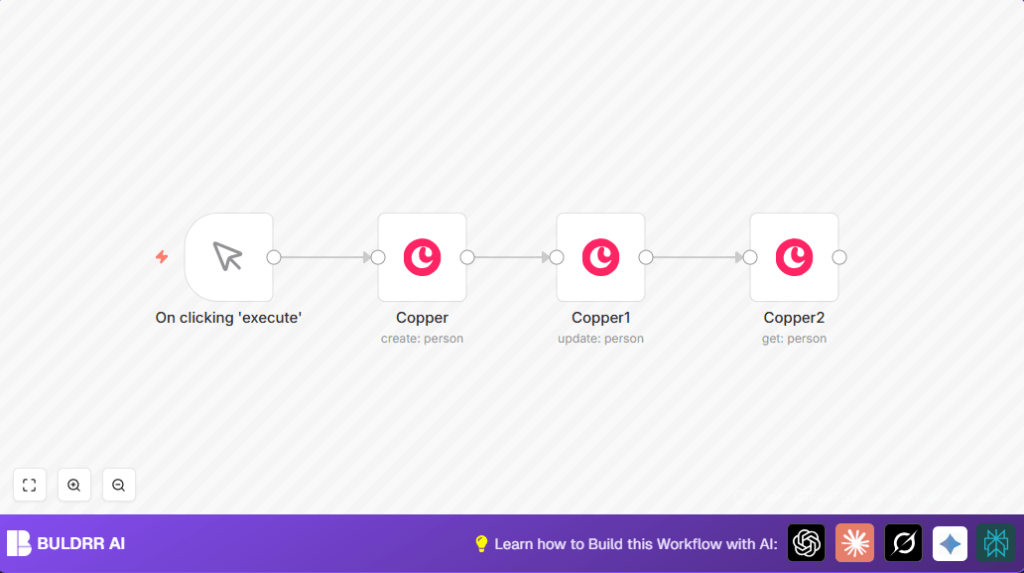
This workflow helps you add a new person to Copper CRM, update their phone number, and get the updated details automatically.
It saves time spent on manual data entry and avoids errors like wrong phone numbers.
You get fast contact management and clear verification of data without typing each step.
Tools and services used
- n8n automation platform: Runs the workflow and connects to apps.
- Copper CRM API: Allows creating, updating, and getting person records.
- Copper API Credentials: API Key to authorize n8n requests.
Inputs, processing steps, and output
Inputs
- Person name (e.g., a contact’s full name)
- Work email address for the person
- Work phone number to set
Processing Steps
- Step 1: Create a new person in Copper using the name and work email provided.
- Step 2: Update this new person’s work phone number using their Copper ID.
- Step 3: Retrieve the updated person details to confirm the changes.
Output
- The latest person record from Copper CRM with updated phone and email.
Who should use this workflow
Sales managers and CRM users who spend time adding and updating contacts in Copper.
Anyone wanting to minimize manual data errors and cut hours from weekly work.
Beginners with basic n8n knowledge who want quick CRM automation.
Beginner step-by-step: How to use this workflow in n8n production
Download and Import the Workflow
- Click the Download button on this page to get the workflow file.
- Inside the n8n editor, click on the menu and select “Import from File.”
- Choose the downloaded file to load the full workflow.
Configure Credentials and Details
- Open each Copper node and add your Copper API Key in the Credentials section.
- Check the person creation node and change the name and email if needed.
- Edit the phone number in the update node if a different number is required.
Test and Activate
- Run the workflow manually by clicking the Execute Workflow button.
- Verify the output shows the correct and updated person details.
- When satisfied, toggle the workflow’s Active switch to enable production use.
- You can replace the Manual Trigger with a Webhook node later for automatic triggers.
This workflow runs in cloud or self-host n8n environments.
Customization Ideas
- Add more contact details in the update node, like home emails or addresses.
- Switch to a Webhook node trigger for automatic form inputs.
- Change the first node to search or list people to handle multiple contacts.
Common problems and fixes
- Missing Person ID in update: Check if the create node ran properly and returned an ID.
Use the exact expression{{$json["id"]}to pass the ID.
- Authentication fails: Make sure Copper API key is valid and updated in n8n credentials.
Regenerate if expired. - No data at get node: Ensure nodes are connected correctly so data flows forward.
Summary of results
✓ Save hours weekly by automating contact data entry.
✓ Reduce errors like outdated phone numbers.
✓ Quickly confirm person data is correct after updates.
✓ Ready to expand automation using webhooks and other tools.
