
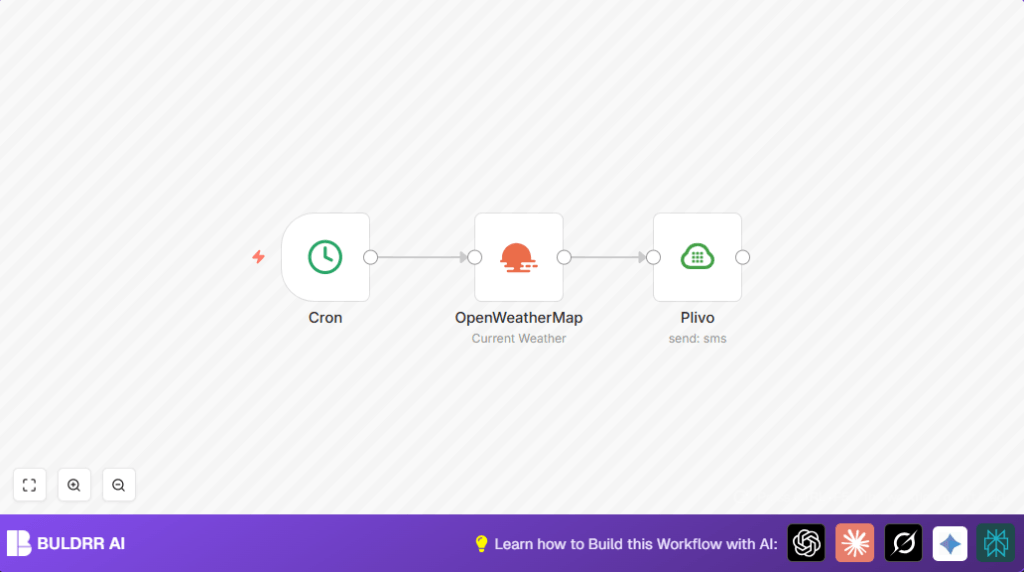

What This Workflow Does
This workflow sends a daily SMS with the current temperature in Berlin automatically at 9 AM.
It solves the problem of sending weather updates manually every morning.
The workflow fetches live weather data and texts the temperature to local residents.
This saves time and ensures messages arrive on time without errors.
Who Should Use This Workflow
Anyone who needs to send daily weather updates by SMS without doing it manually.
It is good for community managers, event organizers, or small businesses that want to keep people informed.
Tools and Services Used
- Cron node: triggers the workflow every day at 9 AM.
- OpenWeatherMap node: fetches current temperature data for Berlin using an API key.
- Plivo node: sends SMS messages with the temperature information via API.
- OpenWeatherMap account: needed to get an API key for weather data.
- Plivo account: required to send SMS and obtain API credentials.
- n8n platform: runs the automated workflow, can be cloud or self-host n8n.
Inputs, Processing Steps, and Outputs
Inputs
- Scheduled time trigger at 9 AM from Cron node.
- API key and city name “berlin” for weather data from OpenWeatherMap.
- Plivo API credentials for sending SMS.
Processing Steps
- Cron node triggers the workflow daily at 9 AM.
- OpenWeatherMap node uses the API to fetch current temperature in Celsius for Berlin.
- The temperature value is inserted dynamically into a message using an expression.
- Plivo node sends this message as an SMS to the recipients.
Output
Recipients receive a timely SMS showing the current temperature in Berlin every morning.
Beginner Step-by-Step: How to Use This Workflow in n8n
Step 1: Import the Workflow
- Click the Download button on this page to save the workflow file.
- Open n8n editor where the user has access.
- Go to the menu and choose “Import from File.”
- Select the downloaded workflow file to load it.
Step 2: Configure Credentials
- In the OpenWeatherMap node, add your OpenWeatherMap API Key in the credential section.
- In the Plivo node, enter your Plivo API credentials to allow SMS sending.
- Check city name “berlin” in the OpenWeatherMap node; change if needed.
Step 3: Test the Workflow
- Click on “Execute Workflow” manually to run it once.
- Verify that the SMS with temperature arrives as expected.
Step 4: Activate the Workflow
- Turn on the “Active” toggle to enable the workflow.
- The workflow runs daily at 9 AM automatically and sends SMS updates.
Common Problems and How to Fix Them
- Problem: API requests fail with unauthorized errors.
- Fix: Check that OpenWeatherMap and Plivo API keys are correct and active.
- Problem: SMS messages have empty or wrong temperature.
- Fix: Make sure the expression syntax to get temperature data is correct:
=Hey! The temperature outside is {{$node["OpenWeatherMap"].json["main"]["temp"]}}°C. - Problem: Workflow runs at wrong time.
- Fix: Configure the Cron node trigger hour and time zone properly.
Customization Ideas
- Change city name in OpenWeatherMap node to send weather for a different place.
- Add more weather details like humidity or conditions in the SMS message using OpenWeatherMap data.
- Configure the Cron node to send messages multiple times daily if needed.
- Use other SMS providers by replacing the Plivo node with supported alternatives.
Summary
✓ Automates daily SMS with current temperature at 9 AM.
✓ Saves about 30 minutes of manual work daily.
✓ Ensures consistent, error-free delivery of weather updates.
→ Sends live data using OpenWeatherMap and Plivo APIs.
→ Easy to customize city and message content.
→ Simple to import, configure, test, and activate in n8n.
