
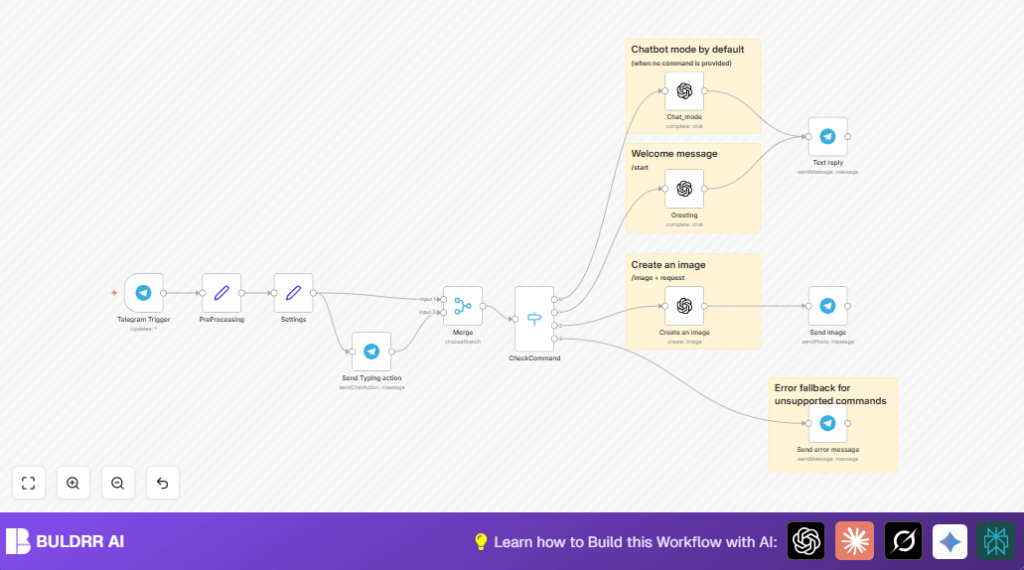

What This Automation Does
This Telegram AI-bot workflow uses n8n to answer messages automatically and create pictures on command. It helps avoid slow replies and manual work by quickly sending smart chat responses or AI images. The bot reads user commands, talks in their language, and shows if it is typing or uploading an image.
The workflow listens for commands like /start to greet, and /image <text> to make pictures. If the command is unknown, the bot explains what commands work. Replies use OpenAI GPT-4 for chat and DALL·E for images. This saves hours daily and keeps users happy.
Inputs
- Telegram messages: All user texts sent to the bot.
- OpenAI prompts: User text or commands passed to GPT-4 or DALL·E.
Processing Steps
- Detect command typed by user.
- Set AI model parameters like creativity and max tokens.
- Send typing or uploading action to Telegram for user feedback.
- Run chat prompts through OpenAI GPT-4 or generate images with DALL·E.
- Send replies or images back to user via Telegram.
- Handle errors by sending helpful messages about valid commands.
Output
- Text replies: Chat responses in user language with emojis.
- Generated images: Photos created per user description.
- Typing indicators: Shows bot is working in the chat.
- Error messages: Explains invalid commands to users.
Who Should Use This Workflow
This workflow suits Telegram community managers who want faster replies. It helps those who create images for users often. Also good for anyone needing chat automation without coding. Users get quick answers and images inside Telegram. It fits teams wanting multi-language support and user-friendly chat experience.
Tools & Services Used
- Telegram Bot API: Receives user messages.
- OpenAI GPT-4: Produces chat replies in user language.
- OpenAI DALL·E API: Generates AI images from text prompts.
- n8n Workflow Automation: Connects Telegram and OpenAI, controls flow.
Beginner step-by-step: How to use this workflow in n8n
1. Import the Workflow
- Download the workflow file using the Download button on this page.
- Open the n8n editor where the workflow will run.
- Choose Import from File and select the downloaded workflow file.
2. Configure Credentials
- Add your Telegram Bot API Key in n8n credentials.
- Add your OpenAI API Key for GPT-4 and image generation access.
3. Update IDs and Settings (if needed)
- Check if chat IDs, channel names, or email fields need to be updated to your environment.
- If there are prompts or code snippets inside nodes, copy and paste them as is; no change needed usually.
4. Test the Workflow
- Send test messages to your Telegram bot: use
/start, a normal chat message, and an image command like/image sun on mountain. - Check if the bot responds correctly with greetings, chat replies, and images.
5. Activate Workflow
- Turn on the workflow in n8n by switching the Activate toggle.
- Your bot is now ready for production use.
- If self-hosting n8n, ensure your server URL is accessible from Telegram. You may find self-host n8n resources helpful.
Workflow Inputs, Processing Steps, and Outputs
Input
- User messages sent to Telegram bot.
- Commands typed by users, like
/startor/image <prompt>.
Processing
- Extract message text: Get user command or normal text.
- Set model parameters: Configure AI creativity, max tokens, and prompts.
- Send typing action: Tell Telegram client the bot is working for better UX.
- Use switch node: Detect if the input is a start command, image request, normal chat, or invalid command.
- Chat response: Send user text to OpenAI GPT-4 for intelligent reply in user language.
- Image generation: Use DALL·E via OpenAI API to create image from prompt.
- Send reply: Text or image sent back through Telegram API.
- Error handling: If command not supported, send friendly guidance message.
Output
- Replies in user language with emojis.
- AI-generated images matching user descriptions.
- Typing indicators during processing for better chat feel.
- Helpful messages for invalid or unknown commands.
Customizations
- Change AI creativity by adjusting the
model_temperaturein the Settings node. - Add new commands by editing the CheckCommand switch node to detect more prefixes.
- Modify the greeting message prompt in the Greeting OpenAI node for more personalized welcomes.
- Update the typing indicator logic by changing the
bot_typingexpression in Settings. - Change image size or number of images by editing parameters in the Create an image OpenAI node.
Edge Cases and Troubleshooting
- Webhook not triggered: Check Telegram BotFather webhook URL set correctly. The n8n instance URL must be public or use tools like ngrok.
- Wrong language replies: Verify user language detection works in the system prompt inside Settings node.
- No image returned: Confirm OpenAI API key has image generation access and prompt text after
/imagecommand is valid. - Messages not sending: Ensure chat ID is passed correctly and Telegram token is valid.
Pre-Production Setup Checklist
- Verify Telegram bot API key and webhook are properly configured.
- Test OpenAI API keys with GPT-4 chat and image generation calls.
- Send test commands:
/start, normal text,/image. - Check typing indicator appears during replies in Telegram chat.
- Use n8n execution preview to confirm data flows as expected.
Deployment Guide
Activate the workflow in n8n by switching Activate ON. Confirm the webhook URL is set in Telegram BotFather. Your n8n instance needs to be reachable publicly or use tunneling tools.
Monitor workflow runs through n8n execution history. Watch API usage in OpenAI and Telegram to avoid limits. Adjust parameters or commands as needed over time.
For users with self hosting n8n setups, self-host n8n resources can help keep your automation stable and secure.
Summary / Results
✓ Chat replies sent fast and smart in user language.
✓ AI images created whenever users ask.
✓ Typing indicators make chat feel alive.
✓ Errors handled with clear guidance.
✓ Saves hours daily by automating Telegram conversations.
✓ Works with no extra coding, just n8n nodes and simple config.
