

What This Automation Does
This workflow looks at Gmail emails in a date range and finds PDF attachments that are receipts or invoices for business costs.
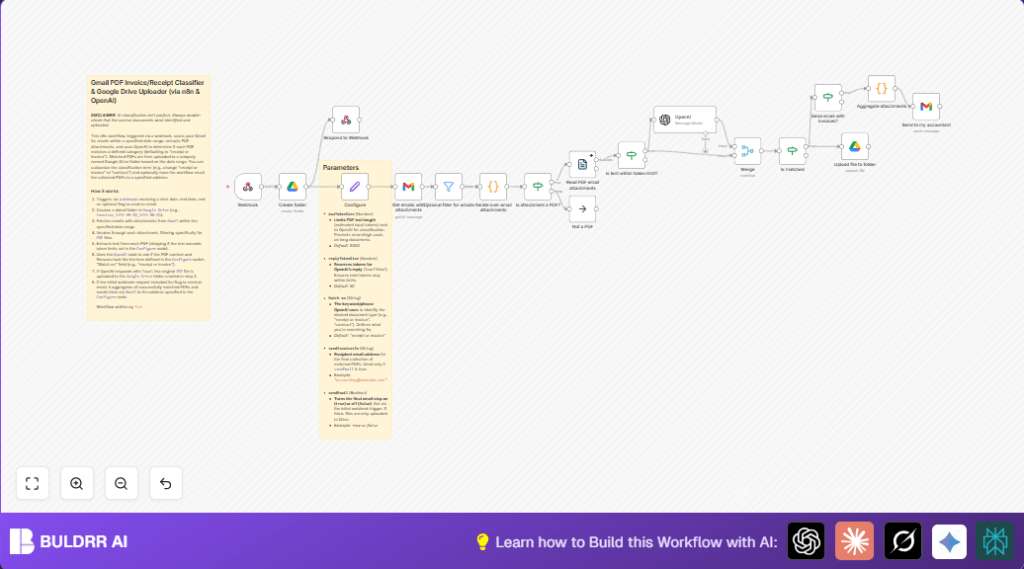
It reads the text in PDFs, asks OpenAI if they match the kind of receipt or invoice needed, and then saves those PDFs in a dated folder on Google Drive.
You can also choose to send the found PDFs by email to an accountant automatically.
This stops wasting lot of time searching and sorting files manually.
You get organized documents saved and shared without any manual work.
Inputs, Processing Steps, and Output
Inputs
- Webhook POST with JSON data containing
startDate,endDate, and optionalsendEmailboolean. - Gmail emails that have attachments within those dates.
Processing Steps
- Retrieve all emails with attachments from Gmail filtered by the date range.
- Ignore non-PDF attachments.
- Extract text from each PDF attachment.
- Check if PDF text length is within OpenAI token limits.
- Send PDF text and filename to OpenAI GPT-4.1 Mini to confirm if it is a valid receipt or invoice.
- Merge OpenAI response with original PDF data.
- Filter only PDFs classified as “true” (matched documents).
- Create a Google Drive folder named with the start date, like “invoices_YYYY-MM-DD”.
- Upload all matched PDFs into this folder.
- If
sendEmailis true, gather all matched PDFs and email them to a predefined recipient.
Output
- Folder with the matched PDFs uploaded to Google Drive.
- Optional email sent with all matched PDFs attached.
Who Should Use This Workflow
This automation fits users who receive many invoices and receipts by Gmail and want to spend less time searching and downloading PDFs.
Small business owners, freelancers, or accountants can benefit.
It works for people without deep technical skills but some familiarity with n8n and OAuth credentials.
Tools and Services Used
- Gmail API: To fetch emails and attachments.
- Google Drive API: To create folders and upload PDF files.
- OpenAI GPT-4.1 Mini model: To classify PDFs as receipts or invoices.
- n8n platform: Workflow automation and integrations.
Beginner Step-by-Step: How to Use This Workflow in n8n
Download and Import Workflow
- Click the Download button on this document page to get the workflow file.
- Open your n8n editor.
- Choose Import from File in the top menu.
- Select the downloaded workflow file to add it.
Configure Credentials and Parameters
- Add Gmail and Google Drive OAuth credentials if missing.
- Insert the OpenAI API Key in the OpenAI node credentials section.
- Update folder IDs or email addresses if the preset ones do not fit your accounts or recipients.
- Check the Configure node for correct parameters like token sizes and matching keywords.
Test the Workflow
- Send a test POST request to the webhook URL, including JSON like below:
{
  "startDate": "2024-01-01",
  "endDate": "2024-01-31",
  "sendEmail": true
}
Make sure the date range covers emails with PDF attachments.
Activate for Production
- Turn on the workflow toggle in n8n.
- Use the webhook URL to trigger the automation when needed.
If self hosting n8n, consider checking self-host n8n for setup tips.
Customization Ideas
- Change the keyword phrase in the Configure node to detect different document types like “contracts” or “proposals”.
- Update recipient email addresses for sending the matched PDFs.
- Modify token size limits to fit longer or shorter documents to control OpenAI costs.
- Send webhook parameter
sendEmail=falseto skip email sending and only upload to Google Drive. - Add extra filters in the optional filter node to select emails by sender, subject keywords, or labels.
Troubleshooting
- OpenAI API key error: Check API key setting in OpenAI node has correct key and permission.
- No emails or attachments: Confirm Gmail OAuth scopes allow full access. Check filters and date ranges.
- Incorrect Google Drive Upload folder: Verify Create folder node outputs folder ID used in upload node.
- PDF text extraction errors: Large PDFs may cause issues; consider raising token limits or skipping large files.
Pre-Production Checklist
- Confirm Google Drive credentials and test folder creation.
- Validate OpenAI API key by running sample text classification.
- Send test webhook request to check email retrieval and PDF handling.
- Ensure Gmail inbox has emails with PDF attachments for the test dates.
- Adjust token size values if necessary.
- Test email option on and off.
Summary
✓ Automates finding and sorting business receipts and invoices from Gmail.
✓ Saves time by uploading only matched PDFs to Google Drive.
✓ Optionally sends bundles of PDFs by email to accounting.
✓ Reduces manual errors and keeps documents organized by date.
✓ Easy to use once imported and configured in n8n.
