
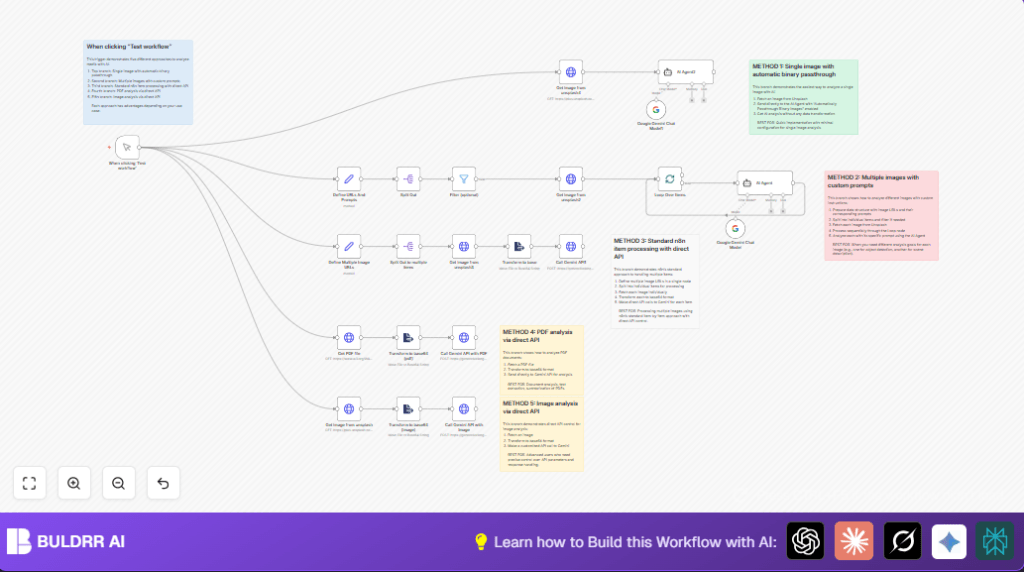

What This Automation Does
This workflow takes images and PDFs as input and sends them to Google Gemini AI for analysis.
The main problem it solves is saving time and effort when reviewing many marketing assets.
The output is detailed content descriptions and key facts extracted from each file.
This helps users get fast, consistent insights without manual work.
Why This Workflow Is Especially Powerful for PDF Analysis
Most people land on this page because they need to extract data from PDFs — and that is exactly where this workflow delivers the most value.
PDFs are the standard format for business documents: invoices, contracts, reports, receipts, and proposals. The problem is that extracting structured data from them usually requires either manual copy-paste work or setting up a separate OCR (Optical Character Recognition) tool.
This workflow skips all of that. Google Gemini AI reads and understands PDF content directly — no OCR tool required, no extra software to install, no separate API to configure. You feed it a PDF URL, and it returns structured, readable text insights in seconds.
Whether you are processing a single contract or a batch of invoices, the same workflow handles it automatically using n8n.
How This Workflow Works (Inputs → Processing → Output)
Inputs
- Image URLs with prompts explaining the requested analysis.
- PDF file URLs for content extraction.
Processing Steps
- Split multiple input items into singles for processing.
- Filter only items marked to process.
- Download images or PDFs using HTTP nodes.
- Convert binary data to base64 encoding.
- Send base64 data with prompts to Google Gemini API.
- Receive AI-generated text with insights.
Output
- AI descriptions and summaries of image or PDF content.
- Useable text for marketing teams to quickly understand asset details.
Who Should Use This Workflow
This workflow is built for anyone who regularly handles PDF documents or image-heavy files that need fast, accurate content extraction.
It is especially useful for:
- Finance and accounting teams processing invoices, receipts, or expense reports — extract vendor names, amounts, dates, and line items automatically without manual data entry
- Legal and operations teams reviewing contracts — pull out key clauses, party names, dates, and obligations without reading every page manually
- Marketing and creative teams managing image assets — get AI-generated descriptions, color details, and content summaries for large media libraries
- Business owners and freelancers handling mixed document types — invoices, proposals, agreements, and images all processed through a single workflow
If your team spends time reading through PDFs to find specific information, this workflow eliminates that work entirely.
Tools and Services Used
- Google Gemini (PaLM) API: For AI content understanding.
- Unsplash API or direct image URLs: For sourcing images.
- n8n Automation Platform: To build and run the workflow.
- HTTP Request nodes: To access APIs and download files.
Beginner Step-by-Step: How to Use This Workflow in n8n
Importing and Setting Up the Workflow
- Download the workflow file using the Download button on this page.
- Open the n8n editor and use “Import from File” to add the workflow.
- In the imported workflow, add your Google Gemini API Key in the HTTP Request node credentials.
- If URLs, prompt texts, or other settings are present in Set nodes, update them as needed for your media.
Testing and Activating
- Run the workflow manually once using the Manual Trigger node.
- Check the outputs to see if image and PDF data processed successfully.
- Fix any credential or URL issues if errors happen.
- Finally, activate the workflow in n8n to run automatically or on demand.
You now have a running media analyzer using Google Gemini AI without building it yourself.
Consider using self-host n8n for full control over data and uptime.
Common Workflow Inputs and Outputs
- Input: Array of objects with URL and prompt fields for images.
- Input: PDF file URLs for direct analysis.
- Output: Text responses with descriptions or color info for images.
- Output: Summaries of text content extracted from PDFs.
Potential Issues and How to Fix Them
- Authentication errors come from wrong or missing API keys; recheck credentials in HTTP nodes.
- Download failures usually mean bad URLs or access limits; confirm URLs in Set node are correct and public.
- Base64 errors happen if binary data isn’t properly converted; verify Extract From File nodes use “binaryToProperty” operation.
- AI response errors can occur if prompts are empty or not forwarded correctly; examine prompt fields and test with sample text.
Customization Ideas
- Edit prompts in the Set node to ask the AI specific questions about images or documents.
- Add your own PDF URLs in the HTTP Request node for document input.
- Adjust batch sizes or splitting logic to manage large input volumes efficiently.
- Switch Google Gemini models by changing model names in HTTP requests.
- Add error checks after downloads to skip broken images or files.
Summary
✓ Saves hours by automating image and PDF content review using Google Gemini AI.
✓ Processes single or multiple files with tailored prompts.
→ Outputs easy-to-understand text insights for marketing use.
→ Simplifies managing media with n8n’s automation platform.
Do You Need an OCR Tool to Analyze PDFs With This Workflow?
No — and this is one of the biggest advantages of using Google Gemini AI for document analysis.
Traditional PDF text extraction requires an OCR (Optical Character Recognition) tool to scan and convert document content into readable text. Setting up OCR adds cost, extra API credentials, and additional workflow complexity.
Google Gemini understands PDF content natively. When you send a PDF to Gemini through this n8n workflow, it reads the document directly and returns accurate, structured insights — whether the PDF contains typed text, tables, or even scanned images of documents.
This means:
- No OCR API key to manage
- No separate text extraction step in your workflow
- No additional cost for a third-party OCR service
- Accurate results even from complex, multi-column PDF layouts like invoices and contracts
For teams processing high volumes of business documents, this saves both setup time and ongoing costs compared to traditional extraction pipelines.
