
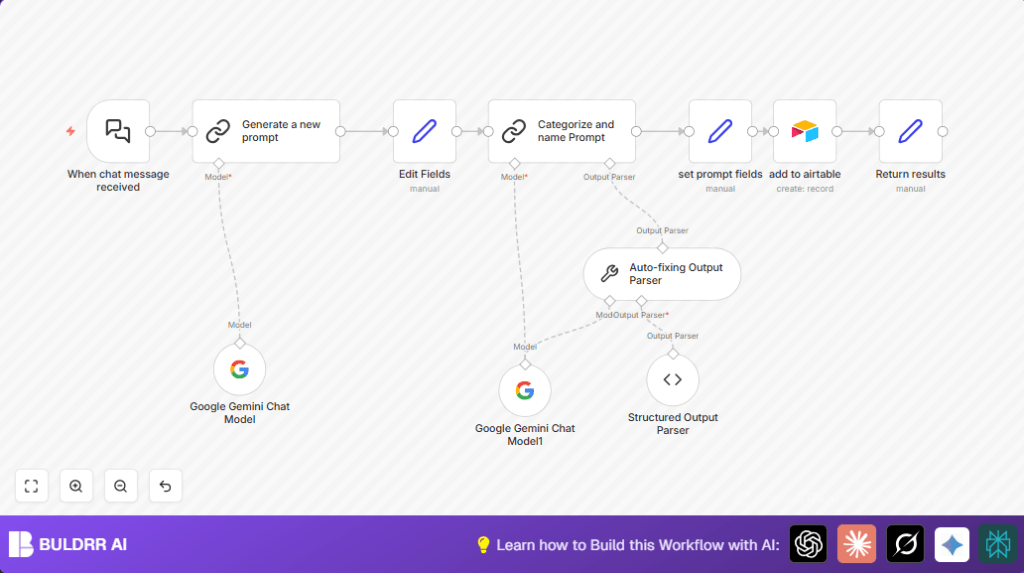

1. What this workflow does
This workflow helps automate writing, fixing, sorting, and saving AI prompts.
The main problem solved is saving time and stopping errors in prompt management.
It starts with a chat message, then creates a detailed AI prompt, fixes its format, names and groups it by topic, and finally saves it in a list.
The output is a clean, ready-to-use prompt stored in Airtable for easy use by an AI team.
2. Tools used in this workflow
- n8n: Runs the automation with nodes.
- Google PaLM API with Gemini Model: Generates expert AI prompts.
- Airtable: Stores the final prompt details with category and name.
3. Inputs, processing steps, and output explained
Inputs:
- User sends a chat message triggering the workflow.
- API keys and config for Google PaLM and Airtable.
Processing steps:
- When chat message received node listens for messages.
- Google Gemini Chat Model creates a detailed AI prompt from the chat message.
- Generate a new prompt chain guides AI to polish and structure the prompt.
- Edit Fields node holds the prompt text for optional manual edits.
- Auto-fixing Output Parser fixes any format errors in the prompt.
- Categorize and name Prompt chain lets AI assign a name and a category.
- Set prompt fields sets name, category, and prompt text for Airtable entry.
- Add to airtable saves the prompt record.
- Return results prepares output for user display.
Output:
A new prompt record saved with name, category, and prompt text.
Also a prompt text returned for quick user see or reuse.
4. Beginner step-by-step: How to use this workflow in n8n
Step 1: Import the workflow
- Download the workflow file using the Download button on this page.
- Open the n8n editor where you want to run the automation.
- Use “Import from File” option to load the downloaded workflow.
Step 2: Add credentials and update settings
- Add your Google PaLM API Key with Gemini Model access in the credentials of the Google Gemini Chat Model node.
- Check the add to airtable node and connect your Airtable API Key.
- Update the Airtable base ID, table name, or field names if your setup is different.
- If needed, update any emails, channels, or folder IDs in input nodes.
Step 3: Test the workflow
- Send a test chat message to trigger the When chat message received node.
- Watch executions to check AI prompt creation, parsing, categorization, and saving.
Step 4: Activate for production
- Switch the workflow from draft to active mode in n8n editor.
- Monitor runs regularly for any errors.
- If self hosting n8n, consider checking self-host n8n for stable server operation.
5. Customization ideas
- Change AI model settings in Google Gemini Chat Model like topP for creativity or precision.
- Modify the YAML prompt text inside the Generate a new prompt node to fit different prompt styles or roles.
- Add an extra Structured Output Parser node if needing stricter prompt error checking before saving.
- Save final prompts to other storages like Google Sheets or SQL by replacing the Airtable node.
6. Common problems and fixes
Authentication failed with Google PaLM API
Check if the API Key in the Google Gemini Chat Model node is correct and active.
Enter new valid keys if needed and try test run.
Airtable record not created
Ensure Airtable base ID, table names, and field mappings in the add to airtable node are correct.
Check API Key permissions and Airtable access rights.
Prompt parsing errors or malformed output
Look at Auto-fixing Output Parser settings to confirm schema and fix options.
Try adding a more strict parser node or improve AI prompt instructions.
7. Pre-production checklist
- Send a test message to the When chat message received node and confirm it triggers.
- Confirm Google Gemini API generates good prompts without errors.
- Verify parsed prompts are well structured and fix any parsing issues.
- Check Airtable storing new prompt records correctly with expected fields.
- Run full workflow end-to-end with sample input and test output.
- Backup Airtable data in case you do mass updates or testing.
8. Deployment tips
After testing, activate workflow in n8n so it listens live.
Monitor workflow runs and error logs in n8n UI.
Watch API usage and plan for limits based on prompt volume.
Consider cleaning or archiving old prompts in Airtable over time.
9. Summary of results
✓ Save more than 20 hours monthly by auto-managing AI prompts.
✓ Reduce errors and manual effort in prompt writing and storage.
✓ Keep a clean, searchable prompt library in Airtable for the team.
→ Easy workflow import and setup inside n8n editor.
→ Clear outputs for use in chat or automation systems.
