
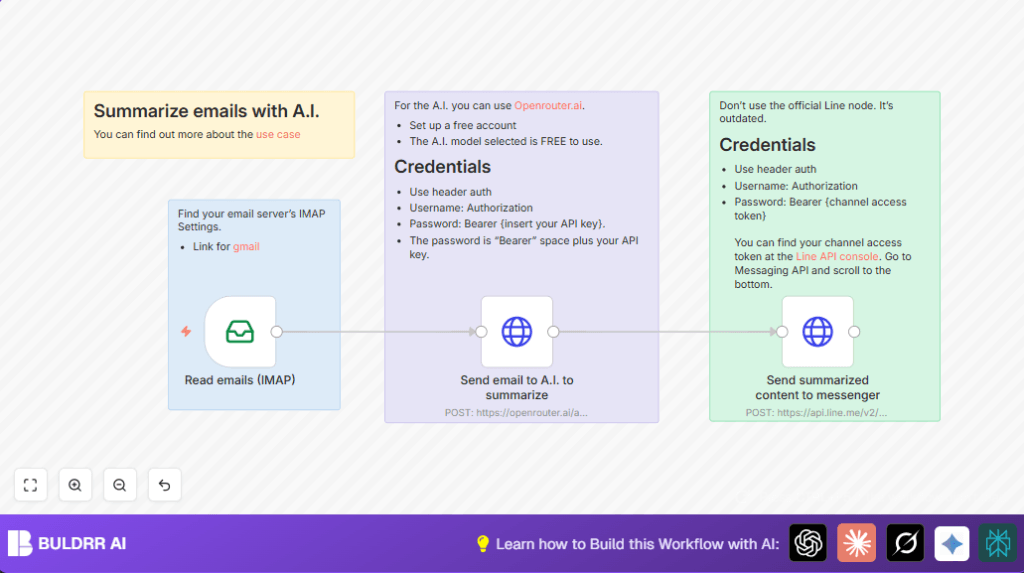

What this workflow does
This workflow helps to quickly read emails and make short summaries that find urgent tasks and deadlines.
It takes emails from an IMAP email inbox, uses OpenRouter AI to make smart summaries, then sends these summaries to a Line Messenger app.
This saves almost two hours daily by reducing time spent reading long emails and lowers the chance to miss important actions.
Who should use this workflow
This is good for people who get many emails and find it hard to notice urgent work inside long messages.
Anyone who uses Line Messenger and wants fast alerts about important emails can use this.
Tools and services used
- IMAP Email server: Receives emails (like Gmail or Outlook).
- OpenRouter AI API: Summarizes the email content using llama-3.1-70b-instruct model.
- Line Messaging API: Sends summarized messages to the Line app.
- n8n automation workflow: Connects steps and runs them automatically.
How this workflow works (Input → Process → Output)
Inputs
- Incoming emails from your IMAP account.
Processing Steps
- First, the EmailReadIMAP node fetches the new emails.
- Next, the emails are sent to the HTTP Request node calling OpenRouter AI with instructions to summarize urgent tasks and deadlines.
- The AI returns a short, clear summary with bold highlights for deadlines and urgency marks.
- Then, another HTTP Request node sends this summary to the Line Messaging API using the correct header authentication.
Output
- The user gets a short message in Line Messenger showing urgent actions and deadlines from the email.
Beginner step-by-step: How to use this workflow in n8n
Step 1: Import the workflow
- Download the workflow file using the Download button on this page.
- Open your n8n editor.
- Click Import from File and select the downloaded workflow.
Step 2: Add your credentials
- Add your IMAP email account credentials in n8n, like Gmail or Outlook settings.
- Enter your OpenRouter AI API key for the HTTP Request node that sends the email text for summarizing.
- Put your Line Messaging API Channel Access Token into the other HTTP Request node that sends messages to Line.
Step 3: Adjust settings if needed
- Check if any IDs, email folders, or channel values in the workflow need changing for your accounts.
Step 4: Test the workflow
- Run the workflow once with test emails to make sure summaries are created and messages reach the Line app.
Step 5: Activate for production
- After confirming correct operation, activate the workflow to run automatically in your n8n environment.
- Set polling intervals or triggers based on your email volume to keep it working smoothly.
If self hosting n8n, see self-host n8n for setup ideas.
Customization ideas
- Change the AI model name in the OpenRouter node to try different summary styles.
- Edit the prompt for more focus like tone, sentiment, or special formatting.
- Switch Line API URL and tokens to use another messaging app like Telegram.
- Add email filters to summarize only emails from certain senders or with keywords.
When errors happen (Troubleshooting)
- IMAP node fails to connect: Check email username & password and enable IMAP access.
- OpenRouter AI returns 401 error: Confirm API key is correct and has “Bearer ” prefix.
- Line messages do not arrive: Use HTTP Request with header auth, not old Line node; verify channel token in Line Console.
Summary of results
✓ Saves time by shortening long emails to priority tasks and deadlines.
✓ Sends easy-to-read summaries to a mobile app for fast access.
✓ Cuts manual work and lowers chances of missing important emails.
✓ Works with common email systems and Line Messenger.
