
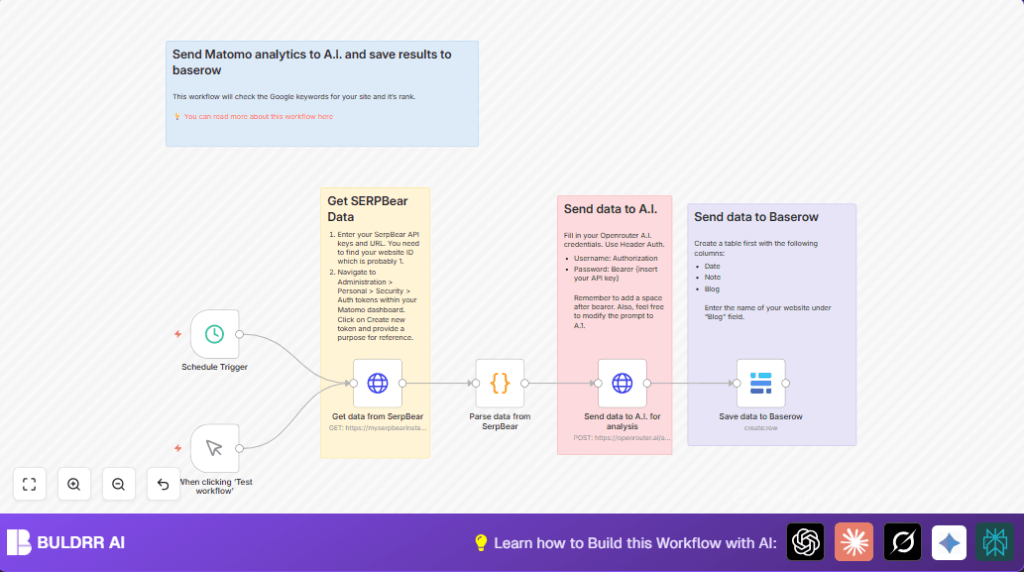

What this workflow does
This workflow gets keyword rankings from SERPBear for a website like rumjahn.com.
It then uses a code node to organize ranking data, average positions, and trends.
Next, it sends this summary to an AI model via OpenRouter AI for expert SEO advice.
Finally, it saves the AI results into a Baserow database for easy tracking.
This saves hours of manual work and gives clear SEO action steps regularly.
Who should use this workflow
This is for people managing SEO on one or more websites.
It helps those who manually check keyword data and wish to automate reporting.
Non-technical users can get AI SEO insights without complex coding.
It is useful for weekly or on-demand SEO performance summaries.
Tools and services used
- SERPBear API: Provides keyword ranking data for a domain.
- n8n Workflow Automation: Runs the whole pipeline from data fetch to save.
- Code node in n8n: Processes raw SERPBear data into useful summaries.
- OpenRouter AI API: Analyzes keyword summaries and generates SEO reports.
- Baserow Database: Stores AI-generated SEO insights for history and collaboration.
Inputs, processing steps, and outputs
Inputs
- Website domain name (e.g., rumjahn.com).
- SERPBear API key and Website ID.
- OpenRouter AI API Key.
- Baserow API token and table setup.
Processing Steps
- Fetch current keyword rankings via SERPBear API.
- Use the Code node to calculate current positions, 7-day averages, and keyword trends.
- Build a prompt summarizing keyword data for AI analysis.
- Send prompt to OpenRouter AI using POST HTTP Request.
- Receive and parse the AI’s SEO performance report.
- Save the AI report into Baserow table with date and website name.
Output
Stored detailed SEO reports enriched by AI.
Reports show which keywords improve, decline, or stay stable.
Recommendations for SEO actions appear in the saved records.
Beginner step-by-step: How to use this workflow in n8n
Step 1: Import the workflow
- Download the provided workflow file from this page.
- Inside the n8n editor, click “Import from File” and upload the downloaded workflow.
Step 2: Configure credentials and parameters
- Add your SERPBear API key and Website ID in the HTTP Request node named “Get data from SerpBear.” Update the domain query parameter if you track a different site.
- Enter your OpenRouter AI API key in the HTTP Request node named “Send data to A.I. for analysis.”
- In the Baserow node, update it with your Baserow API token and set the target table. Make sure columns for Date, Note, and Blog exist.
- Check the Code node to ensure the prompt text matches your domain if needed.
Step 3: Test the workflow
- Trigger the workflow manually once using the Manual Trigger node.
- Look at each node output to verify no errors and that data flows correctly.
Step 4: Activate the workflow
- Turn on the Schedule Trigger node for weekly runs (or as desired).
- The workflow now fetches, analyzes, and saves SEO data regularly without manual work.
For help with running n8n on your own server, check self-host n8n resources.
Customization ideas
- Change the tracked website by updating the domain query parameter in the SERPBear HTTP node.
- Adjust the schedule trigger to run daily or monthly for more or less frequent reports.
- Edit the AI prompt in the Code node to change the style or details of the SEO report.
- Swap Baserow node with other database nodes like Airtable or Google Sheets to store reports elsewhere.
Common failure points and fixes
401 Unauthorized error from SERPBear API
This means the API key or headers are wrong.
Fix by double-checking the Authorization header has “Bearer your_API_key” with a space.
Empty or error response from AI node
This can happen if the JSON body is malformed or API key is wrong.
Check the JSON format and the Bearer token, especially the space after “Bearer.”
Failure saving data to Baserow
Usually due to wrong table setup or API token issues.
Make sure Baserow table has Date, Note, Blog columns and the API token allows writes.
Summary of workflow results
✓ Saves 3-4 hours weekly by automating keyword ranking checks.
✓ Delivers consistent AI-analyzed SEO reports highlighting trends.
✓ Stores reports in a Baserow table for team access and history.
→ Enables faster, smarter SEO actions based on data.
→ Fits weekly or manual use with flexible trigger options.
