
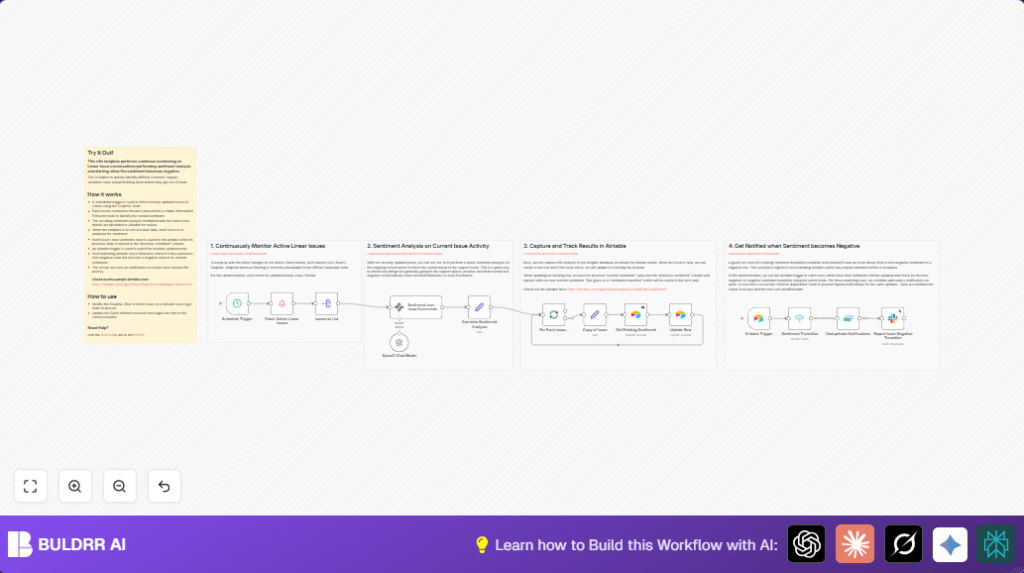

What This Workflow Does
This workflow looks for changes in comments on Linear issues every 30 minutes.
It checks how people feel by using AI to read the comments.
When the mood turns bad, it saves the data in Airtable and sends a message to Slack.
This helps the team find problems early and fix issues before they get worse.
Tools and Services Used
- Linear.app: Provides issue data via GraphQL API.
- OpenAI API: Analyzes comment sentiment.
- Airtable: Stores sentiment and issue data for tracking.
- Slack: Sends notifications about negative sentiment.
- n8n Automation: Connects all pieces and runs the workflow.
Inputs, Processing Steps, and Output
Inputs
- Linear issues updated within last 30 minutes.
- Comments on those issues.
- Existing sentiment data from Airtable.
Processing Steps
- Fetch updated issues from Linear using GraphQL query.
- Split issues to handle one at a time.
- Concatenate comments and analyze sentiment with OpenAI.
- Combine sentiment data with issue details.
- Use Airtable to find past sentiment entries for each issue.
- Update or insert new sentiment records in Airtable.
- Watch Airtable for sentiment changes to detect transitions to negative.
- Remove duplicate alerts based on Issue ID and update time.
- Send Slack messages when issue sentiment turns negative.
Output
- Sentiment records in Airtable showing current and previous moods.
- Slack alerts for issues with newly negative sentiment.
Who Should Use This Workflow
Any support or product team that tracks issue tickets in Linear and wants to react early to customer moods.
It is good for teams that spend time reading comments and want to save hours.
The workflow helps by giving fast alerts about problem tickets needing attention.
Teams can catch customer frustration before it grows and slows down fixing bugs.
Beginner Step-by-Step: How to Use This Workflow in n8n
Step 1: Download and Import
- Use the Download button on this page to get the workflow file.
- Open your n8n editor.
- Choose Import from File and select the downloaded file.
Step 2: Configure Credentials and Settings
- Add API Keys in n8n for Linear, OpenAI, Airtable, and Slack.
- Check the Airtable base and table names match the workflow settings.
- Update Slack channel ID if you want notifications in a different place.
- Confirm the query dates or filter formats if you change frequency.
Step 3: Test the Workflow
- Run the workflow manually once from n8n.
- Check the results in Airtable and Slack message output.
- Look for errors in execution logs and fix any credential problems.
Step 4: Activate for Production
- Turn on the workflow so it runs automatically every 30 minutes.
- Watch for Slack alerts to begin coming through as issues update.
- Optional: Set up error handler nodes or logging to catch failures in live use.
- For stable self-hosting, check this self-host n8n resource.
Common Troubles and Solutions
- Problem: No issues found in GraphQL node.
Cause: Wrong date filter or bad Linear API Key.
Fix: Make sure date is in ISO format and API Key is correct. - Problem: OpenAI sentiment node fails.
Cause: Missing API Key or over quota.
Fix: Check OpenAI API credentials and limits. - Problem: Airtable not updating records.
Cause: Filter formula or Issue ID match is wrong.
Fix: Confirm Airtable columns and filter formula use correct ID. - Problem: Slack messages not sent.
Cause: Slack token missing or wrong channel ID.
Fix: Verify Slack token and channel in n8n node settings.
Customization Ideas
- Change the GraphQL filter to only check issues from certain teams or with tags.
- Add more sentiment types in OpenAI node like “urgent” or “needs help.”
- Modify Slack message format to include priority level or assignee contact.
- Set batch size in SplitInBatches node to match API rate limits.
- Add email or Microsoft Teams notifications after sending Slack alerts.
Summary
✓ Automatically checks Linear comments every 30 minutes.
✓ Uses AI to find when issue mood turns negative.
✓ Saves sentiment history in Airtable for tracking.
✓ Sends Slack messages only when mood worsens.
✓ Avoids repeated alerts to keep notifications clear.
✓ Saves support teams time and helps fix problems faster.
