

What This Automation Does ⚙️
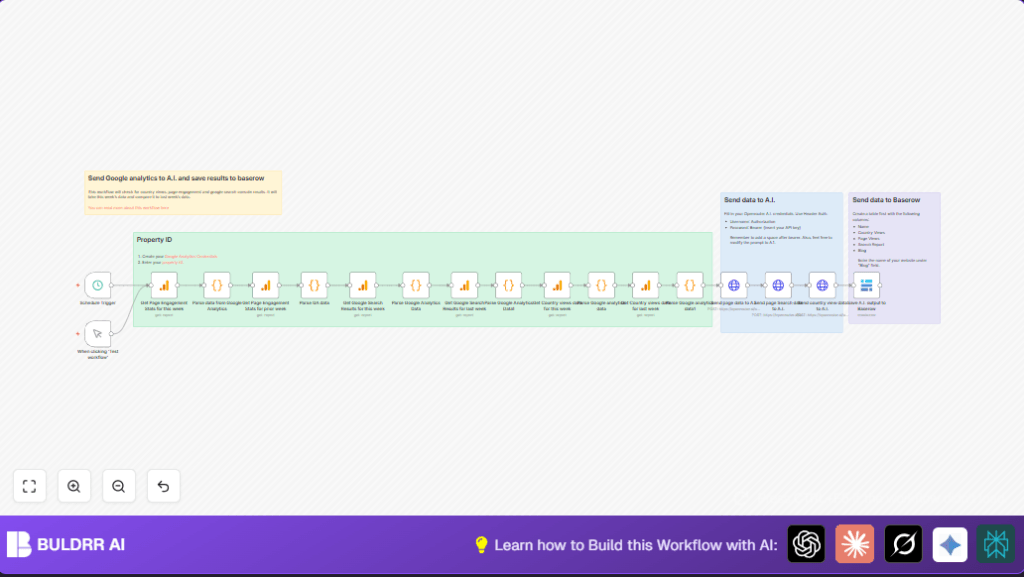
This workflow collects SEO data from Google Analytics and Google Search Console for two weeks.
It compares this week’s and last week’s metrics on page views, countries, and search results.
Then it sends the data to an AI model using the Openrouter API.
The AI creates a report with improvement ideas and tables in markdown format.
Finally, the workflow saves these SEO insights into a Baserow database.
This saves time, reduces errors, and gives clear SEO suggestions quickly.
Tools and Services Used
- Google Analytics: Provides site page engagement, country user data, and search metrics.
- Google Search Console: Supplies search performance and landing page data.
- Openrouter API: Sends data to an AI model (meta-llama/llama-3.1-70b-instruct) for analysis and suggestions.
- Baserow Database: Stores AI-generated SEO reports in organized tables.
- n8n Workflow Automation: Connects all services and handles scheduled or manual runs.
Inputs, Processing Steps, and Outputs
Inputs
- Google Analytics data for current and previous weeks on page views, user engagement, country stats.
- Google Search Console metrics for search queries and landing pages.
- User’s Google Analytics credentials, Openrouter API key, and Baserow access details.
Processing Steps
- Schedule Trigger starts the workflow weekly; Manual Trigger allows immediate run.
- Google Analytics nodes fetch metrics for two weeks using date ranges.
- Code nodes parse and simplify raw GA data into structured JSON.
- HTTP Request nodes send structured data to Openrouter AI with prompts to compare weeks and generate SEO insights.
- Baserow node saves the AI-generated reports into a table with relevant columns.
- Sticky Note nodes provide documentation within the workflow.
Outputs
- Markdown tables showing SEO metrics comparisons.
- Five SEO improvement suggestions from AI.
- Data records added to Baserow database for tracking and review.
Beginner Step-by-Step: How to Use This Workflow in n8n
Step 1: Import Workflow
- Download the workflow file using the Download button on the page.
- In your n8n editor, select “Import from File” and upload the downloaded workflow JSON.
Step 2: Configure Credentials and Settings
- Add or update Google Analytics OAuth2 credentials in the Google Analytics nodes.
- Add your Openrouter API key in the HTTP Request nodes under Header Auth with “Authorization” header as “Bearer YOUR_API_KEY”.
- Update Baserow database ID and table ID in the Baserow node to point to your workspace.
- If the workflow includes any IDs like Google Analytics property ID or email, update them accordingly.
- Copy and paste any code or prompt text exactly if needed in Code or HTTP Request nodes.
Step 3: Test the Workflow
- Run the workflow manually using the Manual Trigger node.
- Check each node’s output to confirm correct data fetching and parsing.
- Make sure AI responses appear and Baserow rows get created with data.
Step 4: Activate for Production Use
- Turn on the workflow by toggling the Active switch in n8n.
- The Schedule Trigger will then run the workflow automatically at set intervals (weekly by default).
- Monitor execution logs regularly to catch any errors early.
If hosting on your own server, consider self-host n8n to control data and uptime.
Troubleshooting ????
- Invalid data structure errors often mean Google Analytics response changed. Check that metrics and dimensions in GA nodes match your property and that data exists. Insert temporary debug nodes to view raw API output.
- 401 Unauthorized errors from Openrouter API mean problem with API key or Authorization header. Make sure header is “Authorization: Bearer YOUR_API_KEY” with a space after Bearer.
- Baserow data not saving can be from wrong database/table IDs or missing write rights. Double-check Baserow API token and IDs. Test Baserow connection node separately if needed.
Customization Ideas ✏️
- Change scheduling interval in Schedule Trigger node for daily, weekly, or monthly runs.
- Add more Google Analytics metrics like “bounceRate” or “sessionDuration” for deeper analysis.
- Switch AI model in HTTP Request nodes to try different Openrouter LLM models for alternative insights.
- Add output nodes to export Baserow data to Google Sheets, Slack, or email for team sharing.
- Use Manual Trigger node to run anytime when immediate SEO reports are needed.
Summary of Workflow Benefits
✓ Saves at least 5 hours of manual work weekly for SEO data analysis.
✓ Reduces errors by automating data fetching and parsing.
✓ Produces clear markdown tables and specific SEO improvement ideas by AI.
✓ Stores useful SEO reports in an easy-to-use Baserow database.
→ Runs fully automatically on schedule or manually on demand.
