
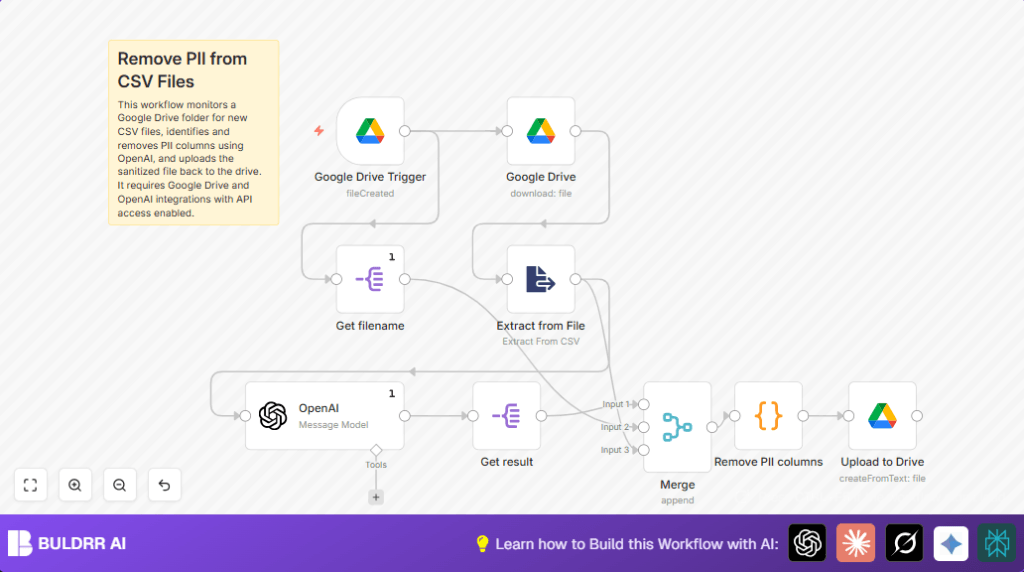

What this workflow does
This workflow watches a Google Drive folder for new CSV files.
When a new file arrives, it automatically finds which columns contain personal information like names or emails.
Then, it removes those columns from the CSV and saves a clean copy in another folder.
This stops sensitive data from leaking and saves hours of manual work every day.
Who should use this workflow
If you get many CSV reports containing personal data, and you must remove private details before sharing, this workflow helps.
It is useful for compliance teams, data handlers, or anyone worried about accidentally sharing sensitive information.
Tools and services used
- n8n Automation Platform: Runs the workflow steps.
- Google Drive API: Watches the folder, downloads, and uploads files.
- OpenAI (using LangChain node): Identifies PII columns by analyzing CSV headers.
- Code Node: Removes the PII columns and rebuilds the CSV.
Input → Processing → Output
Inputs
- New CSV file uploaded to a specific Google Drive folder.
Processing steps
- Trigger: Detect new file in the watched folder.
- Download: Get the CSV file content.
- Extract: Parse CSV file and get column headers.
- Analyze: Use OpenAI to find which columns have PII.
- Clean: Remove PII columns using a code script.
- Prepare: Create a new CSV file with clean data and a modified filename.
- Upload: Save the sanitized file to another Google Drive folder.
Outputs
- New CSV files without sensitive columns, saved to the designated Google Drive folder.
Beginner step-by-step: How to use this workflow in n8n
1. Import the workflow
- Download the workflow file using the Download button on this page.
- Inside the n8n editor, click “Import from File” and choose the downloaded file.
2. Add credentials and set folders
- Open each Google Drive node and add your Google Drive API credentials.
- In the Google Drive Trigger, set the ID of the folder to watch.
- In the last Google Drive node, set the destination folder ID where cleaned files will be saved.
- In the OpenAI (LangChain) node, add your OpenAI API Key.
3. Test the workflow
- Upload a test CSV file to the watched Google Drive folder.
- Check the n8n execution panel to see the workflow run.
- Look for the new sanitized file appearing in the output folder.
4. Activate the workflow
- Once tests pass, toggle the workflow to active.
- Make sure n8n is running constantly to handle new files anytime.
If hosting your own n8n instance, see self-host n8n for setup help.
Explanation of main code and prompts
The OpenAI (LangChain) node uses this system message to detect PII columns:
{"role":"system","content":"Analyze the provided tabular data and identify the columns that contain personally identifiable information (PII). Return only the column names that contain PII, separated by commas."}This message tells the AI to only list column names with PII, separated by commas.
The code node named Remove PII columns receives all data, then:
- Extracts the PII columns from the AI output.
- Removes those columns from all CSV rows.
- Generates a new CSV text without PII columns.
- Creates a new filename adding “_PII_removed” before the file extension.
This provides a clean CSV ready to upload back to Google Drive.
Customization ideas
- Change the watched folder by updating the folder ID in the Google Drive Trigger node.
- Adjust the OpenAI model for cheaper or faster calls in the OpenAI (LangChain) configuration.
- Filter only CSV files by checking file extensions before processing.
- Modify the code node to mask PII data instead of deleting, if needed.
- Add notification nodes like Slack or Email to signal when files are cleaned and uploaded.
Common problems and fixes
- Issue: “PII column names are missing in input data.”
Fix: Check if the OpenAI prompt matches the CSV headers and API key is valid. - Issue: “No rows to convert to CSV.”
Fix: Verify the CSV file is not empty and that extraction worked correctly. - Issue: Google Drive upload fails.
Fix: Confirm the destination folder ID and drive API permissions allow writing.
Summary of results
✓ Automates detection and removal of PII in CSVs.
✓ Saves hours by removing manual editing work.
✓ Prevents accidental sharing of sensitive data.
→ Produces clean CSV files automatically stored in Google Drive.
