
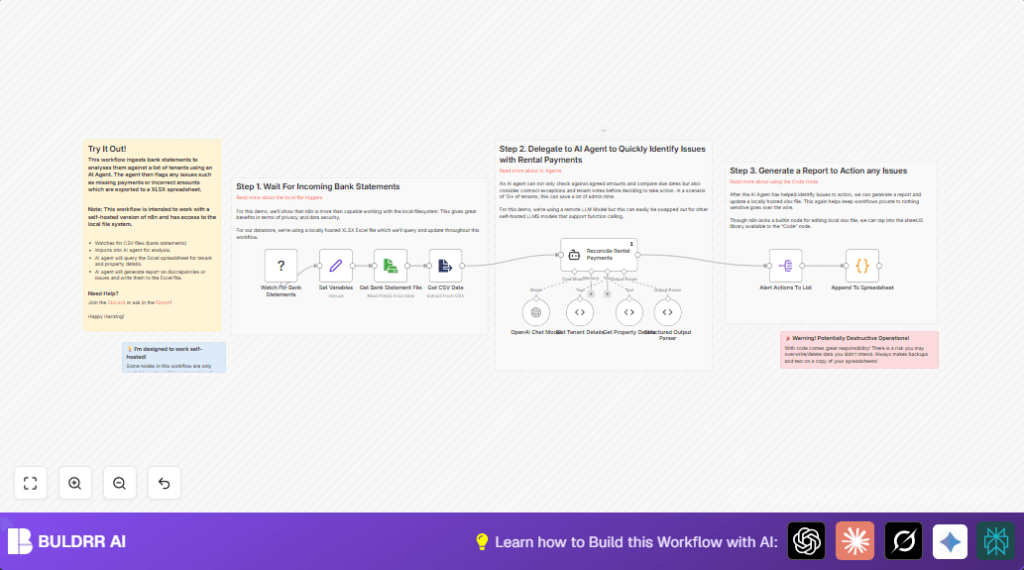

What This Workflow Does
This workflow watches a folder on your local computer for new bank statement CSV files.
It reads those files and sends the data to an AI tool that checks if rents were paid right.
The AI checks amounts, dates, and tenant contracts for any errors or missing payments.
The workflow then adds a report about these problems into a local Excel file.
This helps property managers save time and avoid mistakes by doing this work automatically.
Who Should Use This Workflow
Property managers with many rentals who spend hours matching payments and contracts.
People who want to reduce errors from manual checking of bank statements.
Anyone who keeps tenant info and payment records in local Excel files.
Those who have a self-hosted n8n setup with access to local files.
Tools and Services Used
- n8n: Automation platform that runs the workflow.
- OpenAI GPT-4o API: AI model used for rental payment checks.
- Local CSV files: Bank statements placed in a specific folder.
- Local Excel workbook (*.xlsx): Stores tenant and property data, plus reports.
- Node.js modules (xlsx): Read and write Excel files directly inside nodes.
Inputs, Processing and Output
Inputs
- New CSV bank statement files in a watched local folder.
- Tenant and property details in a local Excel workbook.
Processing Steps
- Detect new CSV file added.
- Read CSV bank statement data.
- Send data as a markdown table to AI agent for analysis.
- AI cross-checks payments vs tenant contracts by querying Excel sheets with JavaScript.
- Parse AI JSON output for payment alerts.
- Split alerts into individual entries.
- Append alerts as rows in Excel alert sheet, backing up original file.
Output
An updated Excel workbook with detailed alerts about missed or wrong rental payments.
Beginner Step-By-Step: How to Use This Workflow in n8n
Import the Workflow
- Download the workflow file using the Download button on this page.
- Open the n8n editor and choose “Import from File” to load the workflow.
Configure Credentials and Settings
- Add your OpenAI API Key credential in n8n for the LangChain nodes.
- Check the Watch For Bank Statements node path matches the folder where CSV files are saved.
- Update the file path variable in the Set Variables node to point to your Excel workbook location.
- If needed, adjust sheet names or IDs in custom JavaScript nodes.
Test and Activate
- Run the workflow with a sample bank statement to see if alerts appear in your Excel file.
- If all works as expected, activate the workflow by switching it on in n8n.
- Monitor folder for new files and check Excel reports for flagged payment issues.
Using self-host n8n or similar setup lets you keep all sensitive files local while automating this process.
Workflow Detailed Description
Step 1: Watch For Bank Statements (Local File Trigger)
This node watches a local folder for new CSV files.
It triggers the workflow automatically when a new bank statement arrives.
Step 2: Set Variables Node
Stores the file path of your Excel workbook as a variable to use later.
Step 3: Read Bank Statement File (Read/Write File Node)
Reads the contents of the new CSV file dynamically using the path from the trigger.
Step 4: Extract CSV Data (Extract From File Node)
Turns the CSV text into structured JSON data rows, ready for AI processing.
Step 5: Reconcile Rental Payments (LangChain Agent Node)
Sends the bank payment info in a markdown table format to an AI model.
The AI compares payments against tenant contracts, dates, amounts, and exceptions.
It returns a report in JSON listing missed payments, wrong amounts, or contract ends.
Two JavaScript tool nodes provide tenant and property info from Excel for the AI on demand.
Step 6: Get Tenant and Property Details (LangChain ToolCode Nodes)
These nodes query the Excel workbook locally using the xlsx npm package.
They look up tenant or property details matching IDs or names for AI context.
const xlsx = require('xlsx');
const { spreadsheet_location } = $('Set Variables').item.json;
const sheetName = 'tenants';

const wb = xlsx.readFile(spreadsheet_location, { sheets: [sheetName] });
const rows = xlsx.utils.sheet_to_json(wb.Sheets[sheetName], { raw: false });

const queryToList = [].concat(typeof query === 'string' ? query.split(',') : query);

const result = queryToList.map(q => (
  rows.find(row =>
    row['Tenant Name'].toLowerCase() === q.toLowerCase() ||
    row['Tenant ID'].toLowerCase() === q.toString().toLowerCase()
  )
));

return result ? JSON.stringify(result) : `No results were found for ${query}`;
Step 7: Structured Output Parser (LangChain Structured Output Parser Node)
Validates the AI output matches expected JSON format for alerts.
Step 8: Alert Actions to List (SplitOut Node)
Splits the JSON array into separate items.
Step 9: Append To Spreadsheet (Code Node)
Adds each alert as a new row in the ‘alerts’ page of your Excel workbook.
The node makes a backup before writing, to keep safe copies.
const xlsx = require('xlsx');
const { spreadsheet_location } = $('Set Variables').first().json;
const sheetName = 'alerts';

const wb = xlsx.readFile(spreadsheet_location);
// Create backup
xlsx.writeFile(wb, spreadsheet_location + '.bak.xlsx');

const worksheet = wb.Sheets[sheetName];

const inputs = $input.all();

for (input of inputs) {
  xlsx.utils.sheet_add_aoa(worksheet, [
    [
      input.json.date,
      input.json["property_id"],
      input.json["property_postcode"],
      input.json["tenant_id"],
      input.json["tenant_name"],
      input.json["action_required"],
      input.json["details"]
    ]
  ], { origin: -1 });
}

// Update sheet reference
const range = xlsx.utils.decode_range(worksheet['!ref']);
const rowIndex = range.e.r + 1;
worksheet['!ref'] = xlsx.utils.encode_range({ s: range.s, e: { r: rowIndex, c: range.e.c } });

xlsx.writeFile(wb, spreadsheet_location, { cellDates: true, cellStyles: true, bookType: 'xlsx' });

return { json: { output: `${inputs.length} rows added` } };
Now, your Excel file shows all payment problems for review or action.
Customizations
- Change the watched folder path in Watch For Bank Statements node.
- Add more columns to tenant or property details by editing the JavaScript in the LangChain ToolCode nodes.
- Adjust prompts in Reconcile Rental Payments to allow different late payment rules.
- Rename the report sheet by changing
sheetNamein the Code node that appends alerts.
Troubleshooting
- Issue: No trigger on new CSV files.
Cause: Watching wrong folder or wrong file extension.
Fix: Check path and ensure ‘*.csv’ filter is correct. - Issue: AI returns bad JSON.
Cause: AI prompt not clear or response cut off.
Fix: Simplify system prompt and use Structured Output Parser node for validation. - Issue: Cannot write to Excel file.
Cause: File is locked by another program or permissions are missing.
Fix: Close Excel if open and ensure n8n has write access.
Pre-Production Checklist
- Confirm folder with bank statement CSVs exists and has sample files.
- Test Watch For Bank Statements node by adding sample CSV.
- Verify workbook path in Set Variables node is correct.
- Check OpenAI API Key is valid for LangChain nodes.
- Run a test bank statement through the workflow; check Excel sheet for alerts.
- Backup your Excel files before first run to avoid data loss.
Deployment Guide
Turn on the workflow by enabling it in the n8n editor once setup is complete and tests pass.
Monitor the folder for csv files regularly and review Excel alert sheets to handle issues found.
Review execution logs in n8n if any errors occur.
If using self-host n8n, make sure local folder access permissions persist after restart.
Summary
✓ Saves hours by automatically checking rental payments from bank statements.
✓ Finds missed or wrong payments by AI comparing against contracts kept locally.
✓ Keeps all data local for privacy with no sensitive info sent outside except AI prompts.
→ Result: Property managers get faster, more accurate payment reconciliation with less manual work.
