
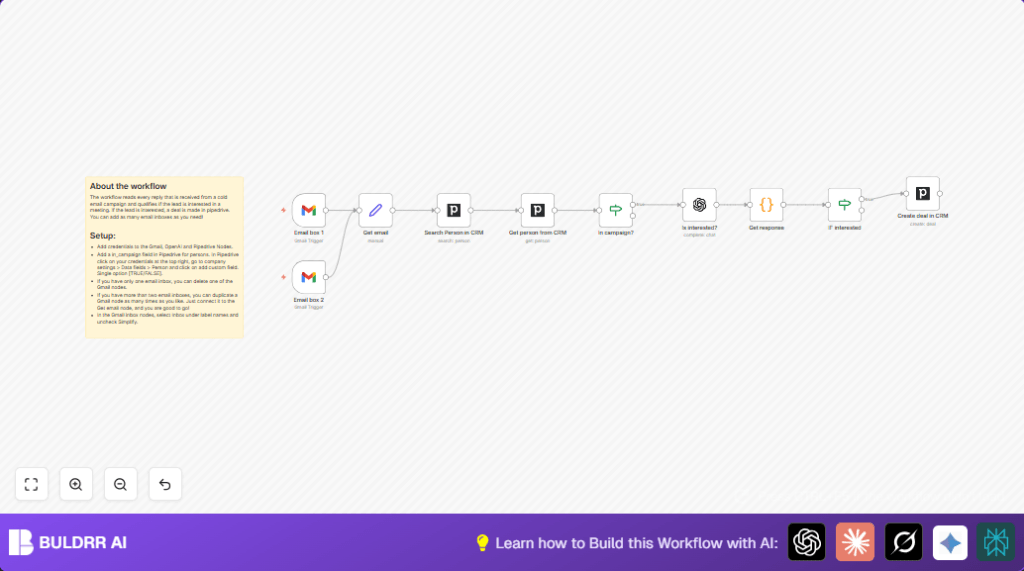

What This Automation Does
This n8n workflow watches several Gmail inboxes for new email replies.
It reads each reply and checks if the sender’s email is in the Pipedrive CRM database.
Then it looks if the contact is marked as part of an active campaign.
If yes, the workflow uses OpenAI GPT-4 to analyze the email reply to decide if the lead is interested.
If the lead is interested, the workflow creates a new deal in Pipedrive for that person.
This reduces manual work in sorting emails and speeds up sales follow-ups.
Tools and Services Used
- n8n: Runs the workflow automation.
- Gmail API: Monitors email inboxes for replies.
- Pipedrive CRM API: Searches contacts and creates deals.
- OpenAI GPT-4 API: Analyzes the email text to detect leads’ interest.
- Custom Fields in Pipedrive: The “in_campaign” field to check campaign status.
Inputs, Processing, and Outputs
Inputs
- Incoming email replies from multiple Gmail inboxes.
- Contact data stored in Pipedrive CRM.
- OpenAI GPT-4 API for text analysis.
Processing Steps
- Watch Gmail inboxes for new emails every minute.
- Extract the full email text from new replies.
- Search Pipedrive for a contact matching the sender’s email.
- Get full contact details from Pipedrive to confirm active campaign status.
- Use an OpenAI node with GPT-4 to classify if the lead is interested based on reply content.
- Parse the AI JSON response to get interest and reasoning.
- Check interest result: if “yes”, create a new deal in Pipedrive tied to that contact.
Output
- New deals only created for interested leads to improve sales pipeline accuracy.
- Manual sorting time for replies significantly reduced.
- Better follow-up signals by filtering uninterested replies.
Who Should Use This Workflow
Sales reps managing cold email outreach to many companies or leads.
Anyone wanting to save time on manually reading email replies and qualifying leads.
Users with Pipedrive CRM and Gmail accounts looking to automate lead follow-up.
Beginner Step-by-Step: How to Use This Workflow in n8n
Step 1: Import the Workflow
- Click the Download button on this page to get the workflow file.
- Open n8n editor where the workflow will run.
- Use the Import option and select “Import from File” to load the workflow.
Step 2: Configure Credentials
- Go to each Gmail Trigger node and connect with your Gmail account.
- Set Pipedrive API credential in the Search Person in CRM and Create deal in CRM nodes.
- Input your OpenAI API Key in the Is interested? node for GPT-4 access.
- Check if the Pipedrive custom “in_campaign” field is matched correctly in the workflow.
Step 3: Update IDs and Fields as Needed
- Edit email inbox names or labels in Gmail Trigger nodes if you watch other folders.
- Adjust contact field names in In campaign? If node if your custom field differs.
- Check expressions in the Create deal in CRM node to format deal titles properly.
Step 4: Test the Workflow
- Send a test email reply from a known contact address to your Gmail inbox.
- Watch the workflow run and review each node’s output to confirm proper operation.
Step 5: Activate for Production
- Turn on the workflow in n8n by toggling the active switch.
- Monitor executions regularly to spot and fix issues early.
- Add more Gmail trigger nodes if you want to track additional inboxes.
- Consider using self-host n8n if hosting on your own server fits your needs better.
Detailed Workflow Steps
Step 1: Monitoring Gmail Inboxes
Each Gmail Trigger node polls inbox labels every minute.
Uncheck “Simplify” to get full email data for processing.
Step 2: Extract Email Text
The Get email Set node pulls the full text from email data using expression {{$json.text}}.
Step 3: Search Contact in Pipedrive
Search Person in CRM uses sender’s email field {{$json.from.value[0].address}}.
Set limit to 1 to avoid multiple contact matches.
Step 4: Get Full Contact Details
Get person from CRM inputs person ID {{$json.id}} from search result.
This fetches full data including custom fields to check campaign membership.
Step 5: Check Campaign Status
In campaign? If node compares {{$json.in_campaign}} to “True” string value.
Only contacts marked “True” continue.
Step 6: Use OpenAI to Evaluate Interest
Is interested? OpenAI node sends email content with a prompt that asks GPT-4 to respond as a sales rep deciding if the lead is interested.
The expected AI response is JSON with fields “interested” (yes or no) and “reason”.
Step 7: Extract AI Response
The Get response Code node parses the JSON string returned from OpenAI to get interest and reason ready for decision.
let interested = JSON.parse($json["message"]["content"]).interested;
let reason = JSON.parse($json["message"]["content"]).reason;

return {json:{
 interested: interested,
 reason: reason
}};
Step 8: Decide to Create Deal or Not
IF interested node checks if {{$json.interested}} equals “yes”.
If yes, proceeds to next step; otherwise, ends without creating deal.
Step 9: Create Deal in Pipedrive
Create deal in CRM node dynamically sets deal title with expression:
{{$('Get person from CRM').item.json.Name}} Deal
Creates a deal linked to the contact to track interested leads easily.
Customization Ideas
- Duplicate Gmail Trigger nodes to watch more inboxes.
- Adjust the AI prompt in Is interested? node to suit your style or define “interested” differently.
- Change “in_campaign” field checked in In campaign? node to any custom field relevant to your CRM setup.
- Modify deal title format in Create deal in CRM with dates, campaign names, or any other detail using expressions.
Common Issues and Troubleshooting
No Contact Found in Pipedrive
Cause: The sender email is missing or different from your CRM contact emails.
Check Gmail sender email format and confirm Pipedrive contacts include those emails.
OpenAI API Limits Reached
Cause: Too many AI requests, or API plan restricts usage.
Reduce Gmail polling frequency or consider upgrading OpenAI plan.
Incorrect Interest Detection
Cause: AI prompt is too generic or not aligned to emails you receive.
Update the Is interested? node prompt with clearer instructions and examples.
Pre-Production Checklist
- Test all Gmail credentials have inbox read access.
- Verify Pipedrive API key and permission to search contacts and create deals.
- Confirm “in_campaign” custom field exists on contact records.
- Check OpenAI API keys and usage limits.
- Send test emails and watch workflow runs in n8n to validate each step.
Deployment Tips
Once tested, activate the workflow and keep an eye on error logs.
Add more Gmail triggers as outreach accounts grow.
Consider hosting your automation workflows on a self-hosted environment for better control and privacy. See self-host n8n for more information.
Summary
✓ Automates sorting of cold email replies to identify interested leads.
✓ Uses AI (OpenAI GPT-4) to analyze email content accurately.
✓ Creates deals in Pipedrive CRM only for leads showing interest.
→ Saves hours of manual work every week for sales teams.
→ Improves sales pipeline by capturing leads faster and more reliably.
