
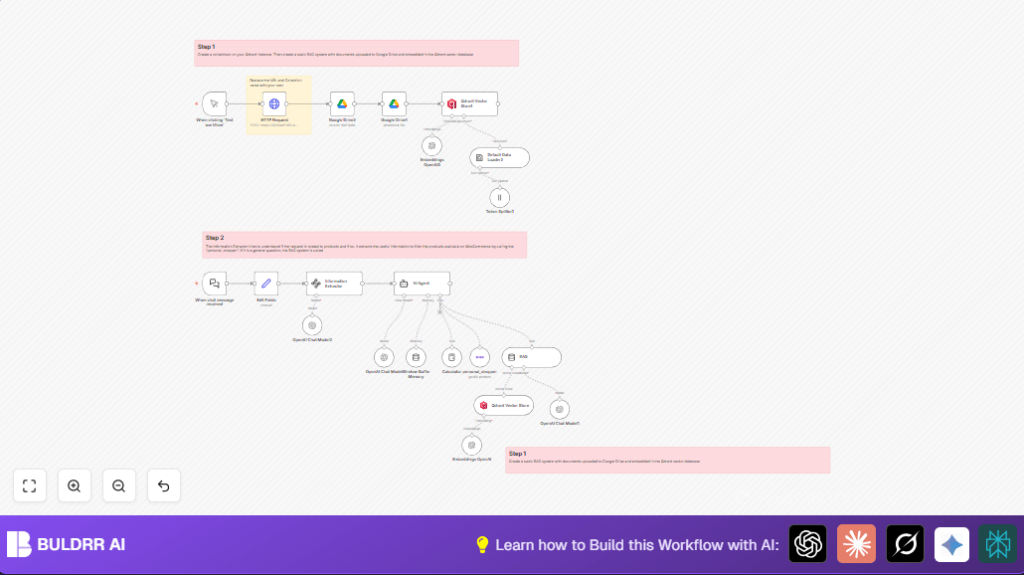

What This Workflow Does
This workflow builds a chat assistant that helps store owners answer customer questions fast.
It finds products from the store based on what the customer asks and gives store info like opening hours.
The result is faster answers, fewer mistakes, and happier customers.
The system listens to chat messages, understands if the user wants to buy a product or needs store info, then searches the right place for answers.
It keeps chat history so conversations feel correct across multiple messages.
Tools and Services Used
- n8n Langchain Chat Trigger node: Listens for incoming chat messages.
- OpenAI API: Understands queries and creates embeddings.
- WooCommerce: Stores product data and inventory details.
- Google Drive: Holds store documents like opening hours and policies.
- Qdrant: Provides vector search for document-based answers.
- n8n Langchain nodes: Extract info and route queries intelligently.
- Window Buffer Memory: Maintains chat context by session.
How This Workflow Works
Inputs
The workflow starts when a chat message arrives with sessionId and chatInput.
Google Drive stores documents about store info.
WooCommerce holds product data and stock details.
Processing Steps
The Langchain Chat Trigger reads the chat message.
A Set node standardizes session ID and chat text.
Information Extractor node analyzes the chat to see if user wants a product or general store info.
It looks for keywords, SKU, product category, and price range in JSON format.
Langchain Agent routes the query: if product search needed, send info to WooCommerce Tool node; else, use the RAG vector store with store document search.
WooCommerce Tool node filters products based on the extracted parameters and stock availability.
Google Drive nodes load store documents, then they get processed: loaded, split, embedded with OpenAI embeddings, and stored in Qdrant for semantic search.
The chat session uses Window Buffer Memory to remember past questions and answers for natural chatting.
OpenAI Chat Model nodes generate friendly responses based on product matches or document info.
Outputs
The workflow sends back chat replies containing personalized product suggestions or accurate store information.
This reduces response time and improves conversation quality.
Beginner Step-by-Step: How to Use This Workflow in n8n
Step 1: Import the Workflow
- Download the workflow file using the Download button on this page.
- Open the n8n editor.
- Use “Import from File” to load the downloaded workflow.
Step 2: Configure Credentials and Settings
- Add your OpenAI API Key in the OpenAI nodes.
- Enter WooCommerce API credentials in the WooCommerce Tool node.
- Connect your Google Drive in the Google Drive nodes by setting OAuth credentials.
- Update IDs such as folder IDs for Google Drive or collection names in Qdrant if your setup differs.
Step 3: Test the Workflow
- Trigger the workflow by sending a test chat message to the Langchain Chat Trigger webhook URL.
- Check the output to see if product data or store info returns correctly.
Step 4: Activate for Production
- Turn your workflow status to “Active” in n8n.
- Connect your live chat interface to the webhook URL of the Langchain Chat Trigger.
- Monitor workflow runs from the dashboard to catch any errors early.
Follow this simple setup to start automating customer chats without complicated rebuilds.
If hosting on your own server, check out helpful tips at self-host n8n.
Key Customizations
- Update Product Types: Change the categories in Information Extractor prompt to fit your store.
- Adjust Price Filters: Edit WooCommerce node to raise or lower price ranges.
- Add More Documents: Import extra files into Google Drive nodes to expand store info knowledge.
- Change Memory Settings: Increase text chunk size in Token Splitter to capture more chat context.
- Add Language Support: Modify prompts to recognize languages if your customers speak more than one.
Troubleshooting Common Problems
- No Products Found: Check SKU and price filters from Information Extractor; increase range to find matches.
- Wrong Store Info Given: Update Google Drive documents and refresh embeddings in Qdrant.
- Chat Loses Track: Confirm sessionId passes correctly to Window Buffer Memory node.
Pre-Production Checklist
- Confirm webhook activates on chat message triggers.
- Test Information Extractor with various example chats to verify correct data output.
- Ensure WooCommerce search node returns expected products with filters.
- Verify Qdrant vector search brings back related document text.
- Check Window Buffer Memory saves context across messages using sessionId.
Deployment
Once configured and tested, activate the workflow in n8n.
Point customer chat messages to its webhook URL.
Watch workflow executions for failures or slow responses.
Scale OpenAI API keys or database resources as usage grows.
Regularly update store docs in Google Drive and rerun embeddings to keep answers current.
Summary of Benefits
✓ Reduce time answering customers by hours daily.
✓ Increase accuracy for product recommendations.
✓ Provide instant and detailed replies for store info questions.
✓ Keep chat memory for smoother conversations.
✓ Use existing WooCommerce and Google Drive data.
→ Improve customer satisfaction and speed.
→ Help convert more sales with timely responses.
→ Make store support less stressful and more consistent.
