
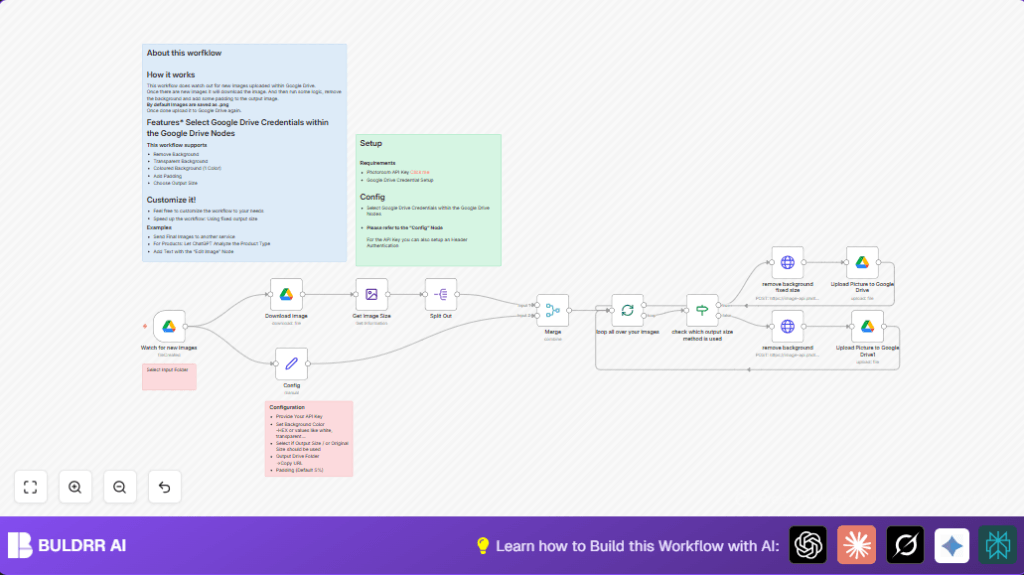

What This Workflow Does
This workflow watches one Google Drive folder for new pictures. It downloads each new picture. Then, it finds out the size of the picture. Next, it sends the picture to the PhotoRoom API to remove the background. You can choose a background color and add padding around the subject. The workflow can keep the original size or resize to a fixed size. After editing, it uploads the new picture back to another Google Drive folder. It adds “BG-Removed-” before the filename. This saves time and makes product images look better.
Who Should Use This Workflow
Anyone who has many product photos in Google Drive and needs to remove backgrounds fast should use this. It is good for online sellers who want clean and same-sized images. If manual editing takes too long or causes errors, this workflow helps fix that. The user must have an n8n account, Google Drive with permission, and a PhotoRoom API key.
Tools and Services Used
- n8n: Runs the workflow automation.
- Google Drive: Stores original and edited images.
- PhotoRoom API: Removes backgrounds and adds padding.
Beginner Step-by-Step: How to Use This Workflow in n8n
Step 1: Import the Workflow
- Download the workflow file using the Download button on this page.
- Open your n8n editor.
- Click on “Import from File” and choose the downloaded workflow.
Step 2: Configure Credentials and Settings
- Enter your Google Drive OAuth2 credentials to allow access to files.
- Type your PhotoRoom API key into the workflow’s Config node.
- Update the Google Drive folder URLs or IDs if needed for input and output folders.
- Check and adjust parameters like background color, padding percentage, and output size in the Config node.
Step 3: Test the Workflow
- Upload a test image to the input Google Drive folder.
- Run the workflow manually or watch for the trigger to activate.
- Confirm the edited image uploads correctly with the BG-Removed prefix.
Step 4: Activate for Production
- Toggle the workflow to active in n8n.
- Confirm the Google Drive Trigger node is enabled.
- Let the workflow run automatically whenever new images arrive.
For advanced users, adjust batch settings or concurrency for multiple images. If self hosting n8n, see self-host n8n for setup help.
Workflow Inputs, Processing, and Outputs
Inputs
- New image file uploaded to a specific Google Drive input folder.
- PhotoRoom API key for background removal requests.
- Configuration parameters: background color, padding, keep size choice, and output folder.
Processing Steps
- Trigger listens for new images.
- Download image binary data from Google Drive.
- Use Edit Image node to get width and height of the image.
- Decide if keeping original size or resizing based on config.
- Send image and options to PhotoRoom API using HTTP Request node.
- Receive processed image response.
- Upload new image with “BG-Removed-” file name prefix back to output Google Drive folder.
Outputs
- Images with backgrounds removed and new padding applied.
- Consistent image size if chosen to resize.
- All processed images stored in Google Drive output folder ready for use.
Edge Cases and Failure Points
- Missing or wrong PhotoRoom API key causes failure to remove background.
- Google Drive credentials without write access prevent uploading processed images.
- Uploaded files that are not images or empty cause errors in size detection or API calls.
- Incorrect folder paths or IDs stop trigger or upload from working.
Test with supported image files and make sure all keys and folder links are correct. Back up original images before batch processing.
Customizing the Workflow
- Change background color in Config node by editing
bg_colorto any CSS color or hex value. - Switch
keepInputSizeto true or false to keep original image size or force to fixed size. - Adjust
paddingvalue to increase or reduce space around the image subject. - Update
OutputDriveFolderURL to send images to a different Google Drive folder. - Use batch processing options to handle many images efficiently by controlling node concurrency.
Summary of Results
✓ Save time by automating image background removal.
✓ Get images in consistent sizes and styles.
✓ Avoid manual editing errors.
✓ Automatically upload ready-to-use images back to Google Drive.
✓ Easily change background and padding settings for branding needs.
