
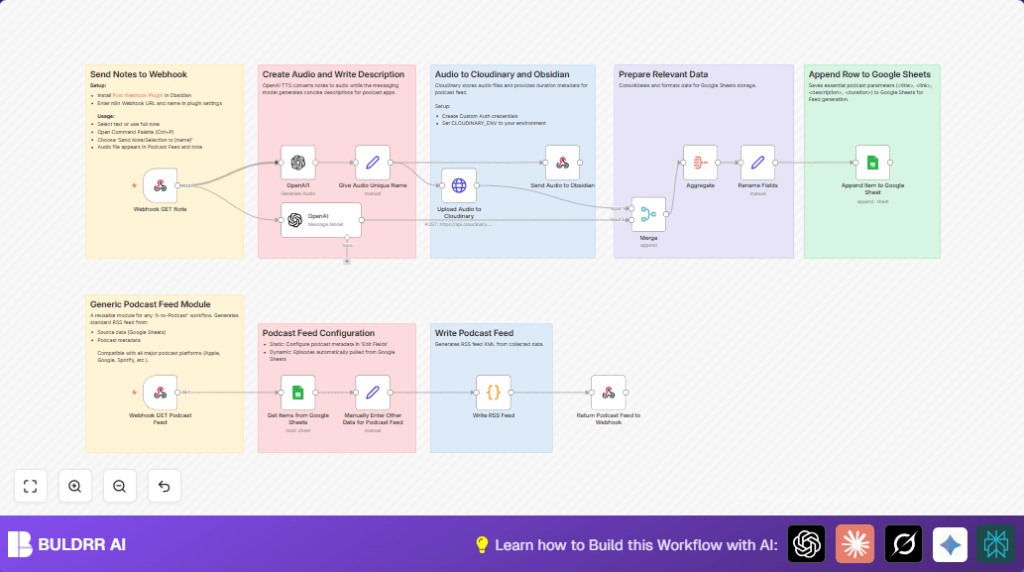

What This Automation Does
This workflow receives text notes and turns them into podcast episodes automatically.
It makes audio files, writes summaries, stores data, and creates a podcast feed.
This stops manual work and mistakes in publishing podcasts.
The workflow starts by getting notes via webhook from Obsidian.
Then OpenAI turns text into MP3 audio.
Next, it uses OpenAI GPT-4o-mini to create short episode descriptions.
The audio is uploaded to Cloudinary, which gives back file links and duration.
All important info is saved to Google Sheets to track episodes.
Finally, the workflow builds an RSS feed from this data.
The feed works with Apple, Spotify, and Google Podcasts.
This setup saves time, avoids feed errors, and keeps episodes consistent.
Who Should Use This Workflow
People who write notes in Obsidian and want quick podcast episodes.
Non-technical users who struggle with audio recording and feed management.
This workflow suits podcasters who need a simpler, faster publish process.
Also good for those who want to keep episode info organized without much effort.
Tools and Services Used
- Obsidian with Post Webhook Plugin: Sends notes text to the workflow.
- OpenAI API: Converts text to speech and generates episode summaries.
- Cloudinary: Hosts MP3 audio files securely.
- Google Sheets: Stores podcast episode details for tracking.
- n8n Automation Platform: Connects and runs all steps.
Inputs, Processing, and Outputs
Inputs
- Note text and metadata from Obsidian webhook.
Processing Steps
- Transform text to MP3 audio with OpenAI TTS.
- Create short episode description with OpenAI GPT-4o-mini.
- Upload the MP3 to Cloudinary to get public URL and duration.
- Combine all data and prepare fields.
- Save details into Google Sheets spreadsheet.
- Generate an XML podcast RSS feed from spreadsheet data.
Outputs
- MP3 audio files hosted on Cloudinary.
- Podcast RSS feed URL ready for platform submission.
Beginner Step-by-Step: How to Use This Workflow in n8n
Import the Workflow
- Inside n8n editor, click “Import from File”.
- Select the workflow file downloaded from this page.
Configure Credentials and Variables
- Add your API Keys for OpenAI, Cloudinary, and Google Sheets in n8n.
- Update any IDs, emails, channels, folders, or table references used.
- Check code nodes or prompt text and copy any code or expressions if needed:
{{ $json.body.content }}Here, expressions like {{ $json.body.content }} pass note text from webhook to processing nodes.
Test the Workflow
- Send a sample note from Obsidian to webhook URL.
- Check if audio file is generated and uploaded.
- Confirm data is added to Google Sheets.
- Verify RSS feed XML is created properly.
Activate the Workflow
- Switch the workflow status to active.
- Share webhook URL with your Obsidian plugin.
- Submit the RSS feed webhook URL to podcast platforms.
This lets the automation run automatically for new notes.
If using self-host n8n, more info is at
self-host n8n.
Edge Cases and Failures
- If the Webhook node does not trigger, check the correct URL and POST method.
- If Cloudinary audio upload fails, confirm multipart data setup and API key correctness.
- If the RSS feed is broken or misses episodes, make sure Google Sheets rows match expected columns.
Customization Ideas
- Change cover image URL in manual data node for different podcast art.
- Modify itunes category string to match podcast topic.
- Add seasons by extending the RSS feed code node with season info.
- Use more advanced OpenAI models for richer episode summaries.
- Save original notes to a database for backups.
Summary
→ The workflow turns text notes into podcast episodes automatically.
→ This saves hours each week and stops feed errors.
→ Audio files and episode info get published reliably.
→ The podcast RSS feed updates live for streaming platforms.
→ Everything runs inside n8n with simple setup and testing.
