
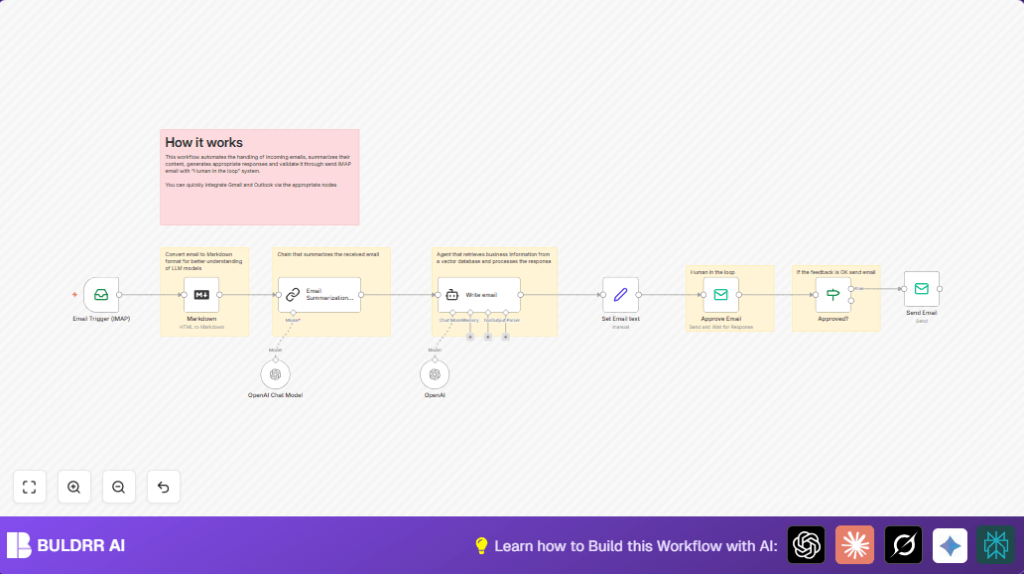

1. What This Workflow Does
This workflow reads new emails from an IMAP inbox, makes a short summary of the email using AI, writes a professional reply draft, and sends it to a human to approve before sending it back to the sender.
The main problem solved is saving time and reducing mistakes when replying to many business emails.
After running, the user gets quick, accurate email replies with human review to stop errors.
2. Inputs → Processing → Output
Inputs
- IMAP Email Account: Incoming emails monitored and fetched.
- SMTP Email Account: Used to send approval requests and final replies.
- OpenAI API: Runs AI models for summarizing and writing email drafts.
Processing Steps
- Email Trigger (IMAP): Watches inbox for new emails.
- Markdown Node: Converts email HTML content into Markdown text for AI.
- Email Summarization Chain: Uses AI to make a short summary, max 100 words.
- Write email AI Agent: Creates concise professional reply based on summary.
- Set Email text Node: Saves AI reply for sending.
- Approve Email Node: Emails draft reply plus original message to a human reviewer.
- Approval IF Node: Checks if human approved reply.
- Send Email Node: Sends approved reply to original sender, keeping headers.
Output
Final, approved reply emails sent to original senders.
3. Who Can Use This Workflow
This workflow helps people who get many business emails and want to save time.
Users should have an email account with IMAP access and some knowledge of n8n.
Good for customer support teams, sales reps, or small businesses.
4. Tools and Services Used
- n8n Automation: Runs the workflow nodes.
- IMAP Email Server: Receives new emails to process.
- SMTP Email Server: Sends emails for approval and replies.
- OpenAI GPT-4 API: Creates email summaries and replies.
- LangChain Nodes: Manages AI summarization steps.
5. Beginner Step-by-step: How to Use This Workflow in n8n
Step 1: Import the Workflow
- Download the workflow by clicking the Download button on this page.
- In the n8n editor, click Import from File and upload the downloaded workflow.
Step 2: Configure Credentials
- Add your IMAP email credentials under Credentials > IMAP Email.
- Add your SMTP email credentials under Credentials > SMTP Email.
- Add your OpenAI API Key in the OpenAI or OpenAI Chat Model nodes.
Step 3: Update Settings
- Change email addresses, folders, or IDs if the workflow uses example values.
- Check any prompt or code values under the LangChain summarization or AI reply nodes.
Step 4: Test the Workflow
- Send a test email to your IMAP inbox.
- Run the workflow manually or wait for the trigger.
- Confirm the AI summary and draft appear in the approval email.
- Approve or reject the draft and see the final email sent or stopped.
Step 5: Activate for Production
- Turn the workflow ON in n8n.
- Keep n8n running with network access to email servers and OpenAI.
- Monitor workflow logs for errors.
For users running n8n on their own server, see this helpful link for self-host n8n.
6. Common Problems and Fixes
- No New Emails: Check IMAP credentials and monitored folders.
- Emails Not Sending: Verify SMTP credentials and app passwords.
- AI Replies Empty: Check Markdown conversion and refine AI prompts.
7. Customization Ideas
- Change AI model in OpenAI nodes for different reply style.
- Adjust summarization prompt to focus on dates or action items.
- Add auto-decline handling like notifications or logs.
- Add Slack alerts when emails wait for approval.
- Make copies to monitor several inboxes in parallel.
8. Final Summary
✓ Saves hours by automating email reading and drafting.
✓ Keeps human review to reduce reply mistakes.
✓ Easy to set up using standard IMAP, SMTP, and OpenAI keys.
→ Sends professional replies faster and more accurately.
9. Useful Prompt Example for Summarization
Use this exact prompt in the Email Summarization Chain node to limit to 100 words:
Write a concise summary of the following in max 100 words:

"{{ $json.data }}"

Do not enter the total number of words used.
10. Example Expression to Convert Email HTML to Markdown
Use this expression in the Markdown node html field:
{{$json.textHtml}}11. Sample AI Reply Instruction
Set the AI agent system message to:
Write a professional email reply in max 100 words based on the summary.
Do not create a subject line; only write the email body.
Keep it short, clear, and polite.