

1. What This Automation Does
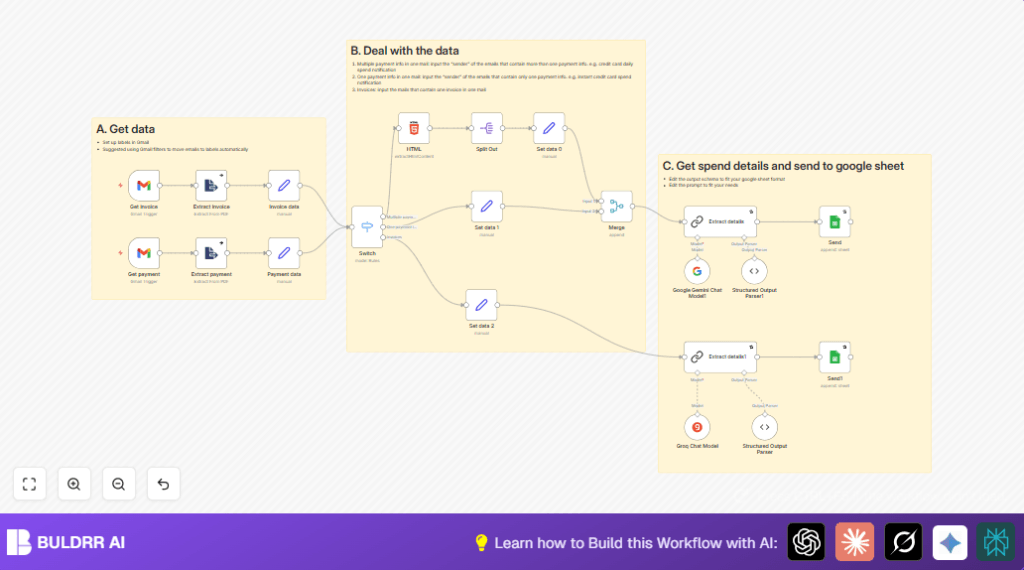
This workflow watches emails labeled as credit card invoices and payments.
It extracts text and PDFs from those emails, even if the PDFs are password-protected.
AI models read the email content to find spend dates, amounts, and merchant names.
It turns this into normal data with date, amount, service, category, currency, and card info.
Finally, it adds this data into Google Sheets for easy bookkeeping.
This saves hours and stops mistakes in manual bookkeeping.
2. Tools and Services Used
- Gmail: Email inbox with labels to sort invoice and payment mails.
- n8n Automation Platform: Workflow builder with nodes for email triggering, PDF extraction, AI parsing, and Google Sheets integration.
- Google Gemini or Groq AI: Natural language AI models that read and understand email content and PDFs.
- Google Sheets: Stores extracted and structured data for bookkeeping.
3. Who Should Use This Workflow
Anyone handling many credit card emails with invoices and payment info.
It works well for accountants, finance freelancers, or small business owners who want to save time.
No need to read lots of emails or open password-locked PDFs manually.
Just set it up, and the workflow gathers and organizes all spend data automatically.
4. Beginner Step-by-Step: How to Use This Workflow in n8n
Step 1: Import the Workflow
- Download the workflow file using the Download button on this page.
- Open the n8n editor where the user is already logged in.
- Use the “Import from File” option inside n8n to upload the downloaded workflow.
Step 2: Configure Credentials and IDs
- Add Gmail OAuth2 credentials with proper access to watch the labeled emails.
- Add Google Sheets API credentials to allow writing data to the spreadsheet.
- Add Google Gemini or Groq AI API keys for AI nodes to process email contents.
- Update Gmail label IDs in the Gmail Trigger nodes to match the user’s Gmail labels.
- Update Google Sheets document ID and sheet names in the Google Sheets append nodes to point to the correct spreadsheet.
- Update the PDF password in the Extract From File nodes if needed (e.g., “E223706995”).
Step 3: Test the Workflow
- Send or wait for sample emails with labeled credit card invoices or payments.
- Run the workflow manually using the n8n editor to check if the data extracts well.
- Look at the output in Google Sheets for accuracy and completeness.
Step 4: Activate for Production
- Turn on the workflow toggle in the n8n editor to start automatic runs.
- Check logs and spreadsheet regularly during early use to ensure all data parses correctly.
- Adjust configurations if new senders or formats appear.
- Consider self-host n8n for more control and data privacy.
5. Workflow Inputs, Processing, and Outputs
Inputs
- Emails with labels “Credit Card Invoice” and “Credit Card Payment” in Gmail.
- Attachments including encrypted PDFs containing invoice or payment details.
Processing Steps
- Automatic trigger when a new labeled email arrives.
- Extract attachments and text content from email and PDF attachments.
- Route emails based on sender using the Switch node to handle different email layouts.
- Extract multiple payment info entries from HTML content for batch emails.
- Use AI language model nodes (Google Gemini Chat Model or Groq Chat Model) to parse spend details.
- Convert the AI output to a structured JSON schema using Structured Output Parser.
- Map parsed data fields to Google Sheets spreadsheet columns.
Outputs
- Structured spend and payment data appended as rows in Google Sheets.
- Columns include transaction date, amount, merchant, category, currency, and payment card used.
6. Handling Common Issues
Issue: Missing attachments in email.
Reason: Emails without PDFs or label filters might be off.
Fix: Confirm Gmail filters and labels correctly assign emails. Check “Download Attachments” is enabled in Gmail Trigger nodes.
Issue: AI output not matching expected JSON format.
Reason: AI prompt or schema mismatch or email content complex.
Fix: Simplify AI prompts, update Structured Output Parser schema.
Issue: Google Sheets append failing.
Reason: Wrong sheet name or credentials invalid.
Fix: Verify spreadsheet IDs, sheet names, and re-add Google Sheets API keys.
7. Customization Options
- Change PDF password in Extract From File nodes to match new encrypted files.
- Add or update email sender address rules in the Switch node for routing new email sources.
- Edit JSON schemas in Structured Output Parser nodes to include any needed custom fields like tax details.
- Adjust Google Sheets target sheet tab or spreadsheet ID if using different bookkeeping files.
- Modify CSS selectors in HTML extraction nodes to fit changes in email formatting.
8. Summary of Benefits
→ Saves 4 hours per week by automating email credit card spend extraction.
→ Removes manual errors from bookkeeping entries.
→ Standardizes diverse email formats into clear Google Sheets data.
→ Supports encrypted PDF attachments easily.
→ Allows easy monitoring and adjustment inside n8n.
