
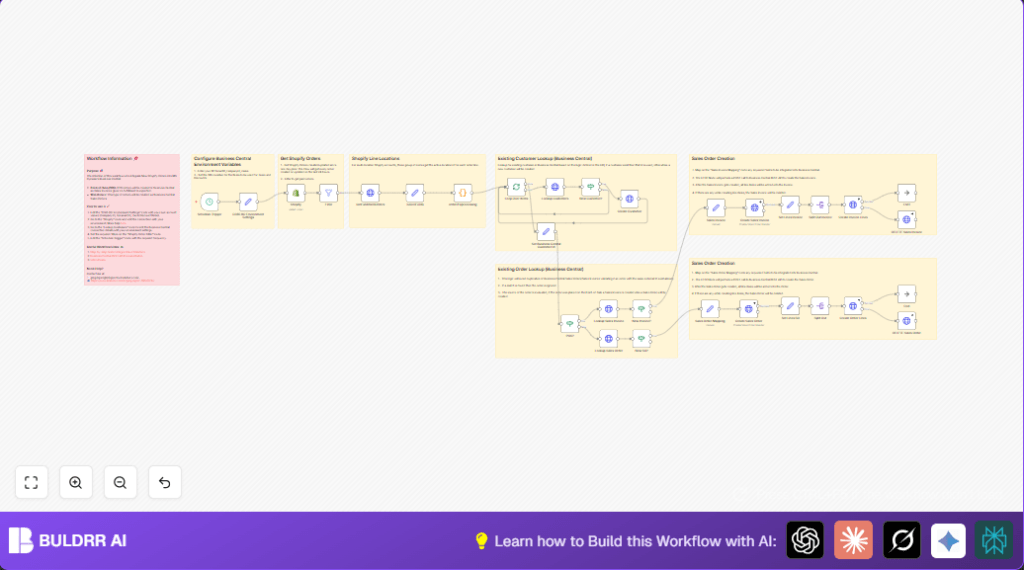

What This Workflow Does
This workflow copies paid Shopify orders into Microsoft Dynamics 365 Business Central automatically.
It stops mistakes like missing or repeated orders.
When run, it gets new Shopify orders from the last 24 hours, checks customers and orders in Business Central, creates sales orders or invoices, and adds all details including taxes and discounts.
The result is faster processing and fewer errors in sales and inventory systems.
Tools and Services Used
- n8n: Used to build and automate the workflow.
- Shopify Admin API: Provides order data with access tokens.
- Microsoft Dynamics 365 Business Central API: Receives orders and customer data with OAuth2 security.
Inputs, Processing Steps, and Outputs
Inputs
- Shopify orders updated or created in the last 24 hours.
- Order payment status filtered to paid.
- User environment settings like tax item SKUs and company IDs.
Processing Steps
- Schedule trigger fires every 15 minutes (or set interval).
- Fetch Shopify orders using correct API version and credentials.
- Filter out unpaid orders.
- Call Shopify fulfillment orders API to get shipping details.
- Map order data fields and assign fulfillment locations.
- Add tax and discount lines if configured.
- Process orders one by one splitting batches.
- Look up existing customers in Business Central by email.
- Create new customers if none exist with shipping info.
- Check if the order is a POS sale or web order.
- Look for existing sales orders or invoices to avoid duplicates.
- Prepare JSON data for sales order or invoice creation mapping all fields.
- Create sales orders or invoices via HTTP POST in Business Central.
- Extract line items and add them to the sales document one by one.
- If line item creation fails, delete the partial order or invoice to keep data clean.
Outputs
- Up-to-date sales orders or invoices in Business Central matching Shopify paid orders.
- Customer records created if needed.
- Clean error handling to avoid partial data.
Who Should Use This Workflow
Anybody processing lots of Shopify orders manually and entering them into Business Central accounting.
This workflow helps save time and avoid errors when syncing order data.
Non-technical users can use this automation with little setup.
Beginner Step-by-Step: How to Use This Workflow in Production
Step 1: Import the Workflow
- Download the workflow file using the Download button on this page.
- Open the n8n editor where you want to run this workflow.
- Click the menu and choose Import from File.
- Select the downloaded workflow file.
Step 2: Configure Credentials and Settings
- In the imported workflow, add your Shopify API Key and Admin API access token in the Shopify node credentials.
- Add OAuth2 credentials for Microsoft Dynamics 365 Business Central in the HTTP Request nodes.
- Update environment settings like tenant ID, company ID, tax item SKU, and discount SKU in the D365 BC Environment Settings Set node.
- Adjust boolean flags for including taxes and discounts as separate line items if needed.
- If your Shop or Dynamics company data replaces emails, update those fields accordingly.
Step 3: Test the Workflow
- Trigger the workflow manually in n8n to test execution with sample or recent Shopify orders.
- Check the execution logs for errors or warnings.
- Verify the orders are correctly created or updated inside Business Central.
Step 4: Activate the Workflow
- Once tests pass, activate the workflow by toggling the toggle switch to “active” in n8n.
- Monitor the workflow runs regularly for issues or API limits.
If using self-host n8n, you get more control over environment variables and scheduling. See self-host n8n for options.
Customization Ideas
- Change schedule frequency by editing the interval in the Schedule Trigger node.
- Turn taxes or discounts on/off as line items with flags in environment settings.
- Edit the POS check condition to support additional or different Shopify sales channels.
- Add extra customer details during customer creation like phone or tax ID.
Common Issues and Troubleshooting
401 Unauthorized: Check OAuth2 credentials for Business Central. Refresh tokens or update IDs as needed.
Empty Shopify fulfillment orders: Make sure API version is correct and token has required scopes.
Duplicate orders or invoices: Confirm lookup filters correctly use Shopify order ID without mistakes.
Summary of Benefits
✓ Saves time by automating Shopify to Business Central order syncing.
✓ Reduces errors from manual data entry.
✓ Keeps data clean by deleting partial orders on failure.
✓ Creates or updates customers automatically.
✓ Allows customization of taxes and discounts inclusion.
→ Ensures orders are recorded accurately and quickly every day.
