
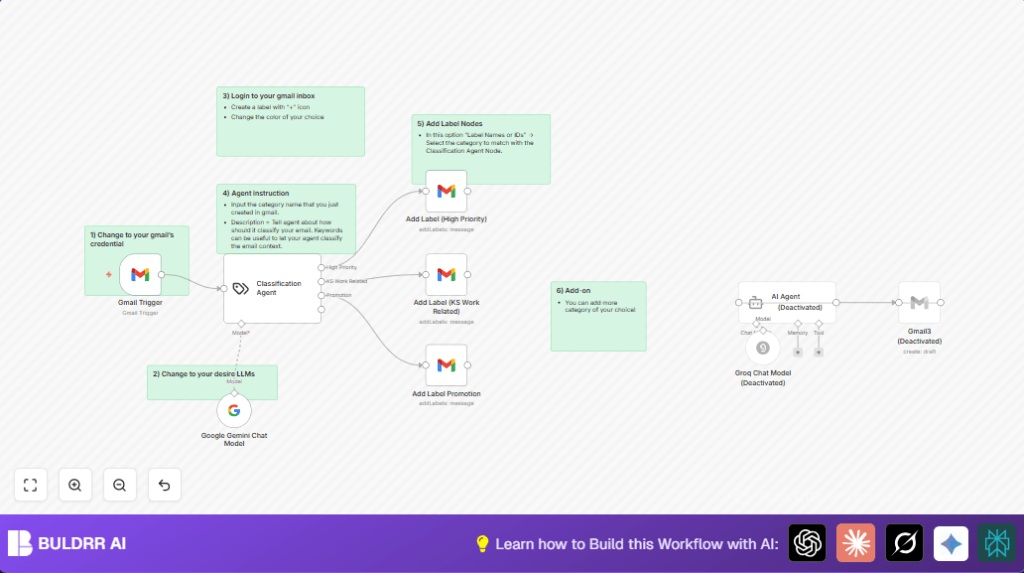

What This Workflow Does
This workflow watches your Gmail inbox. When a new email arrives, it reads the email text. Then, it decides if the email is High Priority, related to school work, a Promotion, or Other. After deciding, it adds a matching Gmail label to help organize your emails fast and clearly.
This saves you hours of sorting and helps you see important emails fast. It uses Google Gemini AI to understand email content and sort correctly. Labels make your inbox neat and easy to manage.
Who Should Use This Workflow
This is good for anyone getting lots of emails every day, like administrators or office workers at schools. It helps if emails come from many senders about urgent work or promotions. It works well where you want to quickly find important, work, or promotional emails without searching.
Tools and Services Used
- Gmail Trigger Node: Detects new emails in your mailbox.
- Google Gemini Chat Model Node: Classifies email content using AI.
- Classification Agent Node: Uses a clear prompt to assign emails to categories.
- Gmail Label Nodes: Add labels like “High Priority” or “Promotion” to emails.
- Optional AI Agent Node: Can send smart replies when enabled.
- n8n: Automation platform to run the workflow.
You can use self-host n8n to manage n8n on your own server for better control.
Beginner Step-by-Step: How to Use This Workflow in n8n
Step 1: Import the Workflow
- Download the workflow file using the Download button on this page.
- Open n8n editor and click on “Import from File.”
- Select the downloaded workflow file to import it.
Step 2: Add Credentials
- Add your Gmail OAuth2 credentials in n8n Credential Manager.
- Also add your Google PaLM API Key to use Google Gemini.
Step 3: Update Labels and IDs
- Check the Gmail Label nodes. Update Gmail label IDs if necessary.
- Make sure labels like “High Priority,” “Kajonkietsuksa School,” and “Promotion” exist in your Gmail inbox.
Step 4: Test the Workflow
- Send test emails matching the categories to your Gmail.
- Observe if the workflow adds correct labels automatically.
Step 5: Activate for Production
- Turn on the toggle button to activate the workflow.
- Monitor the workflow as new emails arrive.
Inputs, Processing Steps, and Outputs
Inputs
- New emails arriving in the Gmail inbox.
Processing Steps
- Gmail Trigger: Watches for emails every minute.
- Google Gemini Chat Model: Reads email text and decides category.
- Classification Agent: Uses preset keywords and categories to classify email.
- Gmail Label Nodes: Add labels based on category for organization.
- Optional AI Agent: Can create smart replies but is off by default.
Outputs
- Emails labeled with one of: High Priority, KS Work Related, Promotion, or Other.
- Organized inbox where important emails stand out.
- Optionally, automatic replies if enabled.
Customizations
- Add More Categories:
Add new category names in Classification Agent prompt. Add corresponding Gmail label nodes. - Adjust Keywords:
Change keywords for each category in system prompt inside Classification Agent. - Set Polling Interval:
Change Gmail Trigger polling from 1 to 5 minutes if preferred. - Enable Auto Replies:
Activate AI Agent node and connect Gmail send node to reply automatically.
Troubleshooting
- Gmail Trigger Not Detecting Emails:
Check OAuth2 credentials are valid and refreshed. - Emails Not Labeled Correctly:
Confirm Gmail label IDs match your Gmail labels. - Unclear Classification Output:
Refine category descriptions and keyword hints in Classification Agent prompt.
Pre-Production Checklist
- Confirm Gmail OAuth2 credentials have label read/write permissions.
- Verify Google Gemini API key is active and has quota.
- Create Gmail labels before running workflow.
- Test workflow using sample emails to verify results.
- Backup Gmail label setup if necessary.
Deployment Guide
Activate the workflow toggle in n8n to start automation.
Watch workflow executions for errors or misses.
Adjust polling frequency to match email volume.
Add notifications for failures if workflow scope increases.
Summary of Benefits
✓ Saves over 2 hours per day on email sorting.
✓ Automatically adds clear labels to incoming emails.
✓ Helps you see important and school-related emails quickly.
✓ Ready for smart auto-replies if enabled.
✓ Easy to customize categories and keywords.
System prompt example for Classification Agent:

"Classify emails into one of four categories: High Priority, KS Work Related, Promotion, or Other.
Use keywords to help decide category:
- High Priority: urgent, immediate, action needed
- KS Work Related: school, teacher, student, meeting, class
- Promotion: sale, discount, offer, deal
- Other: all others

Reply with only the category name."
