
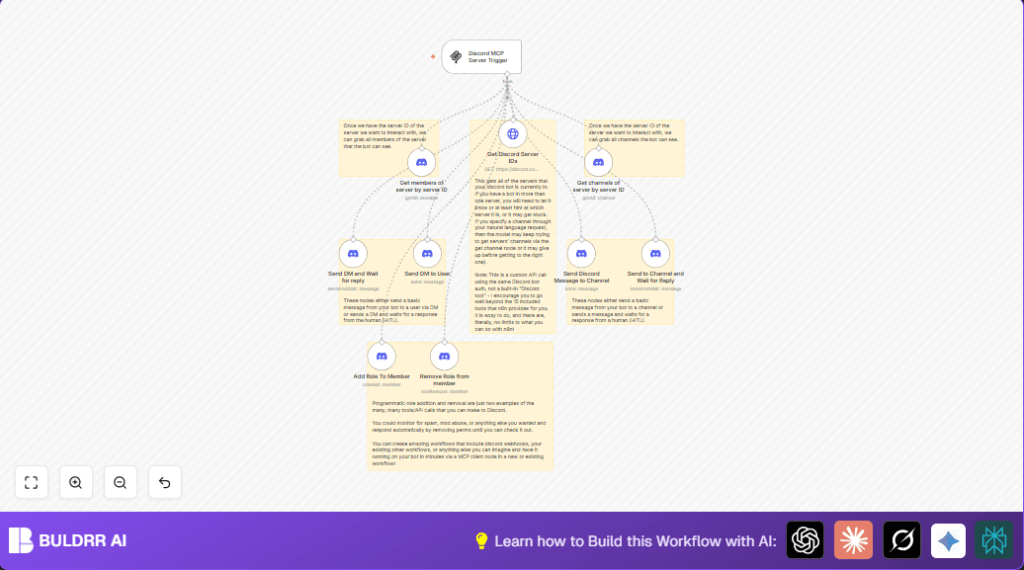

What this workflow does
This workflow automates key tasks in a Minecraft (MCP) Discord server. It handles messages, role assignments, and member management without manual work. The result is saving time and reducing mistakes in server management.
The workflow sends channel messages, direct messages (DMs), waits for replies, adds or removes roles, gets member and channel lists, and monitors Minecraft-triggered events.
Tools and services used
- Discord Bot API: To send messages, manage roles, and read member and channel data.
- n8n Discord nodes: For automated Discord actions like messaging and role changes.
- Discord MCP Trigger node: To start workflows from Minecraft community events.
- HTTP Request node: For custom API calls to fetch server IDs.
Inputs, processing steps, and outputs
Inputs
- Discord server ID, channel ID, role ID, and user ID data.
- Messages or commands from Minecraft community via MCP trigger.
Processing Steps
- Use MCP Trigger node to listen for Minecraft events.
- Send messages or DMs, with optional reply waiting.
- Fetch all server IDs where the bot is present via HTTP Request.
- Retrieve all members and channels of a chosen server.
- Assign or remove roles for members programmatically.
Outputs
- Automated Discord messages in channels or personal DMs.
- Role updates on members.
- Improved engagement and reduced manual work.
Beginner step-by-step: How to use this workflow in n8n
Importing the workflow
- Download the workflow file using the Download button on this page.
- Open the n8n editor where workflows are managed.
- Click the main menu and select Import from File.
- Choose the downloaded workflow file to import.
Configuring the workflow
- Add correct Discord Bot API credentials named “Gopher” in n8n’s Settings > API Credentials.
- Update server ID, channel ID, user ID, and role ID fields inside relevant nodes to match your Discord server.
- If the workflow contains any code or prompt (shown below), copy and paste it exactly where needed.
Testing and activating
- Run the workflow once manually to check it works correctly.
- Look at the execution logs to confirm messages send or roles change as expected.
- When tests pass, turn the workflow on to active status for production.
- If hosting n8n on your own server, see self-host n8n for help.
Code snippet: HTTP Request to get server IDs
This request fetches all Discord servers where the bot is present. Configure a GET method to:
GET https://discord.com/api/v10/users/@me/guilds
Authorization: Bot <your-token>
Use the “discordBotApi” credential in n8n to fill the token automatically.
Common customizations
- Filter members by join date: Adjust “Get members” node to target users who joined recently.
- Select channels dynamically: Use expressions or AI input to pick channels by name.
- Personalize messages: Add member names or other details with n8n expressions.
- Multi-server loops: Use the server IDs list to automate messages or roles across all servers.
- Conditional role removal: Use IF nodes to avoid removing protected roles.
Troubleshooting common issues
Bot cannot send messages
The bot may lack “Send Messages” permission or the channel ID could be wrong.
Check Discord permissions and node configurations.
Role addition fails with 403
This happens if the bot’s role is too low or missing “Manage Roles” permission.
Move bot role above target role and enable required permissions.
No reply in “Send DM and Wait for reply” node
The user might not have responded or webhook could be misconfigured.
Test with a known user and verify webhook listening.
Summary and outcome
✓ Saves 10+ hours weekly on manual Discord server management.
✓ Reduces human errors in messaging and role assignments.
✓ Automates Minecraft community events integration into Discord workflows.
✓ Lets community managers focus on engagement instead of chores.
→ After setup, messages and role changes happen automatically,
responding fast to user input and game events.
