
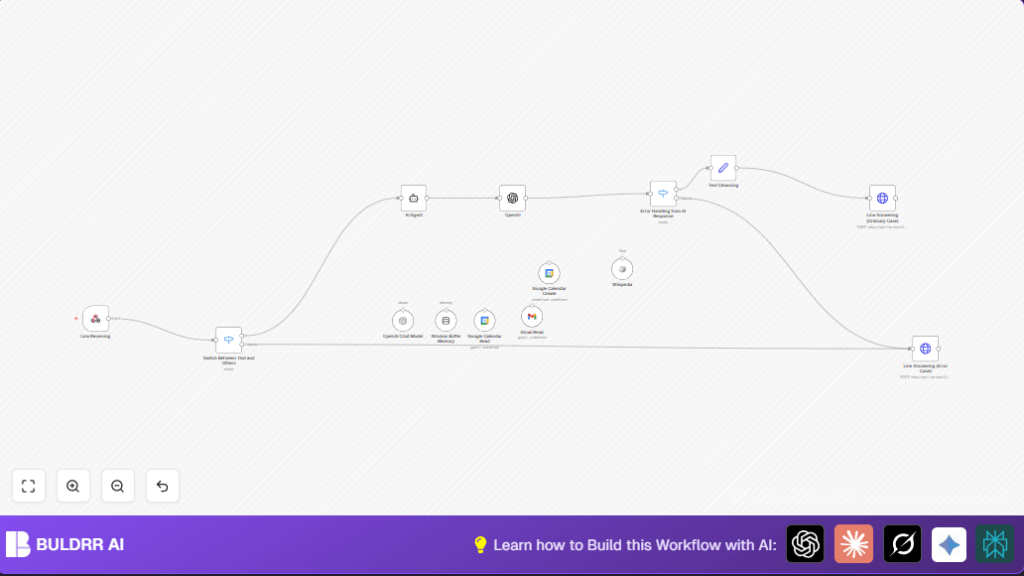

What This Automation Does
This workflow connects LINE chat messages with Google Calendar and Gmail using AI in n8n.
It fixes the problem where users spend too much time moving info between apps.
It reads chat commands, updates calendar events, and fetches email summaries automatically.
This saves time and stops mistakes from manual work.
The inputs are messages sent to the LINE bot.
Processing uses AI to understand requests and runs Google Calendar and Gmail nodes.
Outputs are replies sent back to LINE with schedule confirmations or email summaries.
This helps anyone who uses LINE for messaging and needs quick calendar and email updates without switching apps.
It works by catching messages, checking their type, understanding intent via AI, performing calendar or email tasks, and writing back the results.
Tools and Services Used
- LINE Messaging API: Receives chat messages and sends replies.
- OpenAI API with LangChain AI Agent: Interprets natural language chat commands into tasks.
- Google Calendar API: Reads and creates calendar events.
- Gmail API: Retrieves and summarizes recent emails.
- n8n Workflow Automation Platform: Connects and runs nodes.
Beginner Step-by-Step: How to Use This Workflow in n8n Production
1. Import the Workflow
- Download the workflow file using the Download button on this page.
- Open the n8n Editor UI.
- Click “Import from File” and select the downloaded workflow.
2. Configure Credentials and Settings
- Add required credentials for LINE Messaging API, Google Calendar OAuth2, Gmail OAuth2, and OpenAI API Key.
- Update any specific IDs, emails, channel tokens, calendar IDs, or folder names if they differ.
- Check that the workflow paths and HTTP methods match your LINE webhook setup.
3. Test the Workflow
- Send a test message from your LINE account that the bot receives.
- Observe if a reply with calendar or email info is returned.
- Fix any errors in the execution logs.
4. Activate for Production
- Toggle the workflow to active in the n8n UI.
- Ensure n8n runs continuously with stable internet.
- Monitor logs periodically for errors or needed prompt updates.
For better data control or higher workloads, consider self-host n8n on a server.
Workflow Inputs, Processing, and Outputs
Inputs
- Incoming LINE chat messages caught by the Webhook node.
- OAuth2 credentials for Google Calendar and Gmail.
- OpenAI API key for language understanding.
Processing Steps
- Webhook node receives chat events.
- Switch node filters only text messages.
- AI Agent node uses LangChain with OpenAI to parse commands.
- Linked nodes for:
- Google Calendar Read node fetches events.
- Google Calendar Create node makes new events.
- Gmail Read node retrieves recent emails.
- Window Buffer Memory node keeps chat context using userId sessions.
- OpenAI Chat Model node generates responses.
- Switch node detects if AI generated a response.
- Set node cleans text removing unwanted characters.
- HTTP Request nodes reply back to LINE with normal or error messages.
Outputs
- Reply messages sent back to users inside LINE chats.
- New or updated Google Calendar events.
- Filtered Gmail summaries.
Customization Ideas
- Change the default error message by editing the JSON body in the Line Answering (Error Case) HTTP Request node.
- Add new switch cases to handle images, stickers, or other message types from LINE.
- Integrate other LangChain tools or APIs like CRM or weather to expand AI abilities.
- Add more event details in Google Calendar Create node such as location or invitation lists using AI variables.
Troubleshooting
- 401 Unauthorized Errors: Check that the Authorization Bearer token in LINE replying HTTP requests is correct.
- Empty or wrong AI answers: Ensure the AI Agent node links all needed tools and has a clear system message.
- Google Calendar event creation problems: Verify date/time formats from AI output and refresh OAuth2 credentials.
Pre-Production Checklist
- Confirm LINE webhook URL is active in LINE Developer Console.
- Send text message to check switch node allows processing.
- Test Google Calendar and Gmail OAuth2 credentials using their nodes.
- Try AI Agent with sample calendar or email queries.
- Backup workflow JSON file before production deployment.
Deployment Guide
Turn the workflow active in n8n.
Keep n8n running steadily with good internet connection.
Watch execution logs on failures.
Update AI prompts regularly to keep responses relevant.
Consider self-host n8n for large scale or privacy needs.
Summary
✓ Saves hours by automating chat to calendar and email tasks.
✓ Prevents errors caused by manual data transfers.
✓ Keeps conversations clear by storing user chat context.
✓ Delivers quick replies in LINE chat for scheduling and email summaries.
