

What This Workflow Does
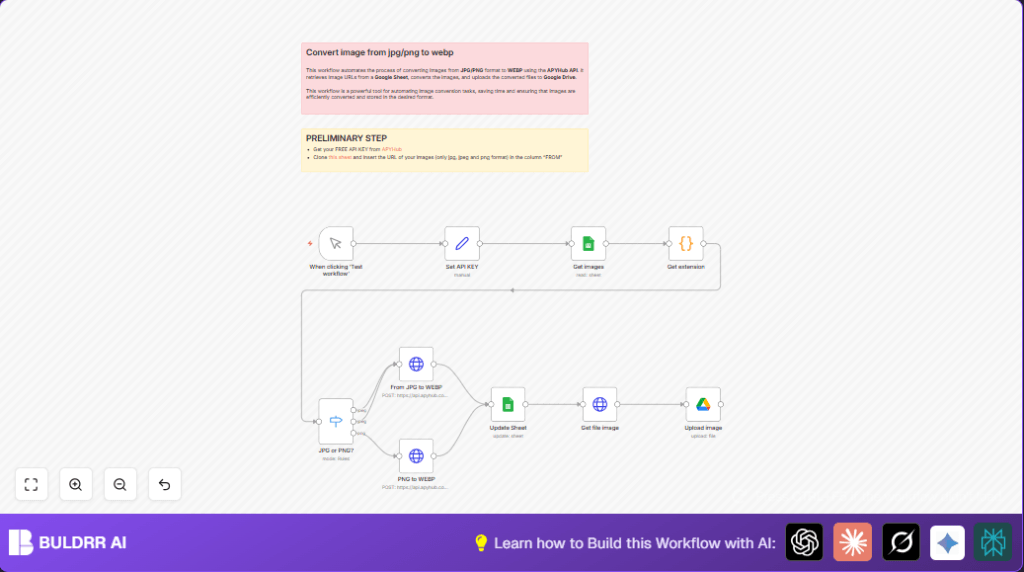
This workflow takes image URLs in JPG, JPEG, or PNG format and changes them into WEBP images automatically.
It gets the URLs from a Google Sheet, converts images using APYHub API, updates the sheet, and uploads results to Google Drive.
This saves time and lowers mistakes doing it by hand. It makes web pages load faster with optimized images.
Who Should Use This Workflow
This is good for people managing many images for websites or projects.
It helps freelancers or teams who get many JPG or PNG images and want to make them smaller and faster to load as WEBP.
Tools and Services Used
- n8n Automation Platform: Controls the whole workflow and nodes.
- Google Sheets: Stores original image URLs and updates conversion results.
- APYHub API: Converts JPG and PNG images to WEBP formats.
- Google Drive: Saves the converted WEBP images in an organized folder.
Inputs, Processing Steps, and Output
Inputs
- Image URLs in JPG, JPEG, or PNG format listed in a Google Sheet under “FROM” column.
- APYHub API Key for authenticating image conversion requests.
- Google Drive folder ID for storing converted images.
Processing Steps
- Trigger the workflow manually to start the process.
- Set the APYHub API Key for use in HTTP requests.
- Get image URLs from Google Sheet.
- Extract filename and extension from each URL using a code node.
- Use a switch node to route images by their extension: JPG/JPEG vs PNG.
- Send POST requests to APYHub API to convert each image according to its format.
- Update the Google Sheet with new WEBP image URLs and mark rows done.
- Download converted WEBP images.
- Upload WEBP images to Google Drive in the specified folder.
Output
- Google Sheet updated with converted WEBP URLs and status.
- WEBP images saved in Google Drive folder.
Beginner Step-by-Step: How to Use This Workflow in n8n
Import Workflow
- Download the workflow file from this page using the Download button.
- Open the n8n editor where you want to run the workflow.
- Use the menu to select Import from File and choose the downloaded workflow file.
Configure Credentials and IDs
- Add your APYHub API Key in the Set API KEY node, replace the placeholder string with your actual key.
- Connect your Google Sheets and Google Drive accounts in n8n credentials inside the related nodes.
- Update the Google Sheets node named Get images with your actual spreadsheet ID and sheet name.
- Set the Google Sheets node Update Sheet to point to correct sheet and document.
- In the Google Drive node Upload image, put the folder ID where converted images should go.
Test the Workflow
- Click the manual trigger Manual Trigger node named “When clicking ‘Test workflow’”.
- Press “Execute Workflow” button.
- Watch execution results to see if images convert and upload as expected.
Activate for Production
- Turn the workflow active using the toggle switch in the top right inside n8n editor.
- If automatic runs are needed, replace the manual trigger with a Cron Trigger node.
- Save changes and monitor workflow logs inside n8n.
Helpful Links
If self hosting n8n, see self-host n8n for setup tips.
Customizations
- Change output folder by editing folderId in Upload image Google Drive node.
- Add more image formats like GIF or TIFF by extending Switch node and adding new HTTP request nodes.
- Include error handling workflows branching from HTTP nodes to send alerts on failure.
- Schedule workflow automatically using Cron Trigger node instead of manual trigger.
- Modify Code node to add metadata fields for better tracking.
Troubleshooting
- Authentication failure with APYHub API: Check that the API Key is correctly placed in the Set API KEY node.
- Google Sheets update errors: Make sure
row_numberis set right and spreadsheet details match. - Upload to Google Drive fails: Verify folder ID and refresh Google Drive credentials.
- Image URL extraction issues: Confirm the URLs match expected format with filename and extension.
Pre-Production Checklist
- Have active APYHub API Key and set it in the workflow.
- Confirm Google Sheets document and sheet names match configuration.
- Fill the “FROM” column with valid JPG/JPEG/PNG URLs.
- Use correct Google Drive folder ID for uploads.
- Run manual workflow test to ensure conversions and uploads happen.
Summary
→ Converts JPG and PNG images to WEBP
→ Automates image conversion and updates status in Google Sheet
→ Saves converted images in Google Drive folder
✓ Reduces manual work and errors
✓ Speeds up website image loading
✓ Easy to configure and run inside n8n
