
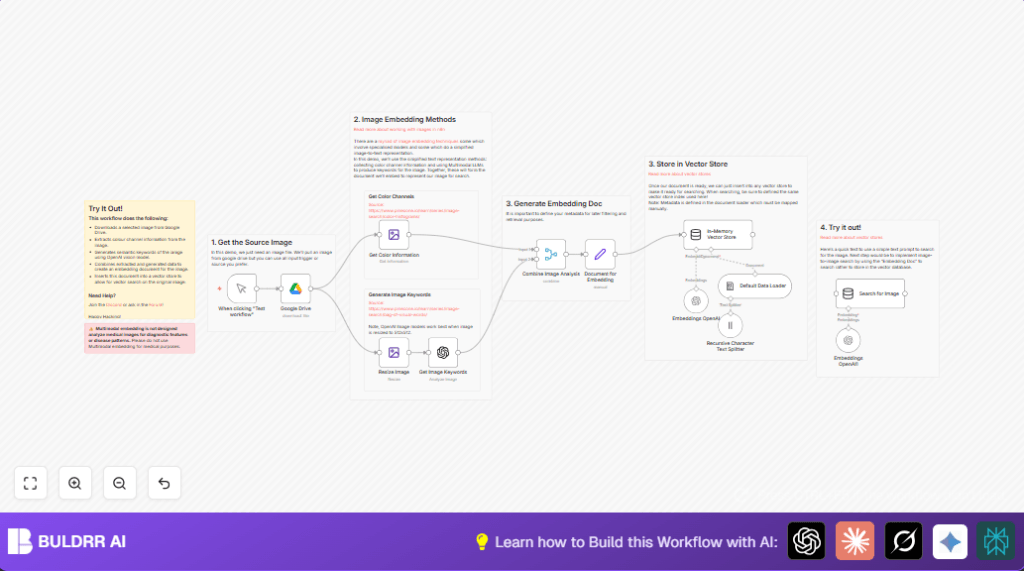

What This Workflow Does
This workflow automatically gets an image from Google Drive and pulls out important data from it. It finds color details and writes keywords describing the picture using OpenAI’s image tools. Then, it puts these details together into a document and saves it in a vector store that lets you search images fast by text. This helps find images quickly without manual tagging or errors.
You input an image file and the workflow outputs an organized embedding ready for smart searching. This saves a lot of time and makes image discovery easier.
Who Should Use This Workflow
This workflow is for people who manage many images and want to find them fast. If manual tagging wastes hours every week, this can help. It works well for creative teams, marketers, or anyone with large photo collections.
You don’t need advanced tech skills. Just basic n8n use knowledge and access to Google Drive and OpenAI.
Tools and Services Used
- Google Drive: Stores the source images.
- OpenAI Vision and Embeddings: Extracts keywords and creates searchable vectors.
- n8n automation platform: Runs the workflow steps.
- In-Memory Vector Store node: Saves embeddings for text-to-image search.
- OAuth for Google Drive and API Key for OpenAI: Handle authentication inside n8n.
Beginner Step-by-Step: How to Use This Workflow in n8n
Importing and Setting Up
- Download the workflow using the Download button on this page.
- Open n8n editor and go to “Import from File” to load the workflow.
- After import, add your Google Drive OAuth credentials and OpenAI API Key in n8n’s credential settings.
- Update the Google Drive node with the correct image File ID to match your file to process.
Testing the Workflow
- Click the Manual Trigger node to start a test run.
- Check if the workflow runs without errors and produces output including color data, keywords, and vector storage results.
Activation for Production Use
- Enable the workflow switch to make it active in n8n.
- Optionally, replace the Manual Trigger node with a Cron Trigger node for automatic scheduling or a Webhook node for event triggers.
- Monitor workflow logs in n8n for smooth operation.
If running n8n on your own server, consider self-host n8n options for reliable uptime.
Inputs, Processing, and Outputs
Inputs
- Image file ID from Google Drive to download the picture.
- OpenAI API Key to access image analysis and embedding features.
Processing Steps
- Download the image binary data from Google Drive.
- Extract color channel info and statistics with the Edit Image node.
- Resize image to 512×512 pixels to fit OpenAI’s model requirements.
- Use OpenAI Vision analyze operation to get descriptive keywords in base64 image format.
- Merge color data and keywords into a single JSON document.
- Build embedding document including keywords, color info, image format, background color, and file name metadata.
- Generate vector embeddings from the document text using OpenAI Embeddings node.
- Insert vector data into in-memory vector store for fast semantic search.
- Optionally, run a semantic text search against the vector store to find matching images.
Outputs
- Color channel statistics and visual metadata about the image.
- A comprehensive list of semantic keywords describing objects, style, lighting, and mood.
- A structured embedding document stored in the vector store.
- Search results showing images matching text prompts based on vector similarity.
Customization Ideas
- Change the source image by updating the File ID inside Google Drive node.
- Adjust resizing dimensions in the Edit Image node for different image sizes.
- Improve the OpenAI keyword prompt for more detailed or specific terms.
- Swap the in-memory vector store node for a persistent solution like Pinecone or Weaviate for handling larger data.
- Replace manual triggering with automated Cron Trigger node or Webhook node for continuous processing.
Common Problems and Fixes
Google Drive Authorization Error
If the Google Drive node fails with authorization, the credentials may be expired or wrong.
Solution: Revoke and reauthorize Google Drive OAuth credentials in n8n settings.
Empty or Incorrect Color Data
The Edit Image node shows no color info if input binary is missing or bad format.
Solution: Check if the image downloads fine and is supported format (JPEG, PNG).
OpenAI Analyze Node Fails
If the OpenAI Vision analyze step errors, the image may not be base64 encoded or API key is invalid.
Solution: Convert image properly and confirm API key validity in credentials.
Pre-Production and Deployment Checklist
- Check Google Drive OAuth credentials have access to image files.
- Validate correct File ID paths to real images.
- Confirm color extraction outputs visible and accurate JSON data.
- Test OpenAI API Key with image analyze and embeddings features.
- Run full workflow to verify embedding document format.
- Test vector store insert and search results with sample prompts.
- Backup and export workflow before putting into production.
After testing, enable workflow in n8n and consider triggers for automation.
Monitor error logs and performance regularly.
Summary of Benefits
✓ Saves more than 15 hours a week by automating image tagging.
✓ Creates consistent semantic keywords and color data.
✓ Stores searchable vectorized image data for fast lookup.
✓ Lets you search images by plain text with high accuracy.
✓ Easy to run inside n8n with configurable credentials and IDs.
