

Automate Spotify Liked Songs Sync using n8n

Discover how to automate syncing your Spotify Liked Songs to a specific playlist using n8n. This workflow helps eliminate manual updates by automatically adding missing songs and removing songs no longer liked, saving you hours of music management.
spotify
gotify
set
+10
Workflow Identifier: 2170
NODES in Use: Manual Trigger, Schedule Trigger, Set, Spotify, Filter, Sort, Merge, Compare Datasets, SplitInBatches, Gotify, NoOp, Summarize, Sticky Note
Automate Spotify sync with n8n and Spotify

Press CTRL+F5 if the workflow didn't load.

Learn how to Build this Workflow with AI:

What This Workflow Does

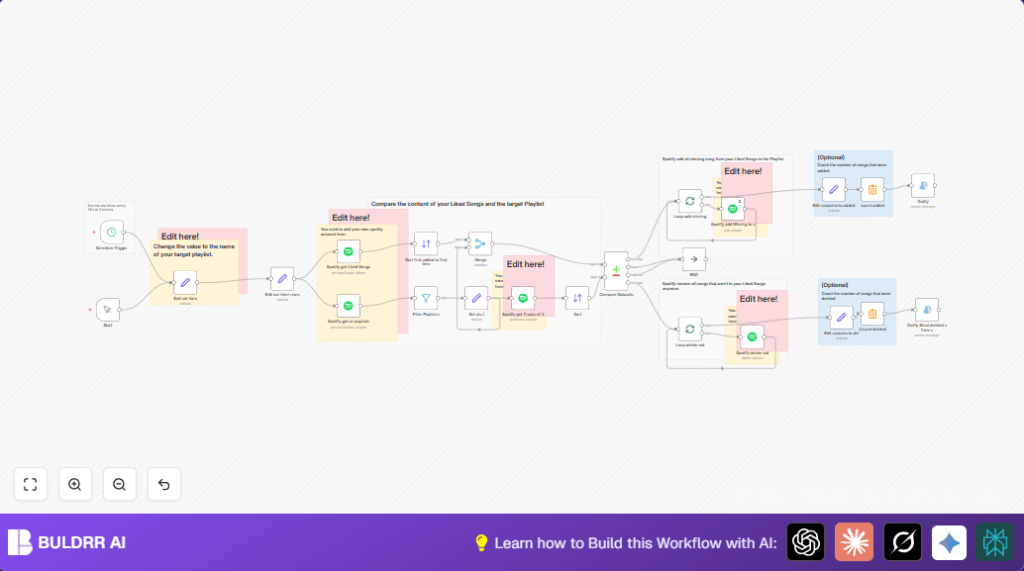
This workflow copies all Spotify Liked Songs to a chosen playlist.

It finds songs you like but are missing in your playlist and adds them.

Also, it removes songs from the playlist if you no longer like them.

The workflow keeps songs sorted by when you first liked them.

After running, it sends a notification about how many songs were added or removed and how long it took.


Who Should Use This Workflow

This workflow helps anyone who listens to Spotify and wants a playlist always matching their Liked Songs.

It is best for people who find manual playlist syncing slow or error-prone.

The workflow saves time especially when having hundreds of liked tracks.


Tools and Services Used

  • n8n automation platform: Runs and links all steps.
  • Spotify API with OAuth credentials: To read and write playlist and liked songs data.
  • Gotify: Sends push notifications with sync results (optional).

Beginner Step-by-Step: How to Use This Workflow in n8n

Step 1: Import the Workflow

  1. Download the workflow JSON using the Download button on this page.
  2. Open the n8n editor where you want to run the workflow.
  3. Click Workflows > Import from file and select the downloaded JSON file.

Step 2: Configure Playlist Variable

  1. Find the Edit set Vars node.
  2. Change varplaylistto value to the exact name of your target Spotify playlist.

Step 3: Add Spotify Credentials

  1. Click each Spotify node, such as Spotify get Liked Songs or Spotify add Missing to x.
  2. Go to the Credentials tab.
  3. Select or add your Spotify OAuth credentials with correct scopes.

Step 4: Configure Gotify Credentials (Optional)

  1. If using notifications, find Gotify nodes.
  2. Enter your Gotify URL and token under credentials.

Step 5: Test the Workflow

  1. Run the workflow manually using the Start manualTrigger node.
  2. Check that songs to add and delete appear in the output.
  3. Verify your target playlist updates accordingly in Spotify.

Step 6: Activate Auto Schedule

  1. Enable the Schedule Trigger node.
  2. Turn the workflow status to active.
  3. Ensure n8n keeps running daily to sync automatically.

This quick process sets the workflow running in production with your Spotify account synced.

Visit self-host n8n if hosting on a private server is preferred.


Inputs, Process, and Outputs

Input Data

  • Spotify Liked Songs list
  • All user playlists
  • Target playlist name

Processing

  • Filter Spotify playlists to find the exact target playlist
  • Retrieve songs inside the target playlist
  • Sort liked songs and playlist songs by date added
  • Compare liked songs and playlist songs to find missing or extra tracks
  • Add missing liked songs to the playlist
  • Remove songs no longer liked from the playlist
  • Count how many songs added or removed

Output

  • An updated Spotify playlist that exactly matches the Liked Songs.
  • A Gotify notification with summary details of the sync.

Edge Cases and Troubleshooting

If the playlist name in the Edit set Vars node is wrong, the workflow won’t find the playlist.

If Spotify credentials lack permissions or have expired, API calls will fail with 401 errors.

If no new songs are added or deleted, the playlist and liked songs might already be synced or no changes detected.

Check Gotify setup if notifications do not send.


Customization Ideas

  • Change the target playlist by updating the playlist name in Edit set Vars.
  • Adjust the sync schedule in Schedule Trigger to run at different times.
  • Add Slack or email notification nodes after Gotify for extra alerts.
  • Sort songs by artist or album by changing sorter nodes.
  • Log sync history to Google Sheets or a database for tracking.

Summary and Benefits

✓ Saves time compared to manual playlist syncing.

✓ Prevents missing liked songs or leftover unwanted tracks.

✓ Keeps playlist matched and sorted by date liked.

✓ Sends clear status notifications via Gotify.

→ You get an automatically updated Spotify playlist that reflects your current liked music taste.

Automate Spotify sync with n8n and Spotify

Visit through Desktop to Interact with the Workflow.

Author
Written By
Vikash Kumar
Building AI agents, n8n workflows and end-to-end automation for 30+ Brands across India, the US, Europe, Dubai & Australia. 7+ years of Experience saving founders real hours every week - no code required.
Author
Written By
Vikash Kumar
Building AI agents, n8n workflows and end-to-end automation for 30+ Brands across India, the US, Europe, Dubai & Australia. 7+ years of Experience saving founders real hours every week - no code required.

Frequently Asked Questions

401 errors happen if Spotify OAuth credentials are expired or missing required permissions like playlist-modify or user-library-read.
This happens if the target playlist name in the workflow’s ‘varplaylistto’ variable does not exactly match the Spotify playlist name including case and spaces.
No songs get added or deleted if the playlist and liked songs lists already match or no differences are found during comparison.
No, this workflow only works with Spotify’s API. Other music services need a different custom workflow with their APIs.

Related Workflows

Automate Twist Channel Creation and Messaging with n8n

This workflow automates creating and updating a channel in Twist and sending a personalized message to specific users. It eliminates manual setup errors and saves time managing Twist communications.

Automate Ideogram Image Generation with Google Sheets & Gmail

This workflow automates graphic design image generation via Ideogram AI, storing image data in Google Sheets and Google Drive, with email alerts via Gmail. It saves designers hours by automating image creation, remixing, review, and record-keeping.

Automate IT Support with Slack and OpenAI in n8n

Streamline IT support by automating Slack message handling using n8n and OpenAI. This workflow handles Slack DMs, filters bots, queries a Confluence knowledge base, and delivers AI-generated responses, improving support efficiency and response time.

Automate Crypto Analysis with CoinMarketCap & n8n AI Agent

Discover how this unique n8n workflow leverages CoinMarketCap’s multi-agent AI to deliver precise, real-time cryptocurrency insights directly via Telegram. Manage crypto data analysis efficiently with automated multi-source API integration.

Automate Gumroad to Beehiiv Subscriber Sync with n8n

Learn how to automatically add new Gumroad sales customers as Beehiiv newsletter subscribers using n8n automation. This workflow saves time by syncing sales data to Google Sheets CRM and notifying your Telegram channel instantly.

Generate On-Brand Blog Articles Using n8n and OpenAI

This workflow automates the creation of on-brand blog articles by analyzing existing company content using n8n and OpenAI. It extracts article structures and brand voice to produce consistent draft articles, saving significant content creation time.
1:1 Free Strategy Session
Your competitors are already automating. Are you still paying for it manually?

Do you want to adopt AI Automation?

Every hour your team does repetitive work, you're burning real money.
While you wait, faster businesses are cutting costs and moving quicker.
AI and automations aren't the future anymore — they're the present.

Book a live 1-on-1 session where we show you exactly which of your daily tasks can be automated — and what it’s costing you not to.