

What This Automation Does
This workflow helps you auto-update Google about changes on your website fast.
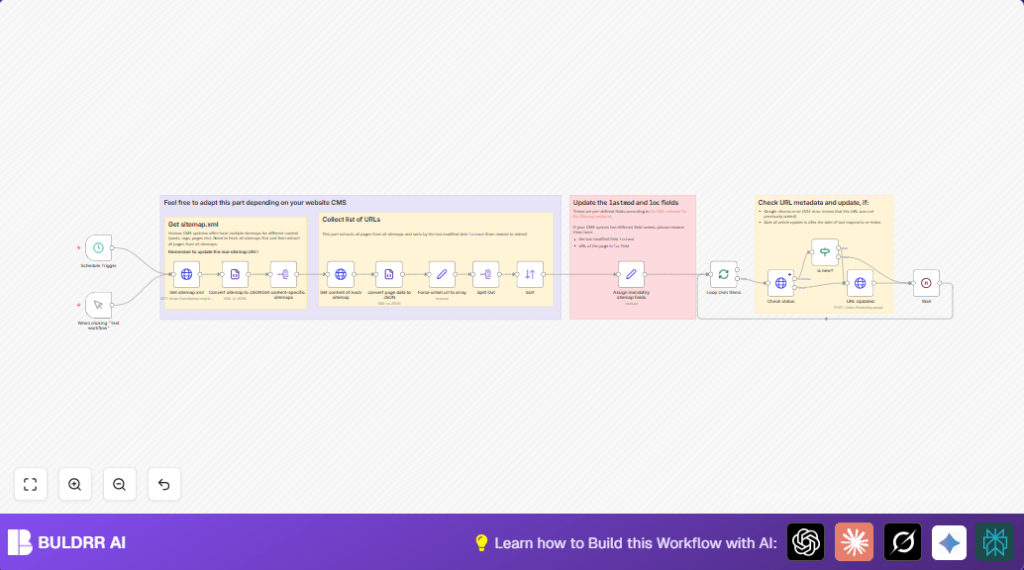
It reads your main sitemap.xml, finds all smaller sitemaps, then collects all page URLs and their last change dates.
The workflow sorts these pages by newest update first.
For each URL, it asks Google if an update is needed using the Indexing API.
Only new or recently changed pages get sent for re-indexing.
This avoids waiting long or manually submitting URLs, saving time and improving search ranking speed.
Who Should Use This Workflow
People managing websites with many posts or pages and sitemaps benefit most.
If manual updates to Google are slow or messy, this workflow cuts down work and errors.
It works with sites that follow sitemap.xml standards and have Google Indexing API access.
Good for content editors, SEO helpers, and small businesses wanting faster search rank updates.
Tools and Services Used
- n8n Automation Platform: Automates workflows visually with nodes.
- Google Indexing API: Lets the workflow tell Google about updated URLs.
- OAuth2 Authentication: Secures Google API access with tokens.
- HTTP Request Nodes: Fetch sitemap files and talk to Google API.
Optional:
- Self-host n8n server: For more control and performance, see self-host n8n.
Input → Process → Output
Inputs
- Root sitemap.xml URL: The main sitemap pointing to other sitemaps.
- Google OAuth2 Credentials: For authenticating API requests.
Processing Steps
- Fetch the root sitemap.xml file.
- Parse the root sitemap to extract all child sitemap URLs.
- For each child sitemap, download and parse its XML to list URLs and last modification dates.
- Force URL lists to arrays to avoid errors if only one URL exists.
- Split the URLs, sort them by last modified date in descending order.
- Normalize field names to standard ones like
locandlastmod. - Batch the URLs to fit Google API limits.
- For each URL, send a GET request to Google Indexing API metadata endpoint to check last notification time.
- If URL is new or updated after last notification, send a POST request to notify Google of update.
- Wait random short time between requests to avoid rate limits.
Output
- Re-indexing requests to Google: For new or changed URLs.
- Logs and statuses: For each URL processed (optional for debugging).
Beginner Step-by-Step: How to Use This Workflow in n8n
1. Importing the Workflow
- Click the Download button on this page to get the workflow file.
- Open the n8n editor, go to the dropdown menu, choose Import from File.
- Select the downloaded workflow file and import it.
2. Configuring the Workflow
- Add Google OAuth2 credentials in n8n’s credential manager.
- Update the Get sitemap.xml node URL to match your website’s sitemap link.
- If your sitemap uses different lastmod field name, adjust the Assign mandatory sitemap fields node accordingly.
- If any API keys, emails, or IDs are used (e.g., for notifications), update them as needed.
3. Testing the Workflow
- Run the workflow manually using the Manual Trigger node inside n8n editor.
- Check node outputs for any errors or unexpected results.
- Fix any issues, such as wrong URLs or credential problems.
4. Activating for Production
- Enable the Schedule Trigger node to run daily or as required.
- Save and activate the workflow.
- Monitor executions regularly using n8n’s dashboard to catch and fix errors fast.
Customizations
- Change sitemap URL in Get sitemap.xml node for different websites.
- Adjust XML field names in Assign mandatory sitemap fields node if your CMS uses custom tags.
- Tune batch sizes and wait times between API calls in Loop Over Items and Wait nodes.
- Add email or Slack notification nodes to alert on errors or success reports.
Troubleshooting
403 Forbidden error on Google metadata request?
Check if Google Indexing API is enabled in Google Cloud Console.
Make sure OAuth2 credentials are set up correctly inside n8n.
Missing lastmod values or XML parsing errors?
Review your sitemap.xml for correct structure.
Update the mapping in Assign mandatory sitemap fields node to match your sitemap.
Pre-Production Checklist
- Enable Google Indexing API in Google Cloud project.
- Update sitemap URL in Get sitemap.xml node.
- Verify OAuth2 credentials work by testing metadata requests.
- Run a manual test run checking for parsing and API errors.
- Set batch size and wait times to match API quota limits.
Deployment Guide
Turn on the Schedule Trigger node to run this regularly.
Watch logs often on n8n dashboard to catch problems quick.
Add extra logging or notifications as useful to track API usage and indexing status.
Summary
✓ Saves hours by automating Google site index updates.
✓ Prioritizes new and changed web pages for indexing.
✓ Ensures faster SEO improvements by timely notifying Google.
✓ Reduces manual work and mistakes in URL submissions.
✓ Can be set to run daily and scaled as site grows.
