
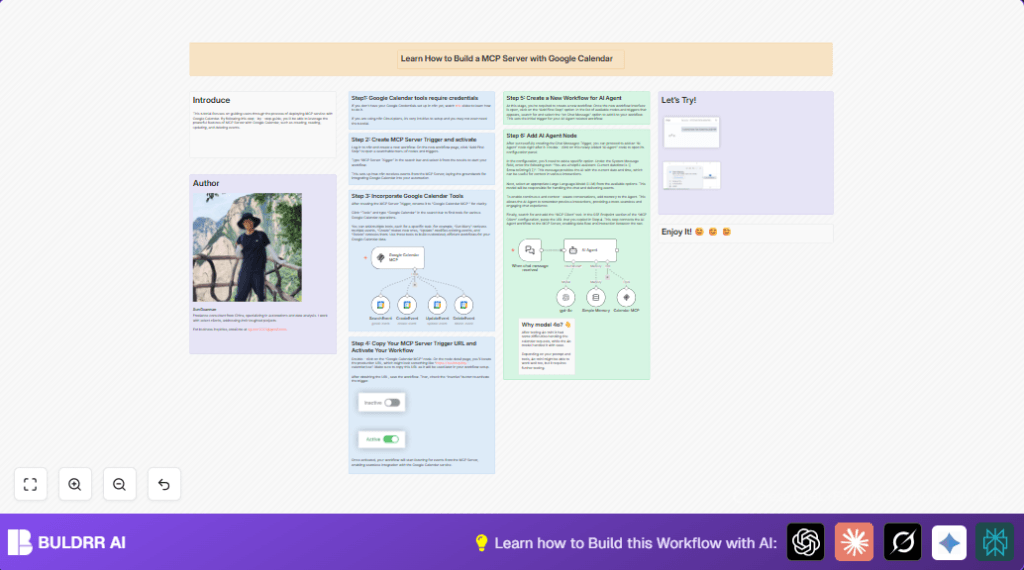

What This Automation Does
This workflow lets users manage Google Calendar events using simple chat commands inside a messaging app.
It listens for chat messages, understands them using an AI, and then creates, finds, updates, or deletes calendar events.
This stops the user from switching apps and saves many hours each week of manual calendar work.
The workflow uses an MCP Server to get chat commands, an AI Agent to read and decide actions, and Google Calendar tools to change calendar events accordingly.
Users get fast, easy control of their calendar with natural chat instructions.
Tools and Services Used
- n8n: Automation platform running the workflow.
- MCP Server Trigger node: Receives incoming chat commands.
- Google Calendar Tool nodes: Performs event create, read, update, delete operations.
- OpenAI GPT-4o Mini model: Interprets chat messages.
- AI Agent (LangChain): Manages AI understanding and memory.
- MCP Client Tool: Connects AI Agent to MCP Server for event exchanges.
How This Workflow Works: Inputs → Processing → Output
Inputs
- Chat messages sent by the user in a messaging app.
- These messages contain commands like “create a meeting”, “update event”, or “delete appointment”.
Processing Steps
- The MCP Server Trigger waits for chat messages and starts the workflow.
- The AI Agent reads the message using GPT-4o Mini, with memory keeping track of prior dialogue.
- The AI decides what Google Calendar action to perform based on the message content.
- Google Calendar nodes perform the requested action: searching events, creating new ones, modifying, or deleting.
- The MCP Client Tool sends feedback or confirmation messages back into the chat.
Output
- Google Calendar is updated as per the user’s chat instructions.
- User receives chat responses confirming actions or providing event information.
Beginner step-by-step: How to use this workflow in n8n
Step 1: Download and Import Workflow
- Click the Download button on this page to get the workflow file.
- In your n8n editor, select “Import from File” and upload the downloaded workflow.
Step 2: Configure Credentials and Settings
- Open the workflow and add your Google Calendar OAuth2 credentials in the Calendar nodes.
- Provide your OpenAI API key for the GPT-4o Mini nodes.
- If needed, update any event IDs, emails, or URLs inside nodes to match your accounts.
Step 3: Test the Workflow
- Send a simple chat message to the AI Agent, like “Create a meeting tomorrow at 10 AM”.
- Watch if an event is created properly in your Google Calendar.
Step 4: Activate the Workflow
- Turn on the workflow by toggling its status to Active.
- Ensure the MCP Server Trigger’s webhook URL is correct and reachable.
- Now the workflow runs fully in production and handles all chat calendar commands.
You do not need to build the workflow from scratch. Just import and configure it.
For users running self-host n8n, verify your server settings support webhook access.
Customizations ✏️
- Change the model from GPT-4o Mini to GPT-4o for better understanding.
- Add calendar fields like location, attendees, or reminders in CreateEvent and UpdateEvent nodes.
- Make the workflow handle many users by adding user identification in the MCP Server Trigger.
- Update the AI Agent System Message to add business or company rules.
- Expand the Simple Memory node to keep a longer chat history.
Troubleshooting ????
Problem: “Invalid Credentials” Error in Google Calendar
Cause: OAuth2 credentials expired, missing permissions, or wrong client info.
Solution: Refresh Google API credentials in n8n, give correct calendar scopes, and retry.
Problem: AI Agent Does Not Respond to Chat
Cause: MCP Server Trigger is inactive or wrong webhook URL in MCP Client node.
Solution: Activate the trigger node and verify the SSE URL matches in the client node.
Problem: Calendar Event Fails to Update/Delete
Cause: Event ID not passed correctly or lack of edit permissions.
Solution: Check event ID mapping and confirm OAuth scopes allow event editing/deletion.
Pre-Production Checklist ✅
- Ensure Google OAuth credentials are valid and authorized for calendar access.
- Check all MCP webhook URLs and make sure they are copied correctly.
- Test each Google Calendar CRUD node separately to confirm it works.
- Verify OpenAI API keys are correct and connected.
- Run chat tests with different commands and confirm expected results.
- Backup workflow files before final deployment.
Deployment Guide
Activate the workflow with the MCP Server Trigger by switching it to Active.
Also, activate the AI Agent workflow that listens for chat messages.
Regularly monitor logs and executions in n8n to catch errors.
For busy setups, use a good hosting provider for self-host n8n to handle the workload.
Summary
✓ Handles Google Calendar events using chat commands inside messaging apps.
✓ Uses AI Agent with GPT-4o Mini to understand and act on instructions.
✓ Saves many hours by removing manual calendar switching.
✓ Easy import and setup in n8n with clear instructions.
✓ Supports full event CRUD plus conversational memory.
