
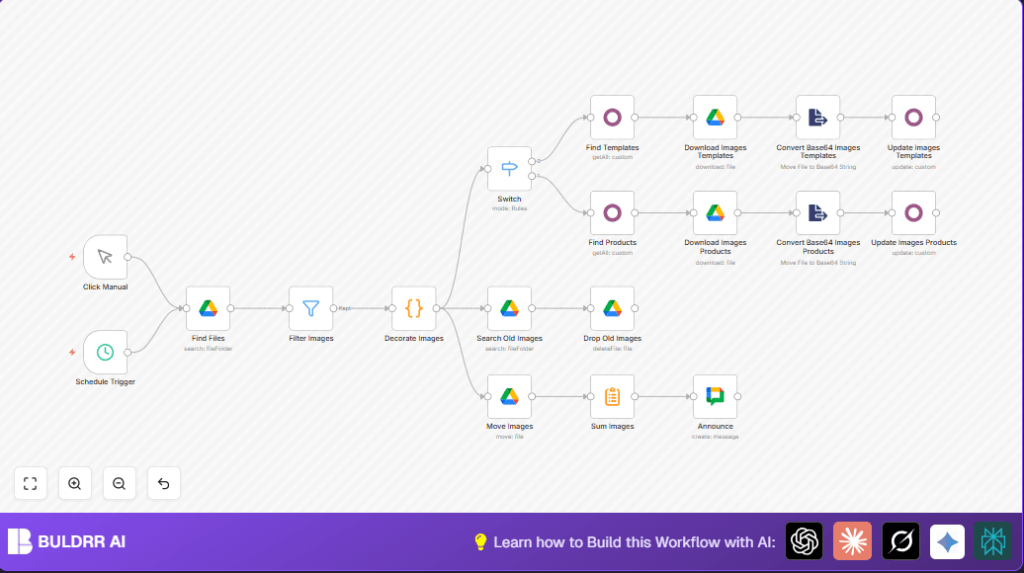

What This Workflow Does
This workflow watches a Google Drive folder for new product images and copies them into Odoo product or template records automatically.
It fixes the problem of wasting many hours doing uploads by hand.
After running, the product images in Odoo are updated with fresh pictures without any manual work.
The workflow runs every 10 minutes. It finds only JPG and PNG files. Then it reads file names to get model type and SKU to find matching Odoo records. It downloads images, converts them to Base64, and updates Odoo images.
Processed files are moved to a done folder and old images there get deleted to save space.
Finally, a Google Chat message announces how many images got updated.
Tools and Services Used
- n8n: Automation platform to build and run workflow.
- Google Drive: Stores product images in a folder with OAuth2 access.
- Odoo ERP: Stores product and template records with images.
- Google Chat: Receives update notifications.
Inputs, Processing Steps, and Outputs
Inputs
- Folder ID on Google Drive containing new product images.
- Odoo ERP connection with API access and product SKU mapping.
- Google Chat space or channel for notifications.
Processing Steps
- Trigger every 10 minutes to start workflow.
- Find all files in the Drive folder.
- Filter to keep only .jpg and .png files.
- Parse file names to get model (product/template) and SKU.
- Route images to either product or template branch.
- Query Odoo records by SKU to find matching products/templates.
- Download each image file.
- Convert downloaded images from binary to Base64 string.
- Update Odoo records image fields with new images.
- Move processed images to a “done” folder in Google Drive.
- Find and delete old duplicate images in the “done” folder.
- Count how many images updated and send a message on Google Chat.
Outputs
- Up-to-date product and template images in Odoo.
- Processed images archived in “done” folder.
- Notification message showing update count.
Beginner Step-by-Step: How to Use This Workflow in Production Inside n8n
Import the Workflow
- Download the workflow file using the Download button on this page.
- Open your n8n editor where you want to run this workflow.
- Use the Import from File option to load the workflow.
Configure Credentials and IDs
- Add your Google Drive OAuth2 credentials with permission to the image folder.
- Add your Odoo API credentials that allow reading and updating products.
- Add your Google Chat credentials to send messages.
- Update folder IDs for the input and done folders in Google Drive.
- Verify Odoo SKU matching field, such as
default_code, is correct.
Test the Workflow
- Run the workflow once manually inside n8n to check for errors and observe logs.
- Verify product images update correctly in Odoo.
- Confirm Google Chat message posts as expected.
Activate and Monitor
- Switch the workflow toggle to “active” to make it run on schedule.
- Monitor workflow executions in the n8n dashboard for failures.
- Consider self-host n8n if running in production for control and security.
Code Snippet for Parsing File Names
The workflow uses this JavaScript code inside the Code node to separate file names into model and SKU.
for (const item of $input.all()) {
  let parts = item.json.name.split('.').slice(0, -1).join('.').split('_');
  item.json.model = parts[0];
  item.json.sku = parts.slice(1).join('_');
}
return $input.all();
This code takes a file name like “product_1234.png” and sets model = “product” and sku = “1234”.
Ensure filenames follow the pattern for proper parsing.
Customizations
- Change file filters in Filter node to add or remove image types like GIF or WEBP.
- Modify filename parsing code to match your file naming rules.
- Add a Click Manual node to run workflow by hand if preferred.
- Update the Google Chat space or change messaging text in the notification node.
- Expand Odoo update nodes to modify other fields like attributes or descriptions.
Troubleshooting
- Problem: No files found in Google Drive folder.
Cause: Wrong Drive or folder IDs.
Fix: Copy exact IDs from Google Drive URL. - Problem: SKU not found in Odoo.
Cause: Filename SKU doesn’t match Odoo default_code.
Fix: Confirm SKU codes match exactly. - Problem: Images not updating in Odoo.
Cause: Base64 conversion failed or no update permission.
Fix: Check image encode step and Odoo API permissions.
Pre-Production Checklist
- Ensure Google Drive access and correct folder IDs.
- Validate naming and extensions of image files.
- Test API credentials in Odoo by getting a product record.
- Test run workflow manually with sample images.
- Verify Google Chat webhook setup.
Summary of Benefits
✓ Saves at least 5 hours weekly by automating image uploads.
✓ Reduces image upload errors to nearly zero.
✓ Keeps Odoo product images fresh and accurate.
✓ Sends notifications for transparency.
✓ Helps organize Google Drive by moving and deleting files.
