

What this workflow does
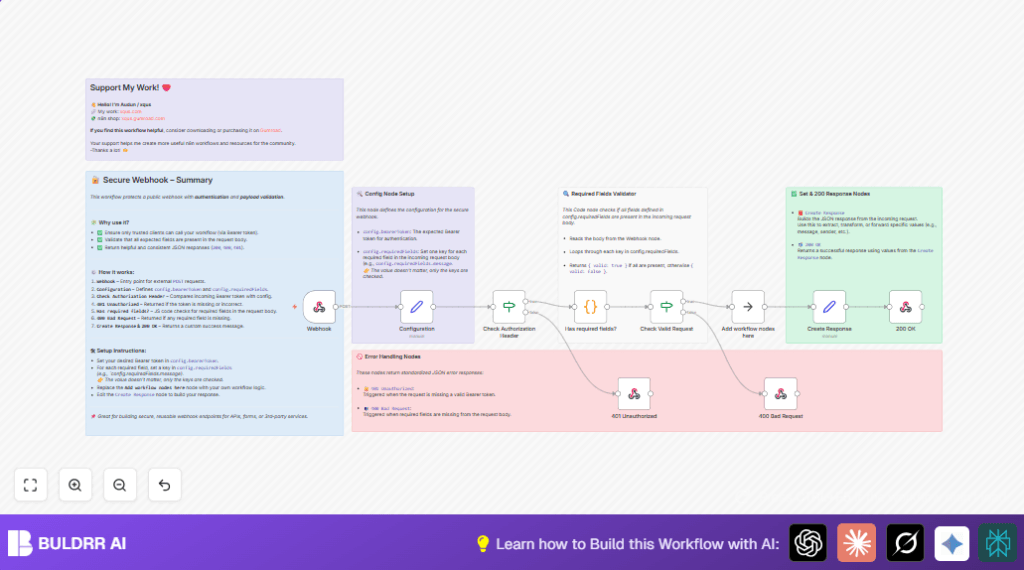
This workflow receives data from a secure webhook URL.
It checks the Bearer token sent in the Authorization header and makes sure it matches a pre-set token.
If the token is wrong or missing, it sends back a 401 Unauthorized error.
It also looks at the incoming data to see if all required fields are there.
If some fields are missing, it replies with a 400 Bad Request error.
If everything is good, it sends a 200 OK response to confirm.
This stops bad or incomplete data from going further into your workflow.
Why you should use this workflow
If many random or unauthorized requests hit your webhook, you waste time fixing broken runs.
This workflow keeps only authorized requests that have all needed data.
You save time and protect your data from errors or hacks.
This also helps keep client trust because results are more consistent.
Tools and services used
- n8n Webhook node: Receives POST requests.
- Set node: Holds the secret token and required field keys.
- If nodes: Check token match and data validity.
- Code node: Reviews payload to check required fields.
- Respond to Webhook nodes: Send back HTTP 401, 400, or 200 responses.
- Optional self-hosting: You can self-host n8n if wanted.
Inputs → Processing → Output
Inputs
- POST request from client.
- Authorization header with Bearer token.
- Payload JSON with customer data.
Processing Steps
- Check if Authorization header matches configured Bearer token.
- Return 401 Unauthorized if token check fails.
- Look for all required fields in the request body.
- Return 400 Bad Request if any required fields are missing.
- If checks pass, return 200 OK and continue workflow.
Output
- Standardized JSON response with correct HTTP status codes (401, 400, or 200).
- Clean, verified data moves forward for new processing.
Beginner step-by-step: Using this workflow in n8n production
Step 1: Import workflow
- Download the workflow using the Download button on this page.
- Open your n8n editor, click the menu, and choose “Import from File”.
- Select the downloaded workflow file to import it into n8n.
Step 2: Configure authentication and fields
- Find the Set node named “Configuration”.
- Set
config.bearerTokento your secret API Key value. - Add or edit any keys inside
config.requiredFieldsfor fields the webhook must receive.
Step 3: Adjust other settings if needed
- Update any email, folder, or database IDs in the workflow if it has those nodes.
- Check the Webhook node path and HTTP method (must be POST) to match your client configuration.
Step 4: Test the workflow
- Send a test POST request to your webhook URL using a client like Postman.
- Include the Authorization header with “Bearer YOUR_TOKEN” and all required fields in JSON.
- Watch the workflow executions view in n8n to confirm it runs successfully.
Step 5: Activate workflow for production
- Turn on the workflow using the toggle button in the n8n editor.
- Share the webhook URL and bearer token securely with clients who will call it.
- Monitor live runs and errors from the dashboard regularly.
Customization ideas
- Change
config.bearerTokento any string you want for authentication. - Add more fields under
config.requiredFieldsto enforce extra data. - Edit the success message in the final Set node to fit your use case.
- Replace the placeholder node with your own project’s processing steps.
Handling errors and edge cases
- If clients get “401 Unauthorized” even with correct token, verify the header includes “Bearer ” prefix exactly.
- Ensure no extra spaces or typos in the Authorization header value.
- If “400 Bad Request” happens though fields look present, check that field names exactly match the keys set in
config.requiredFields(case matters). - Check the JSON structure of payload clients send matches what code node expects.
Summary
→ Secure webhook receives only authorized POST requests.
→ Checks required fields present in payload.
→ Sends clear JSON responses 401, 400, or 200 based on validation.
✓ Saves troubleshooting time.
✓ Protects data integrity.
✓ Gives reliable results for integrations.
