

What This Automation Does
This workflow gets orders from chat messages automatically.
The main problem it fixes is slow and wrong manual order entry.
It uses AI to talk with customers, collect their order details, and write them to Google Sheets quickly and accurately.
The result is faster service and fewer mistakes in restaurants.
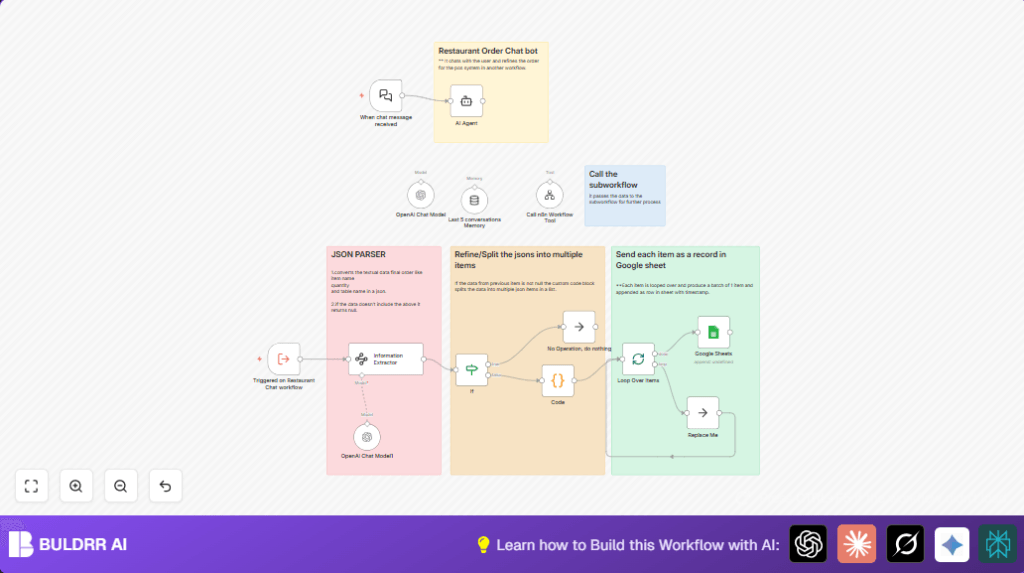
The workflow starts when a chat order is sent to the Chat Trigger node.
Then the AI Agent node talks with the customer to make sure orders are clear.
It extracts item names, quantities, and table numbers from texts using the Information Extractor node.
A Python Code node cleans this data by pairing each item with quantity and table number.
The SplitInBatches node sends each order item separately to the Google Sheets node that adds the order to a sheet with timestamps.
There is built-in checking for missing or wrong info, so the AI keeps asking till orders are right.
This all saves restaurant staff many hours every day and means customers get their orders faster and more correct.
Who Should Use This Workflow
This automation suits restaurants and cafes that take orders by chat messages.
It helps managers and staff to stop typing orders by hand and reduce errors.
Anyone who gets many chat orders and wants to log them fast and clear will find it useful.
Tools and Services Used
- LangChain Chat Trigger node: catches incoming customer chat orders.
- OpenAI GPT-4o-mini model: conducts AI chat conversation and order verification.
- Information Extractor node: pulls out structured info like items, quantities, tables.
- Python Code node: refines extracted info into clean order lines.
- SplitInBatches node: sends each order item one by one.
- Google Sheets node: adds order rows to a spreadsheet with timestamps.
This blend of AI and Google Sheets lets restaurants run order logging without human typing.
For users who run self-host n8n, this workflow fits any setup with API access configured.
Beginner Step-by-Step: How to Use This Workflow in n8n
Importing the Workflow
- Download the workflow file using the “Download” button on this page.
- Inside the n8n editor, select “Import from File” and upload the downloaded workflow.
Setup and Configuration
- Add API Keys for OpenAI and Google Sheets in n8n Credentials.
- Update the Google Sheets node settings: set the correct spreadsheet ID and sheet name where orders should go.
- If needed, change emails, channel IDs, or webhook URLs in the Chat Trigger and AI Agent nodes.
- Check the Python Code node to see the data extraction logic; the default code is ready to use.
Testing and Activation
- Run the workflow once manually or send a sample chat order like “1 latte, 2 coffee, table number 5” to the webhook URL.
- Check the Google Sheet to confirm the order appears correctly.
- When tests pass, toggle the workflow “ON” to make it active for live orders.
Following these steps lets beginners use this workflow easily without coding.
It handles all chat order processing automatically once set up.
Inputs, Processing, and Outputs
Inputs
- Customer order messages received via the Chat Trigger webhook.
- API credentials and parameters set in n8n nodes for OpenAI and Google Sheets.
Processing Steps
- The AI Agent node interacts with customers, asking for order details and confirming them.
- The Information Extractor node extracts structured data of item names, quantities, and table numbers using regex and JSON schema.
- The Python Code node cleans and pairs these extracted arrays into individual order JSON objects.
- SplitInBatches processes each order item for separate handling.
- Google Sheets node appends each item as a new row with timestamp.
- If order info is missing, logic with If nodes and the AI Agent re-prompts the customer.
Output
Order details appear as new rows in the Google Sheets document, organized by item, quantity, table, and time.
The workflow also responds to chats with confirmation messages or correction prompts.
Edge Cases and Failures
- Empty Extraction Results: If the Information Extractor finds no order details, the workflow prompts the customer again.
- Google Sheets Not Appending: Usually caused by wrong document ID or field mapping. Check settings carefully.
- Python Code Errors: Happens if extracted JSON structure changes. Debug input data and update code.
Adding debug nodes or viewing node outputs in the editor helps find data mismatches quickly.
The AI Agent prompt should be clear and consistent about expected output format.
Customization Ideas
- Add more item patterns in Information Extractor to support more menu products.
- Change the OpenAI model for cost or speed by updating model settings in AI nodes.
- Edit the AI Agent system message to change how order confirmations sound.
- Add more Google Sheet columns like special notes or order status and adjust workflow to fill them.
- Add notification nodes such as Slack, Email, or SMS after order logging for staff alerts.
Pre-Production Checklist
- Make sure Google Sheets API credentials have write access.
- Double-check the Chat Trigger webhook is publicly accessible.
- Test with sample orders that have correct and incorrect inputs to verify AI handling.
- Use debug mode in n8n editor to view data passing between nodes.
- Backup Google Sheets data before going live.
Deployment Guide
Turn the workflow “ON” in the n8n dashboard to start receiving real orders.
Watch logs regularly to check for errors.
Make sure API keys for OpenAI and Google Sheets remain valid to avoid breaks.
You can add alert or notification nodes to inform staff about new orders quickly.
Summary
✓ Automates chat order intake and logging to Google Sheets
✓ Uses AI to talk with customers and verify orders
✓ Extracts structured order details automatically
✓ Saves time and reduces typing errors
✓ Works well with self-hosted and cloud n8n setups
✓ Easy to import and configure inside n8n editor
→ Faster restaurant service
→ Clear order tracking with timestamps
→ Less frustration for staff and customers
