

What This Workflow Does
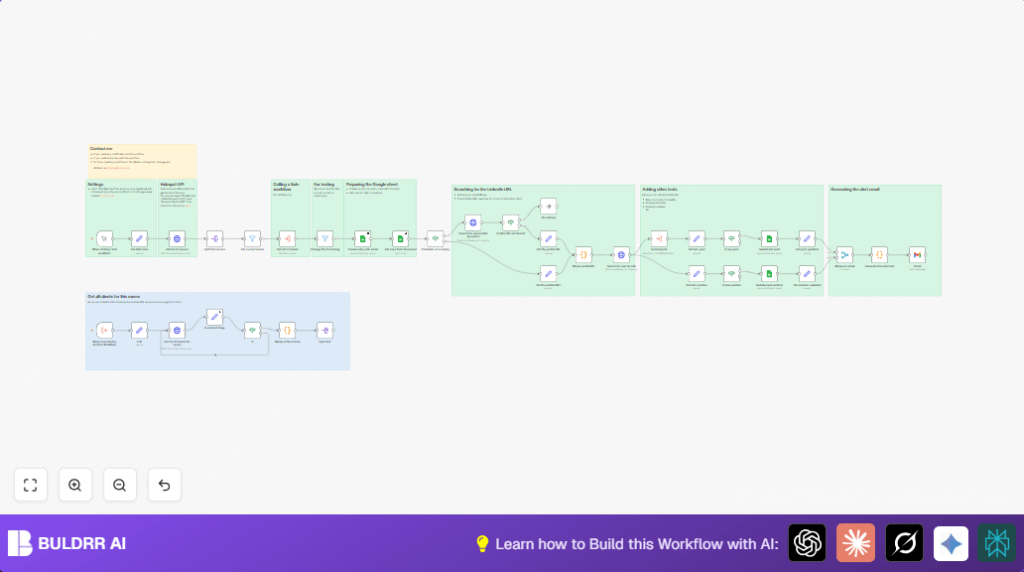
This n8n workflow helps users track LinkedIn updates from clients stored in HubSpot.
It automatically checks clients for job changes or new LinkedIn posts to save time and avoid missed opportunities.
The workflow pulls client data, finds LinkedIn profiles, compares new info with old data, and sends email alerts about any changes.
Users get updated client information without manual searching or guessing.
Inputs, Processing Steps, and Outputs
Inputs
- HubSpot API: Provides client contacts and owner data via OAuth2 authenticated endpoints.
- RapidAPI LinkedIn API: Searches LinkedIn profiles and fetches latest posts and positions.
- Google Sheets: Stores client historical data to compare and update with new LinkedIn info.
- Gmail API: Sends email summaries of detected client updates.
Processing Steps
- Retrieve all HubSpot owners; filter for the relevant owner by email.
- Load client contacts linked to that owner using search APIs with pagination.
- Optionally filter client list for testing with sample emails.
- Check Google Sheets for stored LinkedIn URLs, posts, and positions for each client.
- If LinkedIn URL missing, call LinkedIn search API to find profile URL by name and company.
- With LinkedIn URLs, fetch recent post content and current job position for each client.
- Compare new LinkedIn data with stored Google Sheets values to find changes.
- Update Google Sheets records with new posts or positions when changes occur.
- Collect change flags and build an email report listing client updates.
- Send notification email via Gmail to the owner about clients with new LinkedIn activity.
Outputs
- Updated Google Sheets client data with latest LinkedIn profile info.
- Summary email listing clients with new posts or job changes.
Tools and Services Used
- HubSpot API: Fetches owners and client contact data.
- RapidAPI LinkedIn Endpoints: Searches LinkedIn profiles and retrieves posts and positions.
- Google Sheets API: Reads and writes client LinkedIn data.
- Gmail API: Sends alert emails to owners.
- n8n Automation Platform: Orchestrates workflow logic, triggers, and node execution.
Beginner Step-by-Step: How to Use This Workflow in n8n
Step 1: Import Workflow
- Download the workflow file using the Download button on this page.
- Open the n8n editor and use the Import from File option to add the workflow.
Step 2: Configure Credentials and Settings
- Add the required OAuth2 credentials and API Keys for HubSpot, Google Sheets, RapidAPI LinkedIn, and Gmail in n8n credentials.
- Update necessary fields such as the HubSpot owner email, Google Sheet URL or ID, and Gmail recipient email inside configuration nodes.
- If the workflow uses code nodes with embedded expressions or prompts, verify and keep them intact for proper operation.
Step 3: Test the Workflow
- Run the workflow manually using the Manual Trigger node.
- Check execution logs for errors. Fix credentials or API permission issues if they occur.
Step 4: Activate for Production
- Enable the workflow in n8n to run automatically based on a schedule if desired (e.g., using a Cron node).
- Monitor email alerts for correctness and API usage quotas.
- Make sure to renew credentials periodically to avoid interruptions.
For advanced users running or self-host n8n on a server, consider automation triggers to run this workflow regularly without manual initiation.
Edge Cases and Failure Points
- HubSpot API 401 Unauthorized errors mean OAuth2 tokens expired or are misconfigured.
- RapidAPI LinkedIn calls may fail from invalid API keys or exceeded quotas.
- Google Sheets permission errors arise if the spreadsheet is not shared or OAuth2 tokens lack scope.
- Gmail node may fail if OAuth tokens are invalid or SMTP limits block sending.
- Manual testing filters should be replaced by production filters for full client coverage.
Customization Ideas
- Filter HubSpot client queries by lifecycle stage or deal value for targeted monitoring.
- Add LinkedIn comment checks or HubSpot activity integrations to capture more client signals.
- Track extra client details in Google Sheets such as phone numbers or industries.
- Send notifications to multiple email recipients or add Slack alerts in Gmail node setup.
- Adjust pagination batch size for optimal API usage and speed.
Summary and Benefits
✓ Users automatically get latest LinkedIn client updates without manual checks.
✓ Saves several hours weekly on tedious client monitoring.
✓ Keeps client data fresh in Google Sheets for quick reference.
✓ Sends clear email alerts on jobs and posts changes to act fast.
✓ Workflow runs inside n8n, fully automated after setup.
