

What This Automation Does
This workflow backs up n8n workflows to Google Drive every day at 1:30 AM automatically.
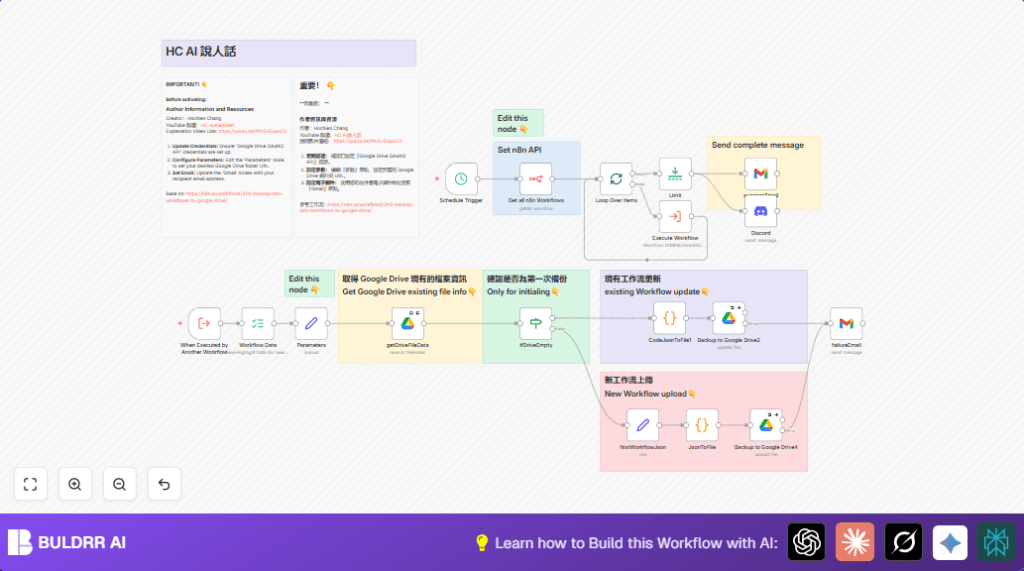
It gets all active workflows, checks Google Drive for existing backups, then creates or updates backup files.
You get daily, versioned backups that save time and stop lost workflow data.
The process sends email and Discord messages to let the user know success or failure.
How This Workflow Works: Inputs, Processing, Outputs
Inputs
- Schedule Trigger: Fires daily at 1:30 AM.
- n8n API Credentials: Needed to fetch list of workflows.
- Google Drive Folder ID: Where backups save or update.
- Email recipient addresses: For notifications.
- Discord Webhook URL: For chat alerts.
Processing Steps
- The Schedule Trigger triggers at 1:30 AM daily.
- The n8n node “Get all n8n Workflows” calls the n8n API to get all workflow JSON.
- The SplitInBatches node loops through each workflow one at a time.
- The Google Drive node “getDriveFileData” checks if backup exists by searching the backup folder.
- The If node “ifDriveEmpty” decides if the file needs creating or updating.
- Two Code nodes convert JSON workflow data into base64 encoded files.
- The appropriate Google Drive node uploads new files or updates existing backups.
- Error handling routes failures to a Gmail node sending failure alerts.
- On success, a Limit node controls notification frequency.
- Gmail and Discord nodes send success messages with timestamps.
Outputs
- Google Drive folder filled with up-to-date JSON workflow backups.
- Email and Discord notifications on backup success or failure.
Beginner Step-by-Step: How to Use This Workflow in n8n Production
Importing the Workflow
- Download the workflow file using the Download button on this page.
- Open n8n editor.
- Click on “Import from File” and choose the downloaded workflow.
Configuring Credentials and Settings
- Add required API credentials:
- n8n API credentials for workflow access.
- Google Drive OAuth2 credentials for backup folder access.
- Gmail OAuth2 credentials for sending emails.
- Discord webhook URL for chat notifications.
- Update IDs and addresses:
- Change Google Drive folder ID in “Parameters” node.
- Set email “sendTo” addresses for success and failure nodes.
- Change Discord channel or webhook URL if needed.
- Check the Code nodes using base64 encoding. The code is:
return items.map(item => {
  const jsonData = JSON.stringify(item.json);
  const binaryData = Buffer.from(jsonData).toString('base64');
  item.binary = {
    data: {
      data: binaryData,
      mimeType: 'application/json',
      fileName: 'data.json'
    }
  };
  return item;
});
Testing and Activation
- Run the workflow manually once to verify backups create in Google Drive.
- Check email and Discord messages arrive as expected.
- Switch the workflow “On” to enable the daily scheduled backups.
If using self-host n8n, refer to self-host n8n for environment setup.
Who Should Use This Workflow
- Any user needing daily automatic backup of n8n workflows.
- Automation specialists who want to save time and avoid manual export errors.
- Teams who rely on versioned backups stored safely on Google Drive.
- n8n users wanting failure alerts via email and chat.
Tools and Services Used
- n8n: To build and run the workflow.
- n8n API: Fetch all active workflows.
- Google Drive API: Stores, searches, updates backup files.
- Gmail API: Sends email notifications.
- Discord Webhook API: Sends chat notifications.
Customization Ideas
- Change the daily backup time in the Schedule Trigger node.
- Switch the Google Drive folder in the “Parameters” node to another location.
- Modify email addresses in Gmail nodes for sending to different users.
- Use a different chat platform by replacing the Discord node webhook URL.
- Adjust the batch size in the SplitInBatches node for performance.
Handling Errors and Edge Cases
- Invalid Google Drive OAuth2 credentials cause backup upload failures.
- Incorrect n8n API credentials will return no workflows.
- The base64 encoding code can fail if JSON structure changes.
- Email notifications fail if Gmail OAuth2 credentials are not valid or sending addresses are wrong.
Use error forwarding and Gmail failure alerts to catch and fix errors quickly.
Pre-Production Checklist
- Confirm Google Drive credentials by manually listing files in the backup folder.
- Test the n8n node returns current workflows correctly.
- Run workflow manually to verify JSON conversion and uploads work.
- Check all email addresses in notification nodes.
- Validate Discord webhook URLs and permissions.
- Keep external copies of workflow JSON as backups.
Deployment Guide
Activate the workflow in n8n by switching it On.
Use execution logs to monitor the first run at 1:30 AM.
Check notifications by email and Discord to confirm backups succeeded.
For large workflow counts, increase batch size in SplitInBatches carefully to balance load.
Conclusion
✓ Daily backups run automatically at set time.
✓ Workflow JSON files saved and updated on Google Drive.
✓ Email and Discord alerts show success or failure.
→ Saves hours by removing manual export and upload work.
→ Protects workflow versions and avoids data loss.
✓ Simple setup for users familiar with n8n editing and credentials.
Consider adding encryption or other alert channels for more security.
