
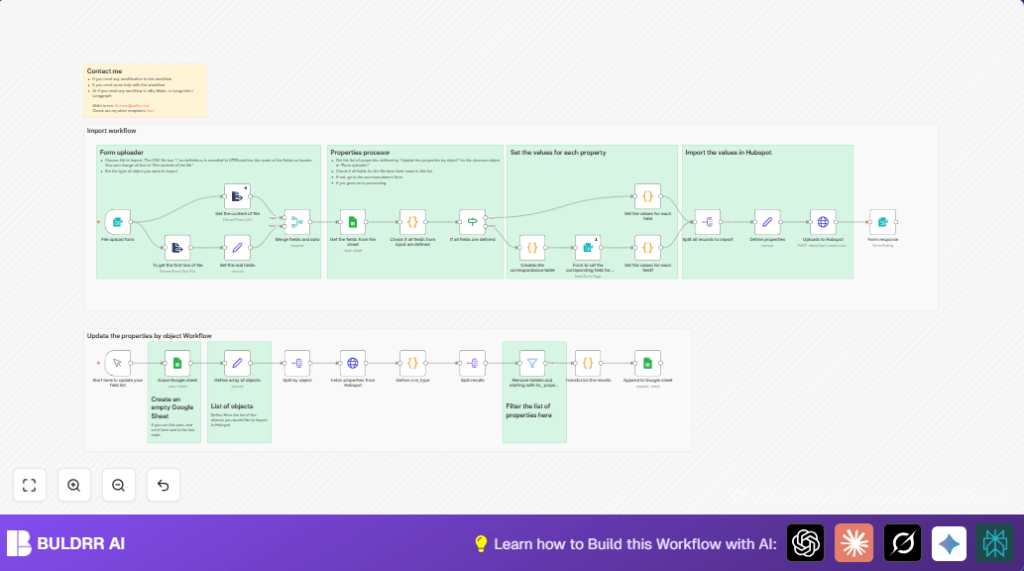

What This Workflow Does
This workflow helps you import CSV files into HubSpot CRM objects without mistakes. It solves the problem of manual imports that cause problems like wrong field matches or missing data. When you run it, you get your HubSpot data updated correctly, saving time and making your CRM better.
The workflow fetches HubSpot property lists, keeps them in a Google Sheet, checks your CSV headers, lets you map wrong fields, and uploads clean data to HubSpot using API calls.
Inputs, Process, and Outputs
Inputs
- CSV file with CRM data (contacts, companies, deals, leads, tickets).
- HubSpot OAuth2 credentials to access API.
- Google Sheets OAuth2 credentials for reading/writing property lists.
- User interaction for manual field mapping if needed.
Processing Steps
- Clear current property list in Google Sheet.
- Define list of CRM objects to process.
- Fetch properties for each object from HubSpot API.
- Filter out hidden or system fields.
- Add object type info to properties.
- Save properties to Google Sheet as reference.
- Read uploaded CSV file headers and data.
- Compare CSV fields to HubSpot properties.
- If fields mismatch, create dynamic form for manual mapping.
- Apply field mapping to CSV data.
- Split CSV into individual records.
- Prepare each record’s JSON payload.
- Upload each record to HubSpot via API.
- Notify user when import finishes successfully.
Outputs
- Updated HubSpot CRM objects from CSV input.
- Current list of HubSpot properties in Google Sheet.
- Confirmation message for successful import.
Who Should Use This Workflow
This workflow is for people managing HubSpot CRM data from many sources. It helps if importing CSV files is slow or error-prone.
It works well for marketing or sales teams that want to keep data clean and synced often.
Tools and Services Used
- n8n: Runs the automation workflow.
- HubSpot API: Gets property info and uploads CRM data.
- Google Sheets API: Stores property lists for mapping reference.
- OAuth2: Secures API access for HubSpot and Google Sheets.
Beginner Step-by-Step: How to Use This Workflow in n8n
Step 1: Import the Workflow
- Click the Download button on this page to get the workflow file.
- Open n8n editor where you want to use it.
- Use Import from File to load the workflow.
Step 2: Configure Credentials and Settings
- Add your HubSpot OAuth2 credentials in n8n Credentials Manager.
- Enter Google Sheets OAuth2 credentials with proper read/write rights.
- Check and update IDs, emails, channels, or sheet names if your setup uses different ones.
Step 3: Test the Workflow
- Run the manual trigger to fetch and update HubSpot property lists.
- Upload a small CSV file using the upload form node to check field matching and import logic.
Step 4: Activate for Production
- Once tests work well, enable the workflow in n8n to run automatically or on form submission.
- Monitor the execution logs for errors during first runs.
Consider using self-host n8n if running workflows on your own server for full control and reliability.
Customization Ideas
- Add more HubSpot objects to the import by changing the array node content.
- Change CSV file delimiter settings to match different CSV formats.
- Adjust property filtering to include or exclude more fields as needed.
- Add stronger validation to check required fields or data types before import.
- Allow editing the Google Sheet property list manually before running imports.
Common Problems and Fixes
Problem: Unauthorized Error Fetching HubSpot Properties
Cause is usually expired or wrong OAuth2 credentials.
Solution is to refresh or reconnect HubSpot credentials in n8n.
Problem: CSV Data Not Loading Correctly
Check if the CSV delimiter or encoding is set correctly in the file processing node.
Problem: Mapping Form Does Not Show Up
The system thinks all fields are mapped or there is a logic error.
Check the condition node outputs and connections carefully.
Summary
✓ Saves you hours by automating HubSpot CSV imports.
✓ Stops import errors with live field checks and mappings.
✓ Keeps HubSpot property lists up to date in Google Sheets.
✓ Gives clear success messages, so you know when import finishes.
→ Leads to cleaner CRM data and better sales reporting.
→ Makes repeated imports easier and less stressful.
