

What this workflow does
This workflow collects Amazon product reviews automatically. It finds problems in competitor products by reading reviews. It saves data in Google Sheets. Then it writes a short report showing weak points. It also makes a fun AI image for ads. This helps marketing teams act fast and save many hours of manual work.
Who should use this workflow
This workflow is good for people who manage product marketing. Especially those who study competitor reviews to improve ads. Users who want to avoid slow manual scraping and data entry will find this useful. It is designed for marketing teams needing fast, clear insights from Amazon reviews.
Tools and services used
- n8n Automation Platform: Runs the workflow and connects nodes.
- Bright Data API: Scrapes Amazon product review data.
- Google Sheets: Stores scraped review data for easy access.
- OpenAI API (GPT-4): Summarizes reviews and creates AI-generated ad images.
- Gmail API: Sends emails with summary text and images to team members.
Inputs, processing steps, and output
Inputs
- Amazon product URL entered through a form.
- Bright Data API key for scraping.
- Google Sheets document ID to save results.
- OpenAI API key for AI tasks.
- Gmail account credentials for sending emails.
Processing steps
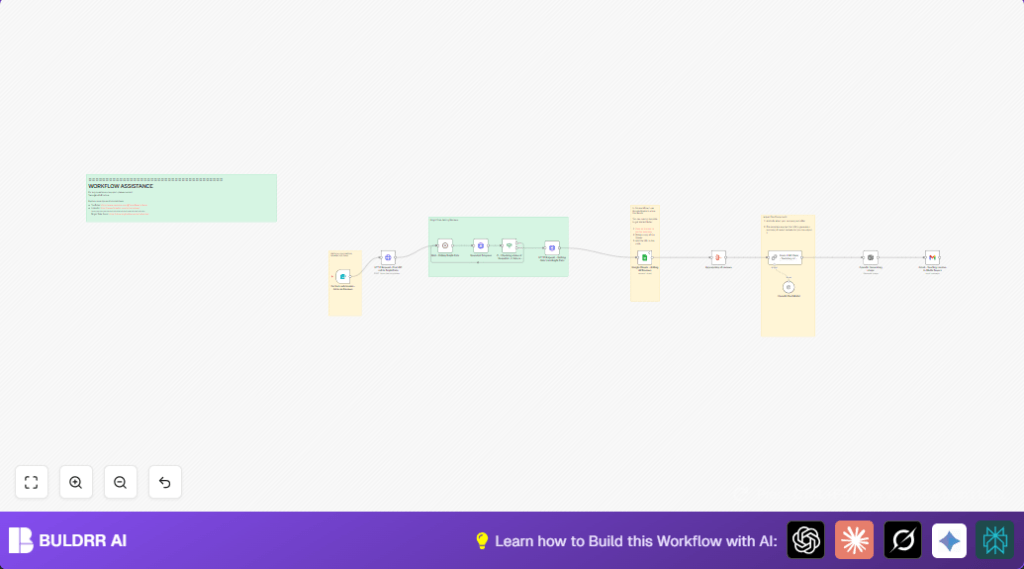
- User submits a product URL via a form trigger node.
- Workflow sends a POST request to Bright Data API to start scraping.
- A wait node pauses the flow to allow data scraping.
- An HTTP request polls Bright Data periodically to check if scraping is done.
- Once ready, the workflow fetches the review data in JSON.
- Review data is appended to the configured Google Sheets.
- All review texts are combined into one long text string.
- OpenAI GPT-4 creates a summary highlighting competitor weaknesses.
- OpenAI image generation creates a creative ad image based on weaknesses.
- Gmail node sends an email with summary text and attached AI image.
Output
- A Google Sheet populated with detailed competitor reviews.
- A text summary explaining the main weak points of the competitor product.
- An AI-designed, fun ad image ready for campaign use.
- An email delivering all insights and media to decision makers.
Beginner step-by-step: How to build this workflow in n8n for production
Importing and setup
- Download the workflow file using the Download button on this page.
- Open your n8n editor (cloud or self-host n8n) and select Import from File.
- Upload the downloaded workflow file to your environment.
Configure required credentials
- Enter your Bright Data API Key in the appropriate HTTP Request nodes.
- Link your Google Sheets account and specify the spreadsheet ID for data storage.
- Add your OpenAI API Key inside the GPT-4 and image generation nodes.
- Set up your Gmail OAuth2 credentials for the email sending node.
Customize workflow settings
- Check the Google Sheet ID matches your worksheet for review appending.
- Update the recipient email address in the Gmail node to notify the right people.
- Verify the Bright Data dataset ID is correct if changed.
- Review the OpenAI prompt texts for summary and image generation.
Test and start using the workflow
- Run the workflow once with a test Amazon product URL submission to confirm steps run successfully.
- Check Google Sheets for new review data.
- Confirm the summary and image generation complete without error.
- Ensure the summary email arrives as expected.
- Activate the workflow to run automatically from form submissions by toggling it live.
Customization ideas
- Change the Google Sheet ID to save data in a personal or company-specific file.
- Edit the OpenAI prompt to focus on different review insights, such as strengths instead of weaknesses.
- Adjust the Wait node polling interval to balance speed and API call limits.
- Update the Gmail recipient or send notifications to Slack instead.
- Modify the AI image prompt to fit your brand style or campaign themes.
Common problems and how to fix them
Problem: API calls to Bright Data return “401 Unauthorized.”
Cause: Wrong or missing API Key.
Fix: Check your API key headers and renew the key if expired.
Problem: The Bright Data snapshot stays “running” too long.
Cause: API delay or wrong snapshot ID.
Fix: Verify snapshot ID and increase poll wait time.
Problem: Google Sheets node cannot save data.
Cause: Wrong Sheet ID or expired Google credentials.
Fix: Confirm Sheet ID and refresh authentication.
Summary of benefits and results
✓ Automates Amazon review scraping without manual work.
✓ Saves time by cutting 5-8 hours weekly in data collection.
✓ Provides clean, structured review data in Google Sheets.
✓ Creates clear summaries of competitor weaknesses with AI.
✓ Generates creative AI ad images based on review insights.
✓ Sends reports and media automatically to marketing teams.
