

What This Automation Does
This workflow searches Indeed for job postings matching your chosen keywords, location, and country code automatically.
It scrapes fresh data from Indeed up to the last 24 hours using Bright Data’s API.
Then it stores the data into Google Sheets for easy viewing.
Finally, it uses an AI model to say YES or NO if the job fits your company’s needs.
This saves lots of time and helps recruiters find good jobs fast.
Inputs, Processing Steps, and Output
Inputs: The workflow starts with user entries: Job Location, Keyword, and Country code via a form.
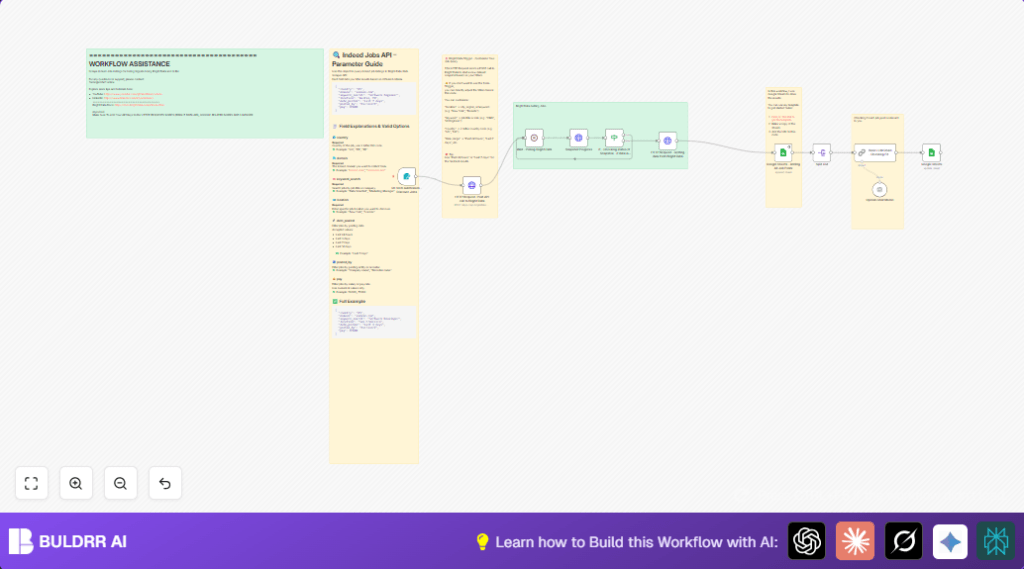
Processing steps: The workflow triggers a Bright Data scraping snapshot using those inputs.
It waits and checks repeatedly until the scraping is done.
Then it collects all job listings found.
Next, it adds that data into a Google Sheet.
Splits the list into single jobs.
Then asks the OpenAI GPT-4o-mini AI if each job is a good fit based on company profile.
Output: The Google Sheet is updated with all jobs plus AI’s YES or NO on fit.
This helps recruiters quickly see which roles to focus on.
Who Should Use This Workflow
This is for recruiters or HR professionals who spend hours look through job boards.
Anyone wanting to see new job openings quickly and decide if they match hiring goals.
The workflow is good for people wanting a simple tool to automate scraping and job review.
Tools and Services Used
- n8n Automation Platform: Runs the workflow automation.
- Bright Data API: Scrapes job data from Indeed.
- Google Sheets: Stores and updates job data.
- OpenAI GPT-4o-mini model: Reads job posts and says YES or NO if it fits.
Beginner Step-by-Step: How to Use This Workflow in n8n
Download and Import the Workflow
- Click the Download button on this page to get the workflow file.
- Open n8n editor where you want to use it.
- Choose “Import from File” and load the downloaded file.
Configure Credentials and Settings
- Go to each node needing API keys or login info.
- Enter your Bright Data API Key in the HTTP Request node headers.
- Connect your Google Sheets credentials with write permission.
- Add your OpenAI API Key for the Chain LLM node.
- Update any spreadsheet IDs, emails, or folder names to match your setup.
- Make sure the form trigger’s fields fit your input needs.
Test and Activate
- Submit a test form input with job location, keyword, and country code.
- Watch the workflow run and check Google Sheets for results.
- Fix any errors from logs if needed.
- When ready, activate the workflow toggle for full use.
For self hosted n8n users, use this resource for hosting info:
self-host n8n
Detailed Workflow Breakdown
Input
The user fills a form in the Form Trigger node.
The form includes Job Location, Keyword, and Country code.
Processing Steps
- Trigger Bright Data scraper with an HTTP POST to get job snapshots.
- Wait 1 minute (using Wait node) to avoid rapid polling.
- Check the snapshot status with HTTP GET until status shows completed.
- Once ready, HTTP GET retrieves all new job postings JSON data.
- Append scraped data into Google Sheet using Google Sheets append operation.
- Split job records into singles with Split Out node.
- Ask OpenAI with Chain LLM node to check if each job is fit.
- Update Google Sheet rows with AI’s YES/NO results.
Output
The user gets a Google Sheet populated with fresh job listings.
Each row includes AI advice if the role is worth pursuing.
Common Issues and Fixes
- 401 Unauthorized: Check Bright Data API Key in HTTP Headers.
- Google Sheets data not updating: Verify Spreadsheet ID and OAuth permissions.
- Workflow stuck polling: Confirm If node condition checks exactly {{ $json.status }} == “running”.
Customization Ideas
- Change job post date range by editing the
date_postedin HTTP POST body. - Update AI prompt in Chain LLM node to match your target company.
- Scrape different Indeed domains for other countries by changing
domainin HTTP POST. - Send email or Slack alerts when AI outputs “YES” using notification nodes.
- Use your own Google Sheets template for extra columns or tracking.
Summary
✓ Automates scraping of fresh Indeed job posts based on search criteria.
✓ Stores results in Google Sheets automatically.
✓ Uses AI to decide fit of jobs to hiring goals.
✓ Saves hours of manual job research for recruiters.
✓ Easy to import, configure, and run in n8n.
→ Clear, fast view of new job leads.
→ Enables quick, informed recruitment decisions.
