

What This Automation Does
This workflow helps send daily emails with new n8n workflow templates to subscribers based on their interests. It solves the problem of spending too much time manually checking, summarizing, and emailing new workflows. The output is a personalized, concise email digest sent automatically every morning.
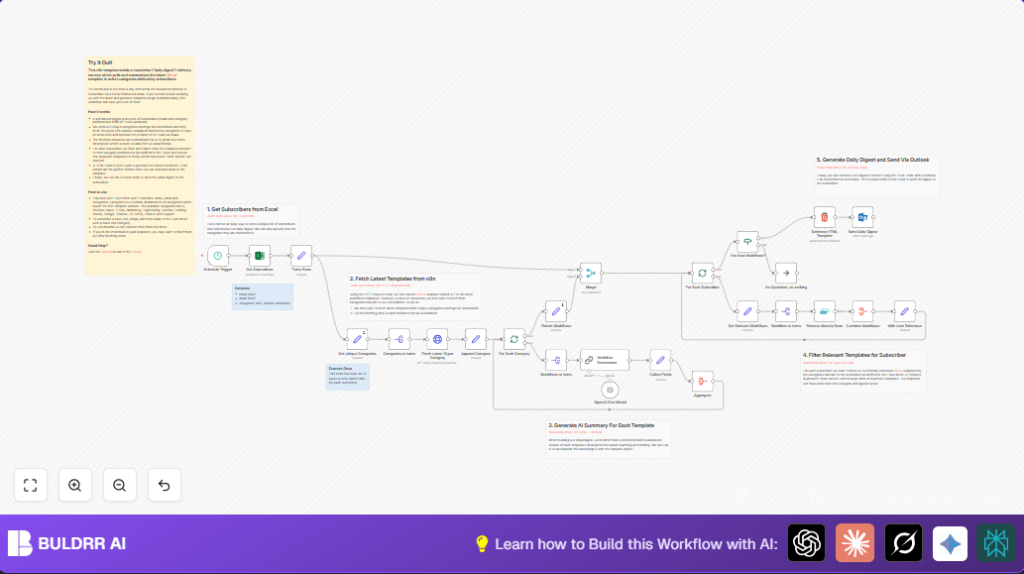
It pulls subscriber data from Microsoft Excel, gets the latest workflows from n8n’s API by category, summarizes descriptions using an AI model, and sends filtered digests with new items via Microsoft Outlook.
Tools and Services Used
- Microsoft Excel: Source of subscriber names, emails, and workflow categories.
- n8n API: Provides the latest workflow templates filtered by category.
- OpenAI GPT-4o-mini model: Summarizes long workflow descriptions into short readable text.
- Microsoft Outlook: Sends the personalized email digests.
- n8n Automation Platform: Orchestrates the entire workflow process.
How This Workflow Works
Inputs
- Subscriber details from an Excel workbook: names, emails, and comma-separated categories.
- Latest workflow templates from n8n API filtered by unique categories.
Processing Steps
- Read subscriber info via Microsoft Excel node, parse categories into arrays.
- Extract unique categories from all subscribers to reduce API calls.
- Use HTTP Request node to fetch latest 10 workflows per category from n8n API.
- Append category metadata to workflow items for filtering.
- Aggregate workflows from all categories into one list.
- Summarize each workflow description with ChainLLM node using OpenAI GPT-4o-mini.
- Combine original data and summaries for enriched workflow info.
- Iterate subscribers; filter workflows by each subscriber’s categories.
- Remove workflows already sent before, preventing duplicates.
- Prepare a customized HTML email template listing new workflows grouped by category.
- Send personalized email digest via Microsoft Outlook node.
Output
A daily, personalized HTML email sent to each subscriber with new, relevant n8n workflows and summaries.
Beginner Step-by-Step: How to Use This Workflow in n8n
Download and Import the Workflow
- Download the workflow file using the Download button on this page.
- Inside the n8n editor, click the menu and select Import from File.
- Upload the downloaded workflow file to n8n.
Configure Credentials and Settings
- Add Microsoft Excel credentials to the Microsoft Excel node.
- Provide your OpenAI API key in the ChainLLM node for summarization.
- Set up Microsoft Outlook credentials in the Microsoft Outlook node.
- Update the Excel workbook ID and worksheet name if different from defaults.
- Check and adjust email addresses, categories, and any parameters like API URLs if needed.
Test and Activate
- Run the workflow manually once to make sure all nodes work correctly.
- Check sample email delivery and formatting.
- After confirming success, enable the Schedule Trigger to run daily at 6 AM.
This starts automatic sending of daily new workflow digests to subscribers without manual steps.
Common Issues and Fixes
- Empty Microsoft Excel output: Verify workbook and sheet IDs; ensure rows exist with correct columns.
- OpenAI summary errors: Check API key validity; confirm prompt formatting in the ChainLLM node.
- Emails not sending: Refresh Microsoft Outlook OAuth2 credentials; review account restrictions.
Customization Ideas
- Change email sender by editing the Microsoft Outlook node fields
fromandreplyTo. - Filter out paid workflow templates using an If node after fetching workflows.
- Modify the text style in the AI summary prompt to fit desired tone or length.
- Adjust the Schedule Trigger run hour for different time zones.
- Consider self-host n8n to run this automation privately on a server.
Summary
✓ Saves hours daily by automating subscriber updates.
✓ Ensures no duplicates or missed new workflows.
✓ Sends personalized digest emails via Microsoft Outlook.
✓ Uses AI summarization to make contents shorter and clear.
✓ Reduces manual errors and boosts subscriber engagement.
