
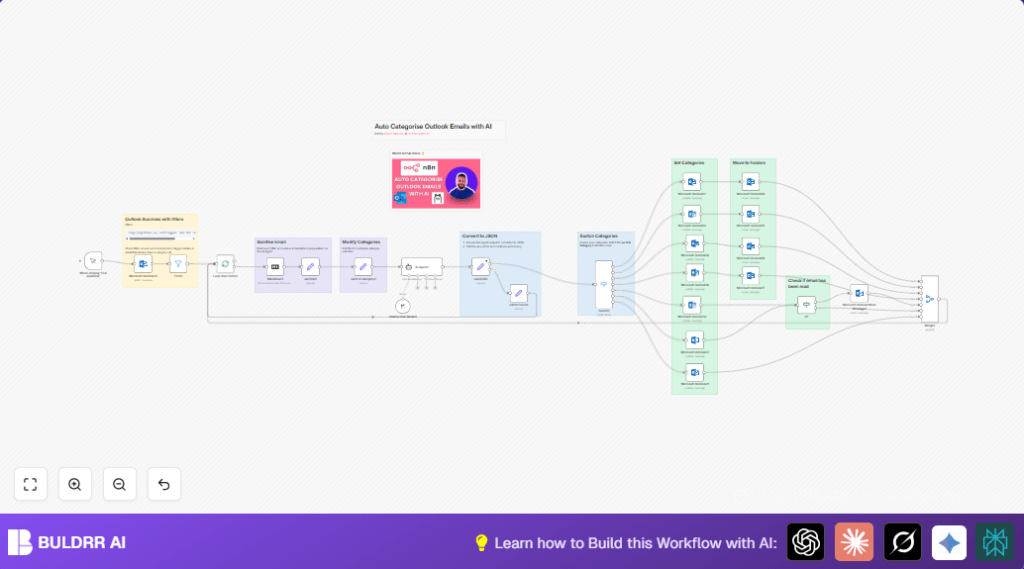

What this workflow does
This workflow automatically finds Outlook emails that are not flagged and have no categories yet assigned.
It cleans email content and uses AI to sort emails into groups like Action, Junk, Receipt, SaaS, Community, Business, or Other.
Then it updates Outlook with the right categories and moves emails to matching folders.
This saves lots of time and stops mistakes in manual sorting.
Who should use this workflow
This is good for users who get many emails daily in Outlook and want to reduce time spent on sorting.
It suits people who want clear categories without doing manual tagging.
You need some basic skills in n8n and access to Microsoft Outlook API.
Tools & services used
- Microsoft Outlook API: To fetch, update, and move emails.
- n8n Workflow Automation: To run and connect all steps.
- Ollama LangChain AI Agent (Qwen2.5 14B Model): To analyze email content and decide categories.
Beginner step-by-step: How to use this workflow in n8n production
Step 1: Import the workflow
- Download the workflow file using the Download button on this page.
- In the n8n editor, choose “Import from File” and upload the downloaded workflow.
Step 2: Configure credentials and settings
- Go to each Microsoft Outlook node and add or verify Outlook API credentials.
- Open the AI Agent1 node and ensure the Ollama API Key is set properly.
- Update Outlook folder IDs if needed to match your mailbox folders.
- Check the varID & Category1 node to confirm or change category names if desired.
Step 3: Test the workflow
- Run the workflow manually using the Manual Trigger node.
- Watch the execution and check if emails are categorized and moved as expected.
Step 4: Activate for production
- Change the trigger from manual to scheduled or webhook depending on needs.
- Save and activate the workflow.
- Monitor runs on n8n and review logs for errors.
Beginner users can start breaking down and understanding each step if they want, but this guide helps quickly get the workflow running with minimum hassle.
Workflow inputs, processing, and outputs explained
Inputs
- Outlook emails that have no flags and no categories.
- Email fields like subject, sender, body (HTML), and importance.
Processing
- Filter emails for uncategorized and unflagged only.
- Handle emails one at a time for stable processing.
- Clean email body from HTML to plain text using the Markdown node.
- Sanitize important email fields to remove HTML tags, images, and special characters.
- Use AI agent with a strict prompt to analyze and assign category.
- Parse AI output JSON safely for category results.
- Route emails based on category to update Outlook categories and move folders.
- Check if email was read; move to “Actioned” folder if yes.
- Merge all processed emails and repeat until done.
- Catch and log any errors without stopping overall workflow.
Outputs
- Outlook emails with new categories assigned.
- Emails moved to folders based on assigned category.
- Error logs for failed email processing.
Common edge cases and failures
- AI output not valid JSON stops category parsing.
- Outlook API failures when messageId is incorrect or access lacks permissions.
- Emails already read are treated differently to avoid duplicate actions.
- Timeouts or rate limits on AI calls may slow batches.
Error handling nodes log issues but let other emails process.
Customization ideas
- Add new categories in varID & Category1 node if more types needed.
- Adjust AI model temperature to make classification more strict or creative.
- Rename Outlook folders in move nodes to match your mailbox exactly.
- Change Outlook query filters to handle flagged emails or specific folders.
- Extend AI prompt for sentiment, priority, or deeper content analysis.
Customizations allow tuning the workflow to fit unique mailbox setups or user preferences.
Example AI prompt for categorization
Below prompt is used in the AI Agent1 node to ask AI how to categorize each email.
=Categorise the following email

{{ $('varEmal1').first().json.toJsonString() }}


Ensure your final output is valid JSON with no additional text or token in the following format:
{
  "subject": "SUBJECT_LINE",
  "category": "CATEGORY",
  "subCategory": "SUBCATEGORY", //use sparingly
  "analysis": "ANALYSIS_REASONING"
}
This prompt forces the AI to reply only with clean JSON, avoiding parsing errors downstream.
Important notes on running and hosting n8n with this workflow
For best results run the workflow inside a stable n8n environment with internet access to Outlook and Ollama APIs.
Using self-host n8n offers more control over credentials, better security, and option to monitor logs tightly.
Make sure API keys and folder IDs are kept up to date for smooth operation.
Summary of benefits
→ Saves hours by automating email sorting.
→ Guarantees consistent and clear email categories.
→ Reduces mistakes from manual sorting.
→ Keeps inbox organized by moving emails into correct folders.
→ Catches errors and continues working without stopping.
