
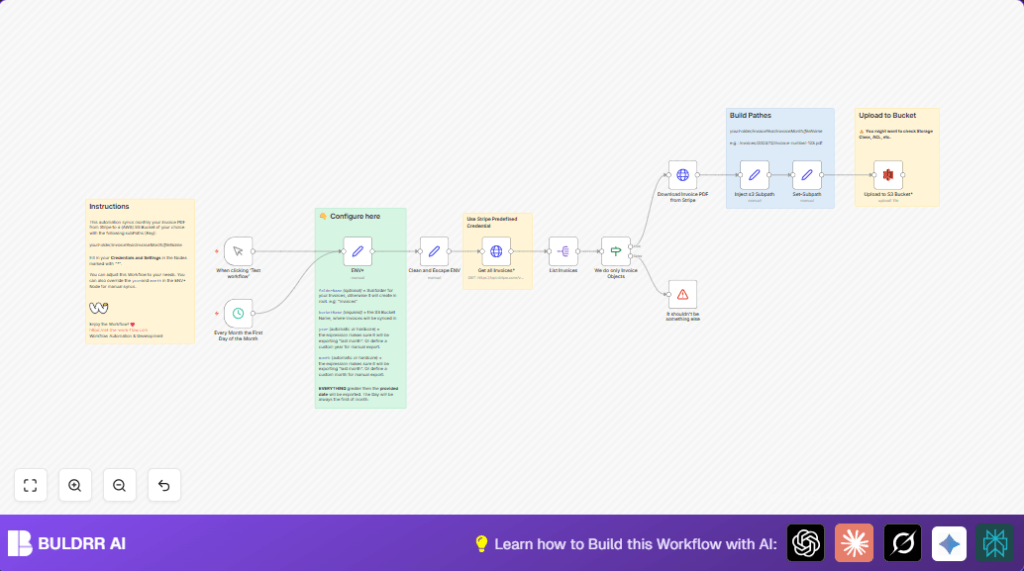

What This Workflow Does
This workflow automatically downloads Stripe invoices from the last month and uploads them to an AWS S3 bucket organized by year and month folders.
It runs once every month, fetches invoice PDFs from Stripe’s API, and saves them in the right folder on S3.
This saves time by removing manual steps and reduces errors by using a precise folder structure.
Who Should Use This Workflow
This workflow is good for finance teams or small business owners who need their monthly Stripe invoices saved safely to AWS S3.
It is helpful for those who want to avoid downloading and uploading files by hand every month.
Users with basic knowledge of Stripe and AWS or access to the necessary API keys will find this useful.
Tools and Services Used
- Stripe API: To get invoice data and PDF links.
- AWS S3: For storing invoice PDF files in organized folders.
- n8n platform: Automates the workflow with nodes like HTTP Request, Set, If, and AWS S3 nodes.
Workflow Inputs, Processing, and Outputs
Inputs
- Time trigger set to run on the first day of each month.
- Stripe API credentials for secure access to invoices.
- AWS S3 credentials with permission to upload files.
- Environment variables for bucket name, subfolder, year, and month.
Processing Steps
- Schedule trigger fires monthly automatically.
- Variables for last month’s year and month are set and cleaned.
- Stripe API called to get all invoices created after the first day of last month.
- Invoice list is split into individual items.
- Only objects labeled “invoice” pass through; others stop workflow with error.
- PDF file is downloaded using the invoice PDF URL.
- Invoice creation date is extracted to build the year/month folder path.
- Full S3 path is constructed combining subfolder, year, month, and invoice file name.
- PDF file is uploaded to AWS S3 bucket with Intelligent Tiering storage class.
Output
Each invoice PDF is saved inside the S3 bucket under folders named by year and month, e.g., “invoices/2024/04/invoice-1234.pdf”.
Beginner Step-by-Step: How to Use This Workflow in n8n
Step 1: Import the Workflow
- Download the workflow file using the Download button on this page.
- Open the n8n editor.
- Choose “Import from File” and select the downloaded workflow file.
Step 2: Configure Credentials and Variables
- Set up Stripe API credentials inside n8n, making sure the keys have access to invoices.
- Set up AWS S3 credentials inside n8n with permissions to upload files.
- In the Set node named ENV*, update the
bucketNamewith your AWS S3 bucket name. - Optionally change the
subFolderif a different folder name is preferred.
Step 3: Test the Workflow
- Run the workflow manually to check the invoice download and upload process.
- Verify that invoices appear in the correct S3 bucket and folder.
Step 4: Activate the Workflow
- Switch the workflow status to “Active” to enable automatic monthly runs.
- Monitor execution logs at first to ensure smooth runs.
Optionally, consider adding notification nodes to get messages when uploads finish or fail.
For users interested in self-host n8n, importing and running this workflow similarly works on a self-hosted setup.
Customization Ideas
- Change invoice filtering to handle other Stripe data besides invoices.
- Rename the S3 subfolder by editing the Set node called ENV*.
- Manually pick a different month or year by updating variables in the Set node.
- Adjust storage class or access control settings in the AWS S3 upload node.
- Add email or Slack notifications after uploading invoices.
Handling Errors and Edge Cases
If the workflow shows “Unexpected or missing Invoice Obj” messages, check the If node filtering to match the current Stripe invoice object structure.
For AWS S3 upload failures, verify that S3 bucket names and AWS permissions are correct and the credentials in n8n have full upload rights.
Enable n8n debug mode to inspect API responses and node outputs when troubleshooting.
Summary of Results
✓ Save about 2 hours every month by automating invoice backups.
✓ Avoid mistakes from manual downloads and uploads.
✓ Store invoices safely with clear year/month folder organization in AWS S3.
→ Workflows run automatically on the first day of each month without needing manual start.
→ Users get more time to focus on important finance tasks.
