
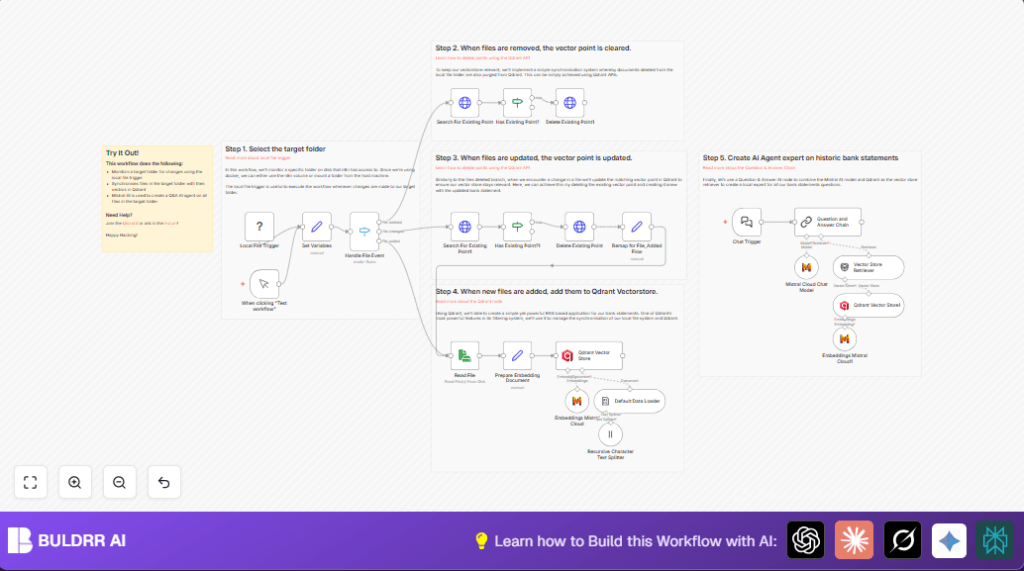

What This Workflow Does
This workflow watches a folder on your computer for new, changed, or deleted files. It updates a database that holds special vectors representing these files. When a file is deleted, it removes its vector from the database. When a file is added or changed, it creates or updates the vector. You can then ask questions about all files using an AI chat interface that reads from this up-to-date vector database.
You get an automated system that keeps your file data ready to search with AI, saving hours you would waste doing it yourself.
Who Should Use This Workflow
This is for people who store many PDF bank statements or documents on their computer and need an easy way to keep track of changes. They want to find information faster without opening every file. It works well for anyone who needs an up-to-date searchable AI helper for local document collections.
Tools and Services Used
- n8n: Automates watching files and processing data.
- Local File Trigger node: Detects file add, change, or delete events in a folder.
- Qdrant Vector Database: Stores vectors created from file content for searching.
- Mistral Cloud API: Creates vector embeddings and AI chat responses.
- HTTP Request node: Communicates between n8n and Qdrant API.
- Read Write File node: Reads file contents for embedding.
- Set node, Switch node, If node: Handle data routing and conditions inside n8n.
- self-host n8n for container setup to access local folders.
How This Workflow Works: Input → Process → Output
Inputs
- File add, modify, or delete events from a specified local folder.
- File paths and metadata about these changes.
Processing Steps
- The workflow listens for file system events using the Local File Trigger.
- It sets variables to keep track if the file was added, changed, or deleted.
- The Switch node directs workflow path based on event type.
- For deletions, it queries Qdrant using an HTTP Request to find vectors linked to the file, then deletes them if found.
- For changes or adds, it also deletes existing vectors for that file first to prevent duplicates.
- The workflow reads new or changed file content using the Read Write File node.
- A Set node prepares the file content with metadata into a single document string for embedding.
- The Embeddings Mistral Cloud node generates vector embeddings representing the file’s meaning.
- The Qdrant Vector Store node inserts or updates these vectors in the “local_file_search” collection.
Outputs
- An updated vector database reflecting the exact current set of files and their content.
- An AI chat interface where users can ask questions and get answers based on these stored document vectors.
Beginner Step-by-Step: How to Use This Workflow in n8n for Production
Step 1: Download and Import Workflow
- Click the Download button on this page to get the workflow file.
- Open your n8n editor where you want to run the automation.
- Choose “Import from File” and upload the downloaded workflow.
Step 2: Configure Credentials and Settings
- Go to each AI and API-related node, like Embeddings Mistral Cloud and HTTP Request, and add your Mistral Cloud API key.
- Update the Qdrant connection details in the configuration if needed.
- If needed, adjust folder paths or collection names to match your setup.
Step 3: Test the Workflow
- Add or change a file in the monitored folder and see if the workflow triggers with no errors.
- Check if the vectors update in Qdrant correctly.
- Try deleting a file and confirm the vectors are removed.
Step 4: Activate Workflow for Production
- Turn on the workflow toggle switch to enable it.
- Keep the n8n process running continuously to catch file events.
- Monitor logs to ensure stability and fix issues if any appear.
Customizations to Consider
- Change folder in Local File Trigger to monitor other directories.
- Switch Qdrant collection name in variables for separate file groups.
- Modify file content preparation to add metadata or handle PDFs with OCR tools.
- Replace Mistral AI nodes with other embedding or language models if preferred.
- Adjust parameters in Mistral Cloud Chat Model node for different chat behavior.
Troubleshooting Common Problems
No events detected from Local File Trigger
This usually means the folder is not correctly shared with the n8n process.
Check your Docker mounts to make sure the path /home/node/host_mount/local_file_search is accessible by n8n.
Vectors not deleted after file removal
Check that the HTTP Request node is configured to delete vectors properly.
Ensure the correct vector IDs are included in the delete request body.
Embedding generation fails
Verify the Mistral Cloud API key is valid and the account does not exceed limits.
Look at execution logs for error messages from the embedding API.
Pre-Production Checklist
- Verify Docker folder mounts and local path are correct for Local File Trigger.
- Test file add, delete, and change to confirm triggers fire as expected.
- Validate Qdrant connection with sample queries via HTTP Request nodes.
- Check that Mistral Cloud credentials are active.
- Send test chat questions to the webhook URL and check for sensible answers.
Deployment Guide
Switch workflow active toggle ON in the n8n UI.
Keep system and container running to monitor file changes 24/7.
Watch execution logs in the n8n editor to catch and fix errors early.
Summary
✓ Automatically tracks and updates file vectors based on folder changes.
✓ Keeps a vector database synchronized with the exact set of files to query.
✓ Provides an AI chat assistant to answer questions on all local documents.
→ Saves hours of manual document management weekly.
→ Gives easy access to insights from many PDFs without opening them.
