

What This Automation Does
This workflow helps solve slow and hard job of answering big RFP PDF files fast and right.
It takes a PDF with lots of questions, finds all questions clearly, and gives good answers that fit the company info.
In the end, it makes a neat Google Docs draft with all questions and answers and sends email and Slack alerts to team for quick review.
This saves lots of work time, cuts mistakes, and makes sales replies faster and better.
Tools and Services Used
- n8n Automation Platform: Runs and controls the workflow steps.
- Google Docs API: Creates and updates RFP response documents.
- OpenAI API: Extracts questions and generates answers using AI with custom company knowledge.
- Slack API: Sends chat notifications to the sales team.
- Gmail API: Sends email alert to requester when done.
- Webhook Receiver: Accepts incoming RFP PDF files securely for processing.
Inputs, Processing, and Outputs
Inputs
- RFP PDF file sent in HTTP POST request to the Webhook node.
- Metadata like document ID, title, and requester email sent with the PDF.
Processing Steps
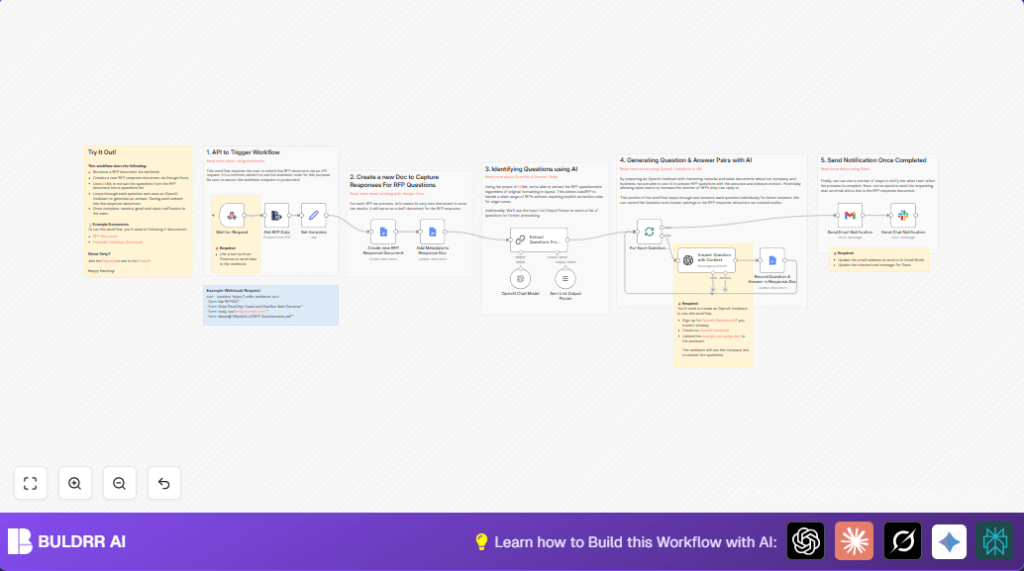
- Extract text from PDF using Extract From File node.
- Set variables for document title, filename, and reply email.
- Create a new Google Docs document to store answers.
- Add metadata header with title, date, requester info, and workflow execution link.
- Send the extracted text to the LangChain LLM node to find and pull out all supplier questions exactly.
- Parse the question list into separate items for batch processing.
- Loop through each question to get AI-generated answers from a custom OpenAI Assistant.
- Append each Question & Answer pair in the Google Docs draft using Google Docs node.
- After all questions are answered, send email alert to the requester.
- Send Slack notification to the sales team channel about completion.
Outputs
- A Google Docs document with all questions and AI-generated answers, ready for review.
- Email notification sent to the requester with response details.
- Slack message notifying sales team about the finished document.
Who Should Use This Workflow
This workflow is best for sales teams who get many RFPs and want to save time by automating question extraction and answering.
It helps teams without coding skills to reduce errors and speed up response.
Also good for organizations using Google Docs, Slack, Gmail and OpenAI APIs already.
Beginner Step-by-Step: How to Use This Workflow in n8n Production
Download and Import Workflow
- Click the “Download” button on this page to get the workflow file.
- Open your n8n editor (hosted or self-hosted). Self-host n8n is a good option if not already running.
- Select “Import from File” option in n8n and upload the workflow file.
Configure Workflow Settings
- Add required API credentials in n8n: Google Docs, OpenAI, Slack, Gmail.
- Update IDs and emails in nodes: Google Drive folder ID, Slack channel ID, reply-to email.
- Check the prompt or code in the LangChain LLM node and LangChain OpenAI node matches your company context.
Test the Workflow
- Send a test RFP PDF with metadata to the workflow’s webhook URL using Postman or curl.
- Check the execution on n8n for successful completion.
- Verify the new Google Docs document is created and populated correctly.
- Confirm email and Slack notifications are received.
Activate for Production
- Switch the workflow status to “Active” in n8n.
- Make sure the webhook URL is publicly accessible and secure.
- Watch workflow runs from n8n dashboard and fix any errors.
Customizations
- Change the
folderIdin Create new RFP Response Document Google Docs node to use your preferred Google Drive folder. - Upload more or updated company files in OpenAI Assistant to improve answer quality.
- Edit recipient emails in the Gmail node and Slack channel ID in the Slack node to notify different people.
- Add more metadata fields like contract numbers or deadlines in the metadata header step.
Troubleshooting Common Issues
Webhook Not Receiving RFP Data
Make sure you use the exact webhook URL from Webhook node.
Use HTTP POST and attach the PDF file as form-data with key “data”.
Google Docs Folder Access Denied
Check the folderId in the Google Docs node is correct.
Ensure your Google account has permission to edit the folder.
OpenAI API Key Invalid or Unavailable
Verify API key is correctly set in n8n credentials.
Test AI nodes with a simple prompt first.
Summary of Benefits and Outcomes
✓ Saves over 8 hours per RFP by automating question extraction and answering.
✓ Reduces errors and inconsistent replies by using AI and company-specific context.
✓ Produces professional Google Docs drafts ready for quick review.
✓ Sends automatic email and Slack notifications for smooth team communication.
✓ Makes complex and slow RFP workflows faster and easier to manage.
